FluxGrowth is reader-supported. Some links in our guides are affiliate links — if you buy through one we may earn a commission, at no extra cost to you. It never changes which tools we recommend. How we test tools.
You do not need 50 tools to build a great website. You need the right five.
That is a lesson most people learn the hard way. They sign up for every platform they see in a YouTube tutorial, end up juggling six subscriptions, and still cannot ship a project on time. The problem is not effort. It is the absence of a clear workflow.
I run FluxGrowth, and I’ve tested more tools than I care to admit builders, AI platforms, design suites, code editors. The pattern I keep seeing: the developers shipping the cleanest projects aren’t the ones with the longest tool lists. One freelancer I spoke to recently builds entire client sites with four tools. That’s it. Four.
This guide is built around that principle. You will not find a padded list of 50 tools here. Instead, you will find an honest breakdown of the best website development tools for 2026 — organized by category, explained by use case, and assembled into practical stacks you can copy today.
Quick Summary
| Category | Top Pick | Best For |
| Design | Figma | All skill levels |
| Website Builder (No-Code) | WordPress | Scalability and SEO |
| Website Builder (Visual Dev) | Webflow | Designers and agencies |
| Coding Editor | VS Code | All developers |
| Version Control | GitHub | Collaboration and deployment |
| Browser Dev Tools | Chrome DevTools | Debugging and performance |
| API Testing | Postman | Backend and full-stack devs |
| AI Coding Assistant | Cursor | Complex, multi-file projects |
| AI for Code Help | GitHub Copilot | Everyday development speed |
| AI for Writing / Planning | ChatGPT or Claude | Content, copy, and architecture |
| Performance Testing | Google Lighthouse | Free, built-in, reliable |
What Are Website Development Tools?
Website development tools are the software, platforms, and applications that help you plan, design, build, test, and launch websites. They cover a wide range of functions from drag-and-drop builders to code editors, version control systems, design platforms, AI assistants, and performance auditing tools.
The term is broad by design. A beginner creating their first portfolio might rely entirely on Wix. A senior developer might live inside VS Code, GitHub, and Chrome DevTools all day. An agency might combine Figma for design, Webflow for development, and Postman for API testing.
None of these approaches is wrong. What matters is whether your tools work together and whether they match your actual skill level and goals. That second part matching your stage is where most people go wrong.
How to Choose the Right Website Development Tools
Before downloading anything, answer three questions: What is your current skill level? What type of site are you building? And what does growth look like for this project in 12 months?
The tools that serve you well today might box you in later. The tools that give you full control might paralyze you before you ever launch. The goal is a good match right now with enough room to level up when the time comes.
For Beginners
Your biggest risk at this stage is getting stuck in setup rather than building. That means choosing tools with low friction, solid documentation, and active communities where someone has already asked your question.
Start with a visual website builder like Wix or WordPress.com. Use Canva for quick design work. Add ChatGPT or Claude when you hit a wall they can explain concepts in plain English, suggest fixes, and help you think through structure without making you feel stupid for asking.
Do not touch code editors or terminal commands until you have shipped something. Anything. The goal right now is momentum.
For Freelancers
Freelancers need tools that are fast to use, easy to hand off, and legible to clients who are not developers.
Web flow has become the go-to choice for many solo web builders because it produces clean, professional sites that clients can update themselves after handoff without breaking anything. Figma is the industry standard for presenting design mockups before a single line is written.
For content-heavy sites, WordPress with Elementor still delivers faster than almost any other stack. Clients already know it, which cuts onboarding time. AI tools like GitHub Copilot trim the repetitive parts of development component scaffolding, boilerplate, CSS resets so you can spend more time on the work that actually requires your judgment.
For Agencies
Here’s the thing agencies do not fail because of bad tools. They fail because every developer on the team uses a different version of the same tool with no agreed workflow.
Webflow’s workspace features let you manage multiple client sites under one account with proper permissions and handoff protocols. Figma’s collaborative environment means designers, developers, and clients can annotate and comment on the same file instead of emailing screenshots back and forth.
Version control through GitHub is non-negotiable at this scale. Every project needs a proper repository, branching structure, and deployment pipeline. Chrome DevTools and Google Lighthouse should be part of every QA pass before a site goes live not an afterthought.
AI tools like Cursor are worth the investment for development teams especially on React or Next.js projects where changes ripple across a dozen files at once. Cursor’s Composer can draft multi-file diffs in seconds. Reviewing and applying them still takes judgment, but the time savings on a complex component refactor can be 30–40 minutes per sitting.
For Businesses
Business owners generally do not need to know how to code. They need a site that stays up, can be updated without calling a developer, and does not require a monthly retainer just to change a phone number.
WordPress powers over 43% of all websites on the internet that number has held for years because the platform genuinely scales. It is flexible, affordable, and backed by an ecosystem of over 60,000 plugins. For simpler sites, Wix bundles hosting, security, and automatic updates into a single subscription, which removes most of the maintenance overhead.
If you are running any kind of e-commerce, check early whether your builder handles that natively or whether you will need to bolt on Shopify or WooCommerce. Finding out at launch is too late.
Best Website Development Tools for Design
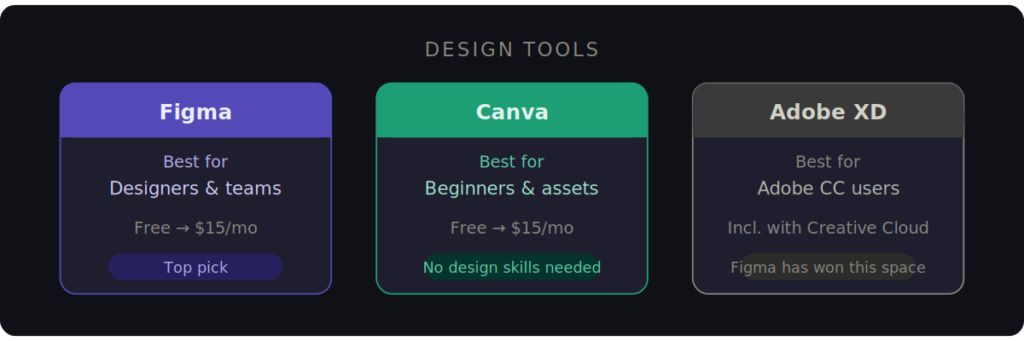
Good design is not optional. A confusing or visually inconsistent site loses visitors before they ever read a word regardless of how technically clean the build is. These tools help you plan and visualize before writing a single line of code.
Suggested image placement: Logo or interface screenshot of each design tool directly below its heading.
Canva
Best for: Beginners, non-designers, quick mockups, social and marketing assets
Canva is the easiest entry point into design for anyone without a formal visual design background. Its drag-and-drop interface, template library of over a million assets, and built-in Brand Kit features mean you can produce visually consistent graphics in under an hour.
For website development specifically, Canva earns its place for hero graphics, Open Graph preview images, icon sets, and early layout sketches. It is not a wireframing tool. But it helps non-designers get a visual idea out of their head and into a shareable format which is often the bottleneck.
Canva has a website builder feature too. Use it if you want something live in a day. For anything you intend to grow, move to a proper builder once the design direction is locked.
Free plan: Available. Canva Pro starts at $15/month.
Figma
Best for: Professional designers, design-to-development handoff, team collaboration
Figma is where most serious web design work happens in 2026. It is browser-based (no install, no version conflicts), and its real-time multiplayer editing lets designers, developers, and clients work in the same file simultaneously which eliminates the “which version is this?” problem entirely.
For web development, Figma is especially powerful for building component libraries and responsive layout systems. Developers can inspect any element directly in Figma and extract spacing, color values, font sizes, and CSS properties without the designer needing to export anything manually.
If you are moving from design into development, learn Figma first. Most modern workflows start with a Figma file and end with a Webflow or React build and everything in between runs smoother when both sides are working from the same source of truth.
Free plan: Available for up to 3 projects. Figma Professional starts at $16/month per editor.
Adobe XD
Best for: Teams already invested in Adobe Creative Cloud
Figma has won this category. Most design teams have migrated, and new teams aren’t starting in XD. If you are already paying for Creative Cloud which starts at $54.99/month XD is included and it works fine for UI prototyping and design handoff. But if you are choosing from scratch, start in Figma.
Best Website Builders
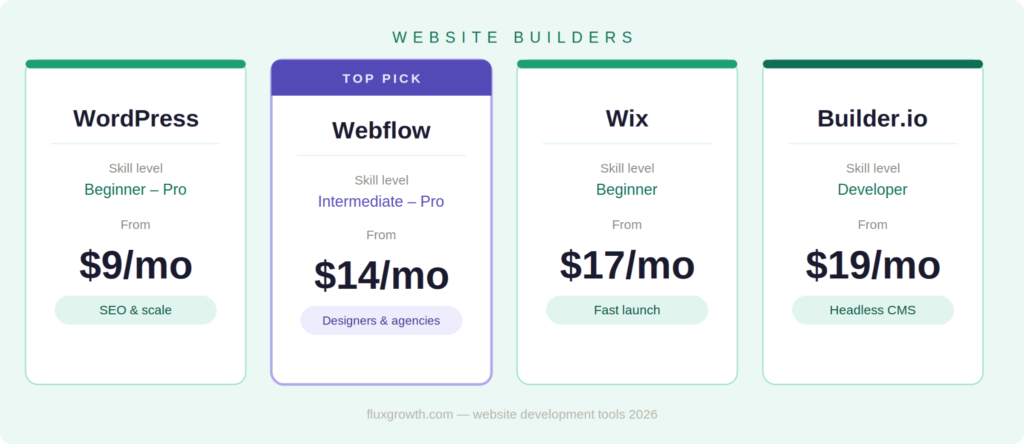
Website builders sit at the intersection of design and development. They let you create functional websites without coding from scratch — though how much control they offer varies enormously. Choosing the wrong one for your use case costs weeks.
Suggested image placement: Comparison table of the four builders (pricing, best for, code export, AI features) after this section intro.
WordPress
Best for: Blogs, business sites, e-commerce, SEO-driven content, long-term scalability
WordPress is the most widely used CMS on the planet powering over 43% of the web and it has earned that position. The plugin ecosystem (60,000+ options) means you can add almost any functionality without custom development. Its SEO control, through plugins like Yoast or Rank Math, is deeper than any other major builder.
The honest trade-off: WordPress requires effort. You manage hosting separately (typically $5–30/month on hosts like SiteGround or Kinsta), keep plugins updated, and stay on top of security. That is not hard, but it is ongoing work. If you want a platform that grows with you and gives you full ownership, that overhead is worth it.
For startups and businesses building for the long term, WordPress remains the most practical choice for sites that need to scale.
Pricing: WordPress.org is free; you pay for hosting. WordPress.com managed plans start at $9/month.
Webflow
Best for: Designers, agencies, freelancers, marketing sites, portfolio sites
Webflow is the most interesting tool in this category. It is not quite a no-code builder and not quite a code editor — it sits deliberately in between. You design visually, but Webflow generates clean, semantic HTML, CSS, and JavaScript underneath. No bloated themes. No plugin conflicts. Just code that a developer would actually be proud of.
The CMS is structured and flexible. The hosting is built in and fast. The workspace plan lets agencies manage multiple client sites with proper permissions and handoff tools built in.
The learning curve is steeper than Wix — plan for a few days of orientation before you feel productive. But the ceiling is also significantly higher. Webflow supports HTML, CSS, and JavaScript export and React component import, which means you are never truly locked in.
Pricing: Free staging tier. Site plans from approximately $14–18/month (billed annually). Workspace plans for agencies start higher.
Wix
Best for: Beginners, local businesses, service businesses, fast launches
Wix is the most beginner-friendly option on this list. The drag-and-drop editor works without any learning curve, the AI site generator (Wix ADI) can produce a usable first draft from a few prompts, and every plan includes hosting, SSL, and automatic updates.
Plans start at $17/month and go up to $159/month for the Business Elite tier — which bundles unlimited storage, 100 site collaborators, and advanced e-commerce tools for larger operations.
Use Wix when speed and simplicity matter more than long-term flexibility. It is the right choice for a local restaurant, a therapist’s practice page, or a personal portfolio that does not need custom functionality. Knowing that migrating away is difficult. Wix keeps you in its ecosystem.
Pricing: Free plan available (Wix branding included). Paid plans from $9/month.
Builder.io
Best for: Development teams, headless CMS workflows, React and Next.js projects
Builder.io is for teams that have already graduated from traditional website builders and are running a modern JavaScript stack. It is a headless CMS and visual development platform — meaning developers define a component library, and non-technical editors (marketers, content teams) build and update pages visually using those components.
The result: marketing can ship landing pages without opening a GitHub PR. Developers maintain full control over what those pages can do. For a B2B SaaS company running Next.js with a separate content team, this is a meaningful workflow improvement.
For beginners and small businesses without a development team, Builder.io is overkill. Start there only if you already know what a headless CMS is and why you need one.
Pricing: Free tier available. Paid plans from $19/month.
Best Website Development Tools for Coding
These are the tools professional developers use every day. Even if your current workflow is entirely no-code, understanding this layer will become important as your projects grow in scope.
Visual Studio Code
Best for: All developers, all languages, all project types
VS Code is free, fast, and used by an estimated 73% of professional developers worldwide. Its extension marketplace has over 40,000 options ESLint, Prettier, Live Server, Tailwind CSS IntelliSense, GitLens which means you can build exactly the development environment you need without switching applications.
For web development, the built-in terminal, integrated Git controls, and split-editor view alone make it faster than any alternative. It is also the foundation Cursor is built on, so switching between the two is seamless.
If you are learning to code, start here. The skills transfer everywhere, and you will never outgrow it.
Cost: Free and open-source.
GitHub
Best for: Version control, team collaboration, automated deployment, project management
GitHub is where your code lives, where your team collaborates, and where your deployment pipeline starts. Every serious web development project should have a repository — even solo projects, even simple ones.
The basics of commits, branches, and pull requests are not complicated to learn, and they protect you from the single most painful experience in development: losing work. GitHub also integrates directly with Vercel and Netlify, meaning a push to your main branch can trigger an automatic deployment without any manual steps.
(And yes — if you have never had a botched update take down a site you spent three weeks building, you might think version control is optional. It is not.)
Cost: Free for public and private repositories. GitHub Teams at $4/user/month.
Chrome DevTools
Best for: Debugging, layout inspection, performance analysis, mobile simulation
Chrome DevTools is already on your computer. Press F12 on any website and you get immediate access to the HTML and CSS inspector, the JavaScript console, the network activity monitor, and the built-in Lighthouse auditing tool.
For debugging a layout that breaks at 768px, profiling why a page script takes 400ms to execute, or testing how a site renders on an iPhone 14 — DevTools is the first place to look. No installation, no subscription, no setup.
Cost: Free, built into Chrome.
Postman
Best for: API testing, backend development, full-stack development
Postman is the standard tool for testing API connections. If your website talks to any external service — a Stripe payment integration, a headless CMS, a custom backend, a weather API — Postman lets you test those calls, inspect the responses, and debug issues before writing a frontend around them.
For full-stack developers and teams building on headless architectures, Postman belongs in every workflow. For beginners working on simple static sites, it is less immediately relevant — but worth knowing exists.
Cost: Free plan available. Postman Basic from $14/month.
Best AI Website Development Tools
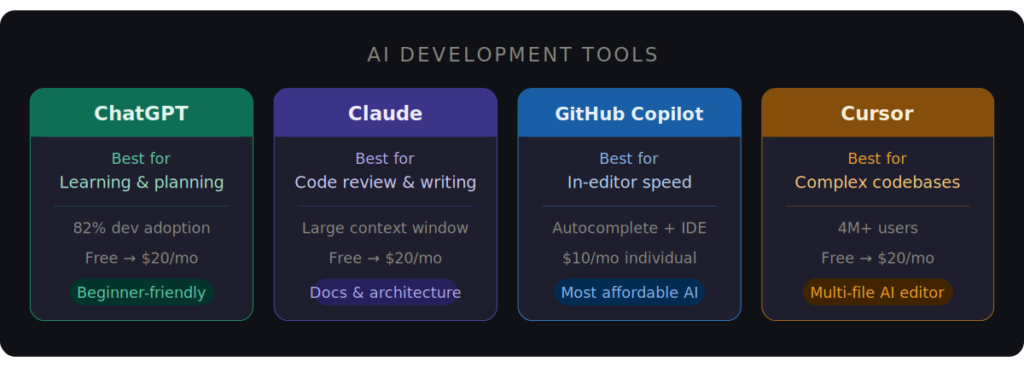
AI has genuinely changed how websites get built. Not in the abstract “AI will transform everything” sense — in the concrete sense that developers are shipping projects faster, catching bugs earlier, and writing less repetitive code than they were two years ago.
Here is what is actually worth using right now.
Suggested image placement: Comparison table of AI tools — use case, best strength, model used, pricing — after this section intro.
ChatGPT
Best for: Learning, planning, explaining code concepts, content generation, non-developers
CHATGPT is still the most-used AI tool among developers a 2025 Stack Overflow survey of over 49,000 developers put it at 82% adoption. For web development, it is most valuable as a learning companion and planning tool. Paste in an error message and get a clear explanation. Describe what you want to build and get an architectural starting point. Ask why your flexbox layout is broken and get an answer without Googling through six Stack Overflow threads.
For beginners specifically, ChatGPT as a patient, always-available teacher is genuinely powerful. The limitation shows up on complex, multi-file development work where it lacks codebase context. For that, Cursor is the better tool.
Cost: Free plan available. ChatGPT Plus at $20/month.
Claude
Best for: Long documents, complex reasoning, code review, writing, large-context tasks
Claude (built by Anthropic) has become a strong choice for developers who regularly work with large amounts of context long files, complex system architectures, or detailed technical documentation. Its extended context window makes it practical for tasks where you need to paste in an entire codebase section and ask questions about it.
For web development, Claude is particularly effective for reviewing existing code for structural problems, writing technical documentation, drafting site copy, and working through architectural decisions that involve multiple moving parts. It handles the writing side of web development — specs, documentation, copy as well as the code side.
Cost: Free plan available. Claude Pro at $20/month.
GitHub Copilot
Best for: In-editor code completion, individual developers, everyday development speed
Copilot sits inside your editor and suggests completions as you type. It is trained on a massive corpus of public code and integrates directly into VS Code, JetBrains, and other major IDEs. For the everyday parts of development writing utility functions, completing loops, filling in component boilerplate, suggesting the next line of a CSS class it is consistently fast and accurate.
Think of it as intelligent autocomplete rather than a full AI collaborator. It does not reason about your project’s architecture or make decisions across multiple files. But for an individual developer who already knows what they want to build, Copilot cuts the time it takes to write it.
At $10/month for individuals, it is also the most affordable AI coding tool on this list.
Cost: Free for students and open-source maintainers. Copilot Individual at $10/month; Copilot Business at $19/user/month.
Cursor
Best for: Complex projects, multi-file editing, teams working on large codebases
Cursor is an AI-native code editor built on a fork of VS Code — so if you know VS Code, the transition takes about an hour. Where Copilot plugs into your existing environment, Cursor redesigns the development environment itself around AI. It indexes your entire codebase, understands relationships between files, and can make coordinated changes across dozens of files simultaneously through its Composer feature.
As of early 2026, Cursor has over 4 million users and is valued at $50 billion numbers that reflect real developer adoption, not hype. The productivity gains are most visible on complex React or Next.js projects where a single feature change touches multiple components, hooks, and API routes at once.
Cursor also lets you choose between models — Claude, GPT-4, and Gemini — depending on the task. That flexibility alone is worth noting.
Cost: Free plan available. Cursor Pro at $20/month; Cursor Business at $40/user/month.
Best Website Testing and Optimization Tools
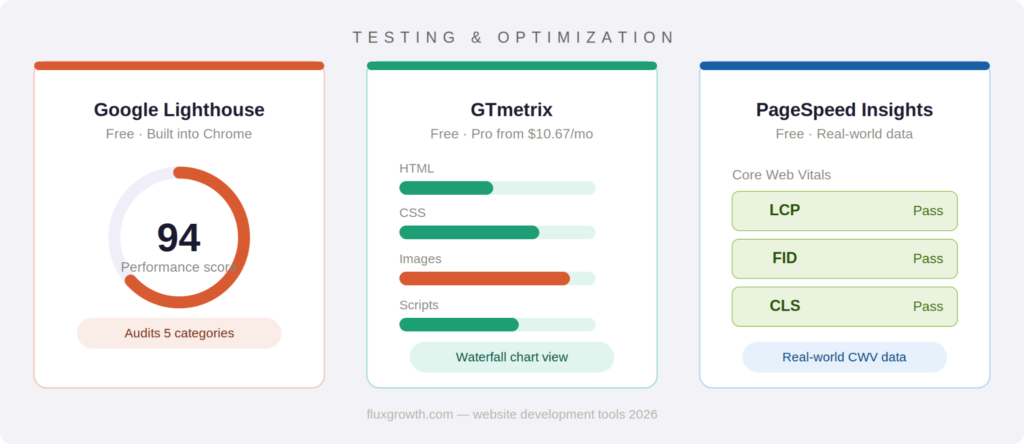
Launching is not the finish line. A fast, accessible, well-optimized site ranks higher, retains more visitors, and converts at better rates. These three tools cover the core of what you need to measure and improve after a site is live.
Google Lighthouse
Best for: All developers, pre-launch performance audits, accessibility checks, SEO diagnostics
Lighthouse is free, built into Chrome, and audits five categories: Performance, Accessibility, Best Practices, SEO, and Progressive Web App readiness. Each produces a score from 0 to 100 with specific, actionable recommendations underneath.
Run it before every launch. It catches the things that are easiest to fix when you catch them early — unoptimized images, render-blocking scripts, missing alt text, meta tags that are absent or too long — and gives you a baseline to measure improvements against.
Cost: Free.
GTmetrix
Best for: Detailed performance diagnostics, waterfall analysis, historical tracking
GTmetrix gives you waterfall charts visual timelines showing exactly when each resource loads, how long it waits, and what is blocking what. That matters because a page can score 90+ on Lighthouse and still feel sluggish to real users.
GTmetrix shows you why. Maybe a third-party chat widget fires at 2.1 seconds and blocks rendering. Maybe a Google Font is making four separate requests. Maybe a hero image is 1.8MB because nobody ran it through compression. The waterfall makes invisible problems visible.
It also lets you test from different geographic locations, which is useful if your audience is international and you want to know how the site feels in London or São Paulo, not just your home city.
Cost: Free plan available. GTmetrix Pro from $10.67/month.
PageSpeed Insights
Best for: Real-world Core Web Vitals data, Google-aligned performance benchmarking
PageSpeed Insights combines Lighthouse diagnostic data with real-world performance data from actual Chrome users (via the Chrome User Experience Report). This is the key difference from a standard Lighthouse run it shows you how real users on real devices and real networks are experiencing your site, not just how a simulated test performs.
For teams optimizing for Google search rankings specifically, PageSpeed Insights is the most authoritative benchmark because it directly reflects the Core Web Vitals signals Google weighs in its ranking algorithms.
Cost: Free.
Recommended Tool Stacks
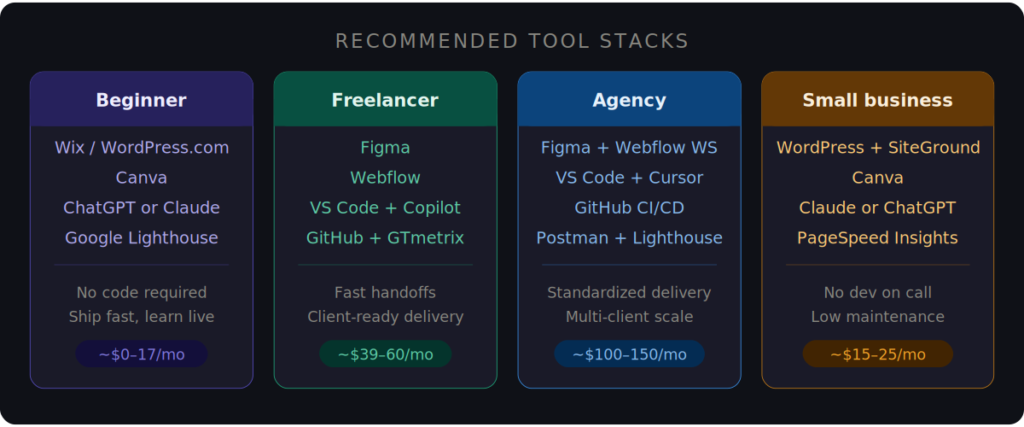
The tools above are more powerful in combination than individually. Here are four lean stacks built around specific use cases. No redundancy, no padding — just what you actually need.
Best Stack for Beginners
Goal: Build your first website and learn as you go
| Tool | Purpose |
| Canva | Design mockups and visual assets |
| WordPress.com or Wix | Website building and hosting |
| ChatGPT or Claude | Learning support and copywriting |
| Google Lighthouse | Basic performance checks |
Simplicity wins at this stage. You do not need a code editor, GitHub, or a design suite. Get something live, get feedback from real people, and add tools only when a specific gap appears. The instinct to optimize the stack before shipping is how projects stall at 80%.
Best Stack for Freelancers
Goal: Deliver professional client projects efficiently
Tool | Purpose |
| Figma | Client mockups and design handoff |
| Webflow | Site development and CMS |
| VS Code + GitHub Copilot | Custom code and components |
| GitHub | Version control and deployment |
| GTmetrix | Pre-launch performance auditing |
Webflow handles the majority of builds. VS Code and Copilot cover any custom code the project needs. Figma keeps the client feedback loop visual instead of verbal which alone saves hours of revision cycles.
Best Stack for Agencies
Goal: Scale delivery across multiple client projects without chaos
| Tool | Purpose |
| Figma | Design system and collaborative mockups |
| Webflow (Workspace plan) | Multi-client development and CMS |
| VS Code + Cursor | Complex builds and custom development |
| GitHub | Team version control and CI/CD |
| Postman | API testing and documentation |
| Google Lighthouse + PageSpeed Insights | QA before every launch |
This stack standardizes every phase of delivery — from design to development to testing — while giving individual developers the AI tools to work faster. The key is the Webflow Workspace plan, which makes managing 10 or 20 client sites significantly less painful than running them as separate accounts.
Best Stack for Small Businesses
Goal: A reliable, low-maintenance website that the owner can actually update
| Tool | Purpose |
| WordPress (self-hosted) or Wix | Website and CMS |
| Canva | Marketing assets and graphics |
| Claude or ChatGPT | Writing and content support |
| Google PageSpeed Insights | Ongoing performance monitoring |
The website needs to work without a developer on call. This stack gives a business owner real content and design capability while keeping ongoing costs predictable. WordPress with a managed host like SiteGround (from around $6/month) or WP Engine handles security and updates automatically.
Common Website Development Mistakes
Even experienced developers fall into these. If something on this list sounds familiar, that is useful information.
Using too many tools at once. Tool overload creates context-switching, inconsistency, and unnecessary subscription costs. Start with the minimum viable stack and add tools only when you can name the specific problem you are solving.
Skipping design before development. Building without a mockup leads to rework. Even a rough Figma wireframe — 30 minutes of work — can prevent three hours of restructuring a layout mid-build because the hierarchy does not work.
Ignoring performance until after launch. Performance is easier to build in than to retrofit. An unoptimized hero image, a heavy third-party script, or a bloated theme template is far more painful to fix post-launch than pre-launch. Run Lighthouse on every meaningful build milestone, not just at the end.
Skipping version control on “simple” projects. There is no such thing as a project too simple for GitHub. One failed plugin update, one accidental deletion, one corrupted database — and version control goes from “nice to have” to “why didn’t I set this up earlier.”
Choosing tools by hype rather than fit. A beginner does not need Cursor. A five-person agency cannot build a sustainable workflow on Wix. The best tool is the one that matches your actual situation today — not the one that sounds most impressive in a LinkedIn post.
Letting AI write code you do not understand. AI coding tools are genuinely fast. They are also capable of producing code with subtle bugs or structural problems that only surface under real-world conditions. Use AI to move faster. Make sure you can read and explain what it writes.
Frequently Asked Questions
What are the best website development tools for beginners?
The simplest effective starting stack is Wix or WordPress.com for building, Canva for visual assets, and ChatGPT or Claude for learning support and writing copy. Low setup friction, large communities, and no code required.
Do I need to know how to code to build a website in 2026?
No. Wix, Webflow, and WordPress make it possible to build professional websites without writing code. That said, understanding basic HTML and CSS — even at a surface level — makes you meaningfully more effective with every no-code tool on this list.
What is the difference between a website builder and a website development tool?
A website builder (like Wix or Webflow) is a complete platform that handles design, development, hosting, and CMS in one place. Website development tools is the broader category — code editors, version control, design platforms, testing tools, AI assistants. Builders are tools. Not all tools are builders.
Is WordPress still worth using in 2026?
Yes. WordPress powers over 43% of the web, has 60,000+ plugins, and offers deeper SEO control than any other major platform. The trade-off is maintenance overhead. For teams that want maximum flexibility and own their platform long-term, it remains the strongest choice.
What AI tools are most useful for web development?
GitHub Copilot for in-editor speed, Cursor for complex multi-file projects, ChatGPT for learning and planning, and Claude for writing, code review, and large-context tasks. Each fits a different part of the workflow — the best teams use two or three in combination rather than picking just one.
What is the best website builder for agencies?
Webflow is the most widely adopted agency choice in 2026. Its workspace features, clean code output, and built-in CMS make it well-suited for managing multiple client sites. WordPress with Elementor is a strong alternative for agencies handling content-heavy builds or clients who are already on WordPress.
How do I test my website’s performance?
Start with Google Lighthouse — free, built into Chrome, no setup required. Add PageSpeed Insights for real-world Core Web Vitals data. Use GTmetrix when you need to diagnose a specific performance problem and want to see the full resource waterfall.
Final Thoughts
The best website development tools are the ones you actually use — in a workflow that is simple enough to be repeatable.
If you take one thing from this guide: pick your stack, build something real, and resist the urge to keep optimizing your setup instead of shipping. You will learn more from one live project than from testing 20 tools in isolation.
The tools in this guide are the ones real teams are using right now — not the most hyped, not the most expensive, just the ones that keep showing up in workflows that actually ship. Pick your stack. Build something. The tools will make more sense once you’re using them under real pressure.