FluxGrowth is reader-supported. Some links in our guides are affiliate links — if you buy through one we may earn a commission, at no extra cost to you. It never changes which tools we recommend. How we test tools.
Last updated: August 2026
This guide is part of our Social Growth hub – everything we have published on growing on social with AI, in one place.
If you only want to watch Reels without an account rather than save them, our free viewer does that in the browser.
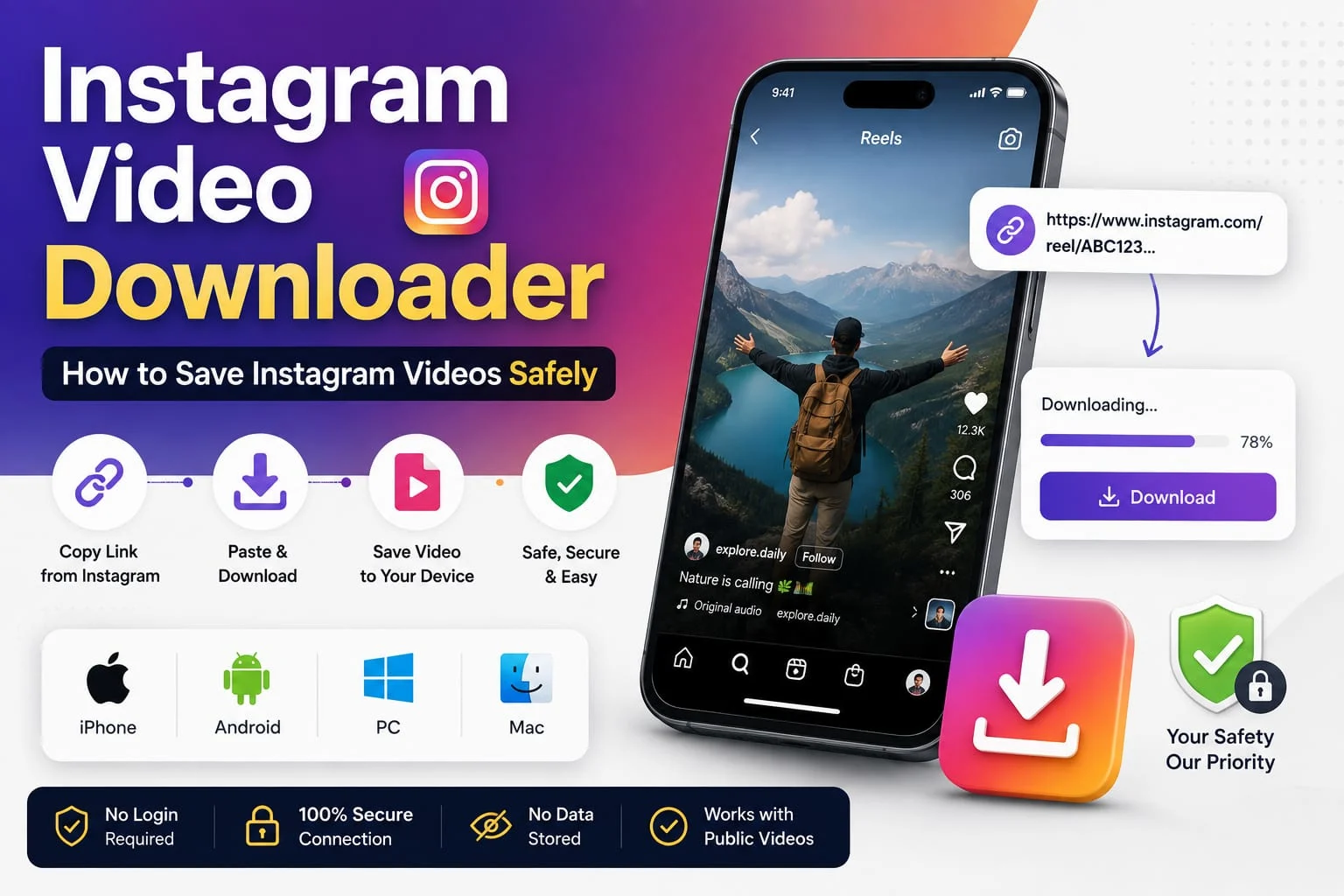
You found a Reel you want to watch later, offline, or send to a friend who doesn’t have Instagram and Instagram doesn’t make that easy. That’s where an Instagram Video down-loader comes in: a tool that lets you save a public Instagram video as a file on your device instead of just bookmarking it inside the app. This guide walks through how these tools actually work, how to use one on iPhone, Android, PC, or Mac, and just as importantly how to tell a safe one from a risky one.
One thing to know up front: Instagram’s Terms of Use don’t sanction third-party downloading or scraping. Full stop. These tools are widely used, and they generally work fine on public content but you’re stepping outside Instagram’s official rules the moment you use one. So it’s worth keeping in mind before you paste that link.
What Is an Instagram Video down-loader?
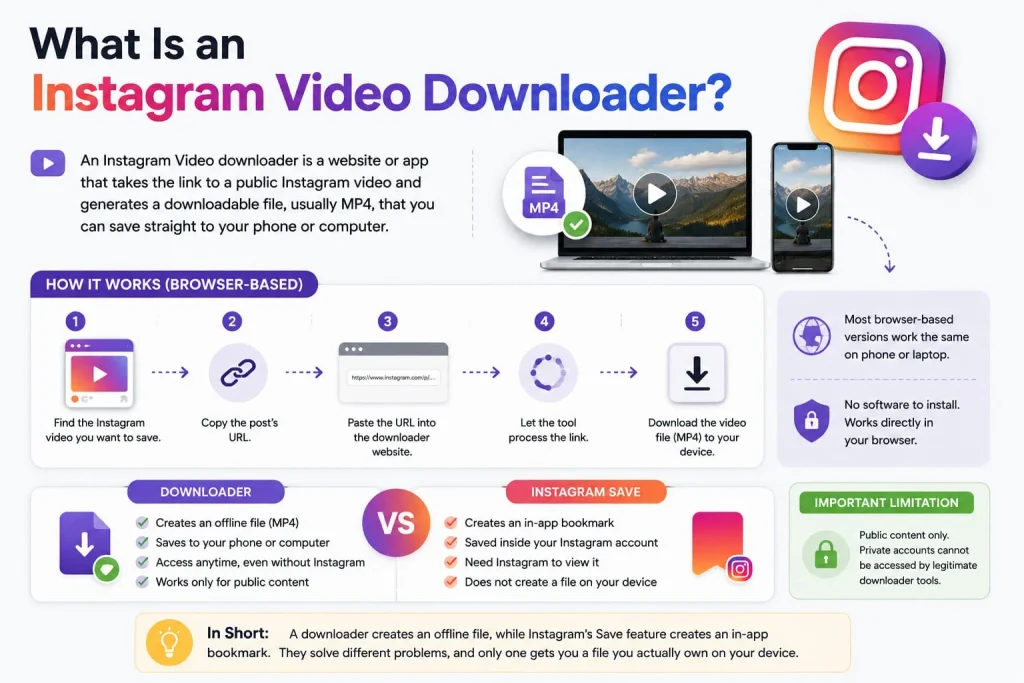
An Instagram Video down-loader is a website or app that takes the link to a public Instagram video and generates a downloadable file, usually MP4, that you can save straight to your phone or computer.
Most browser-based versions work the same way: copy a post’s URL, paste it in, and it pulls the video for you. Because there’s no software to install, this works the same on a phone or a laptop.
That’s different from Instagram’s built-in Save button, which only bookmarks the post inside your account. Instead, Save doesn’t create a file on your device you can’t open a saved post without opening Instagram first.
The main limitation across nearly every down-loader tool: public content only. That’s why, if an account is private, a legitimate down-loader can’t — and shouldn’t be able to — pull its videos.
In short: a down-loader creates an offline file, while Instagram’s Save feature creates an in-app bookmark. They solve different problems, and only one gets you a file you actually own on your device.
How Does an Instagram Video down-loader Work?
The general process is the same across most browser-based tools:
- Find the Instagram video you want to save.
- Copy the publicly available post or Reel URL.
- Open the down-loader website.
- Paste the URL into the input field.
- Let the tool process the link.
- Download the video file it generates.
This only works for public posts. No legitimate down-loader process involves logging into someone else’s account, bypassing a privacy setting, or accessing content an account owner hasn’t made public.
How to Download Instagram Videos
How to Download Instagram Videos on iPhone
Open Instagram in Safari or the app, find the public video, and copy its link (tap the three dots, then Copy Link). Open a browser-based down-loader, paste the link, and tap download. iOS sometimes saves the file to the Files app instead of Photos, checking both if you don’t see it right away.
How to Download Instagram Videos on Android
The steps are nearly identical: copy the post link from the three-dot menu, paste it into a browser-based down-loader, and tap download. Android typically saves the file straight to your Downloads folder, and you may need to grant the browser storage permission the first time.
How to Download Instagram Videos on PC
On a Windows PC, open Instagram in a browser, copy the video’s URL, and paste it into a down-loader site. Files usually land in your default Downloads folder unless you’ve set your browser to ask where to save each time.
How to Download Instagram Videos on Mac
The process on Mac mirrors PC: copy the link from Instagram in Safari or Chrome, paste it into the down-loader, and the file typically saves to your Downloads folder. Some Mac browsers will prompt you to choose a save location instead.
Can You Download Instagram Videos Without an App?
Yes most Instagram Video down-loader tools work entirely in a web browser, with no app installation required. You paste a link and download a file, the same way on desktop or mobile. Some services do offer optional apps with extra features like batch downloads, but an app is never strictly necessary just to save a single public video.
Can You Download Private Instagram Videos?
No, not legitimately. Private account content is only visible to approved followers, and it should stay that way.
No down-loader tool should be used to bypass a privacy setting or access a private account you’re not authorized to view. Need something from a private account? Ask the person directly. That’s still the fastest, and only legitimate, path.
Instagram Video Quality and Formats
Downloaded videos are usually saved as MP4; it’s the format almost every device and app can play. But here’s the thing: the quality you get isn’t guaranteed to match what Instagram actually has on its servers. A crisp 1080p Reel can come out looking noticeably softer once it’s been compressed twice once by Instagram, once by the down-loader.
A few reasons downloaded quality can differ from what you see in-app:
- Instagram compresses videos for streaming, and a down-loader can only pull what’s accessible through that compressed stream.
- Some tools re-process or re-encode the file, which can reduce quality further.
- Resolution can vary by device type and the original upload quality.
No down-loader site should be trusted to guarantee the exact original quality, treat quality claims from these sites as marketing, not fact, unless you can verify them yourself.
Is an Instagram Video down-loader Safe?
It depends entirely on the specific site. Some are dead simple and do exactly what they say on the tin. Others are basically ad-farms dressed up as tools, pop-ups, fake download buttons, prompts to install something you don’t need. Same category, wildly different experience.
Watch for these warning signs:
- No HTTP in the browser address bar
- Multiple pop-ups or redirects before you reach a download button
- A “download” button that isn’t actually the real one (fake buttons are common on ad-heavy sites)
- Prompts to install a browser extension or separate app just to download one video
- Requests for your Instagram username and password
- Excessive permission requests if it is an app
How to Identify a Safer Instagram Video down-loader
- Confirm the site uses HTTP before entering any information.
- Check that it never asks for your Instagram login credentials.
- Looking for a clear, readable privacy policy vague or missing policies are a red flag.
- Use an ad blocker to reduce exposure to malicious redirects.
- Avoid sites that push you to install software or browser extensions for a single download.
- Be skeptical of unverifiable claims like “100% safe” or “completely anonymous” with no explanation of how that’s achieved.
Do Instagram Video down loaders Require Your Instagram Password?
They shouldn’t. If one asks for your Instagram password, that’s a serious red flag walk away. Legitimate browser-based down loaders only need the public post URL, nothing more. There’s no legitimate reason a down-loader needs your login just to grab a public video.
Copyright and Content Ownership
Downloading a video doesn’t hand you copyright ownership of it. Not even a little. The creator keeps their rights whether the file is sitting on your phone or not a copy on your device changes nothing legally.
A few things worth understanding before you reuse anything you download:
- Public availability on Instagram doesn’t mean unrestricted permission to reuse or redistribute.
- re posting or using someone else’s video commercially generally requires their permission.
- Personal, private viewing of your own downloaded copy is a very different situation from publishing that content elsewhere.
- Copyright law and fair-use exceptions are fact-specific; this is general information, not legal advice, so check with a legal professional if you have a specific reuse case in mind.
Common Instagram Video Download Problems
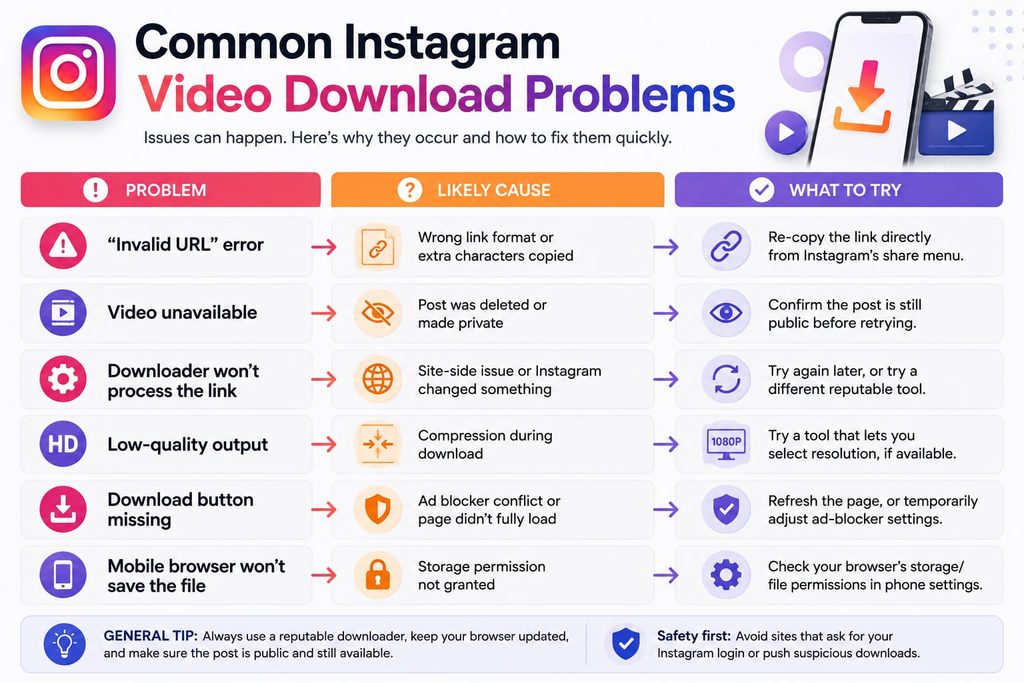
| Problem | Likely Cause | What to Try |
| “Invalid URL” error | Wrong link format or extra characters copied | Re-copy the link directly from Instagram’s share menu |
| Video unavailable | Post was deleted or made private | Confirm the post is still public before retrying |
| Downloader won’t process the link | Site-side issue or Instagram changed something | Try again later, or try a different reputable tool |
| Low-quality output | Compression during download | Try a tool that lets you select resolution, if available |
| Download button missing | Ad blocker conflict or page didn’t fully load | Refresh the page, or temporarily adjust ad-blocker settings |
| Mobile browser won’t save the file | Storage permission not granted | Check your browser’s storage/file permissions in phone settings |
Instagram Video down-loader vs. Instagram Save Feature
| Feature | Downloader | Instagram Save |
| Saves video to device | Yes, when supported | No |
| Works inside Instagram | No | Yes |
| Offline file access | Yes | No |
| Requires third-party service | Usually | No |
| Best for | Personal offline files | Bookmarking content |
Actual down-loader capabilities vary by tool, but the core distinction holds: Save bookmarks content inside the app, while a down-loader gives you an offline file.
Comparison: Ways to Save Instagram Video Content
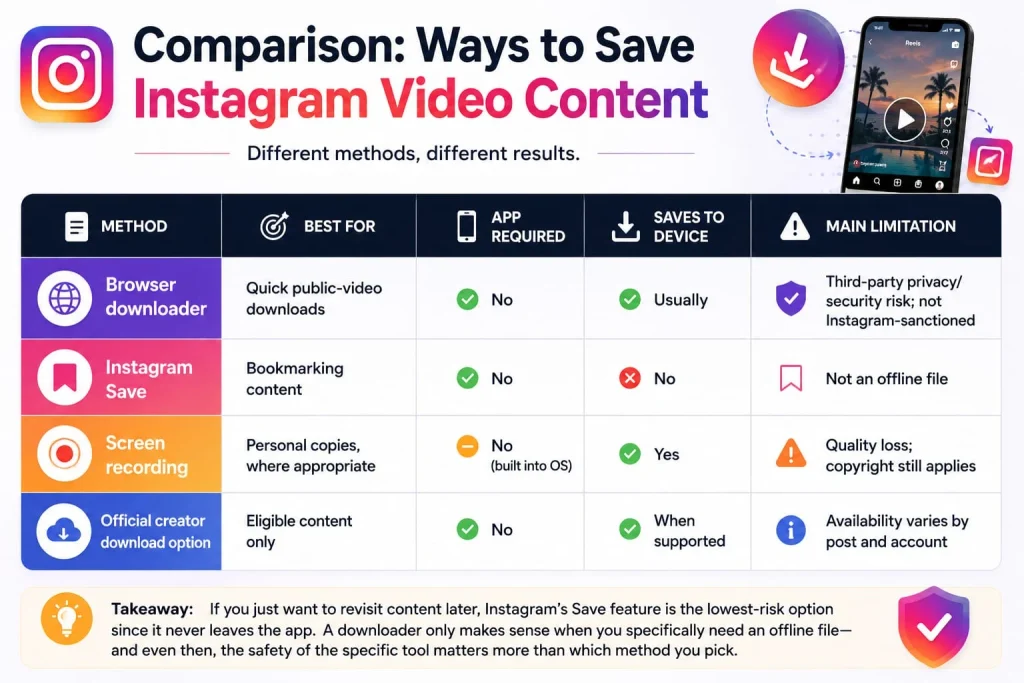
| Method | Best For | App Required | Saves to Device | Main Limitation |
| Browser downloader | Quick public-video downloads | No | Usually | Third-party privacy/security risk; not Instagram-sanctioned |
| Instagram Save | Bookmarking content | No | No | Not an offline file |
| Screen recording | Personal copies, where appropriate | No (built into OS) | Yes | Quality loss; copyright still applies |
| Official creator download option | Eligible content only | No | When supported | Availability varies by post and account |
Takeaway: if you just want to revisit content later, Instagram’s Save feature is the lowest-risk option since it never leaves the app. A down-loader only makes sense when you specifically need an offline file and even then, the safety of the specific tool matters more than which method you pick.
Best Use Cases
An Instagram Video down-loader is most useful for:
- Saving your own content for offline backup or reuse
- Personal, offline viewing of public content you don’t plan to redistribute
- keeping reference material for research or content inspiration. If you’re mainly browsing rather than downloading, our Instagram Reels viewer guide covers the no-download options.
- Reusing content you have explicit permission to download and share
Avoid downloading when the content is from a private account, when you plan to re post or monetize someone else’s work without permission, or when the source itself looks unsafe or untrustworthy.
Privacy and Security Checklist
Before using any third-party Instagram Video down-loader, check:
- Privacy policy — is there one, and is it specific about what data is collected?
- Data collection — does the site explain what it tracks?
- Cookies and tracking — are you comfortable with standard web tracking, or does the site seem to go further?
- Password requests — does it ever ask for Instagram login details? (It shouldn’t.)
- File handling — is there any indication of what happens to files after processing?
- Redirects — does clicking download take you straight to a file, or through several ad pages first?
- Browser permissions — is it asking for anything beyond what a simple down-loader needs?
FAQ
What is an Instagram Video down-loader?
It’s a tool, usually a website, that lets you save a public Instagram video as a file on your device by pasting the post’s URL. It’s different from Instagram’s in-app Save feature, which only bookmarks content rather than creating a downloadable file.
Can I download Instagram videos without an app?
Yes. Most Instagram Video down-loader tools work directly in a browser — you paste a link and get a download, with no app installation required.
How do I download an Instagram video on iPhone?
Copy the public post’s link from Instagram, paste it into a browser-based down-loader, and download the file. Check the Files app if it doesn’t appear in Photos right away.
How do I download an Instagram video on Android?
Copy the post link, paste it into a down-loader site, and tap download. The file typically saves to your Downloads folder.
Can I download Instagram videos from a private account?
No. Private account content is only meant to be seen by approved followers, and legitimate down loaders can’t and shouldn’t bypass that privacy setting.
Is it safe to use an Instagram Video down-loader?
It depends on the specific site. Look for HTTP, no login requests, a clear privacy policy, and minimal ad-driven redirects. Unsafe sites tend to push software installs or ask for your Instagram credentials.
Is downloading Instagram videos legal?
Downloading a public video for personal use is generally treated differently than redistributing or monetizing it without permission but this varies by situation. Downloading doesn’t grant you copyright ownership, and this isn’t legal advice. Check with a legal professional for specific reuse cases.
Conclusion
The safest way to save an Instagram video: stick with a tool that never asks for your password, runs on HTTP, and only touches public content. That’s it. That’s the whole checklist in one sentence.
Beyond safety, remember the bigger point: downloading a video doesn’t give you the right to re post or monetize it (the creator keeps that, always). If you just want to revisit something later, Instagram’s Save feature is the lower-risk move since it never leaves the app.
If you genuinely need an offline file, pick your down-loader carefully, run it through the checklist above, and respect where the content came from.