FluxGrowth is reader-supported. Some links in our guides are affiliate links — if you buy through one we may earn a commission, at no extra cost to you. It never changes which tools we recommend. How we test tools.
Instagram login works with your username, email address, or phone number plus your password, in the app or at instagram.com.
This guide is part of our Social Media Growth hub — everything we have published on growing social accounts with AI tools, in one place.
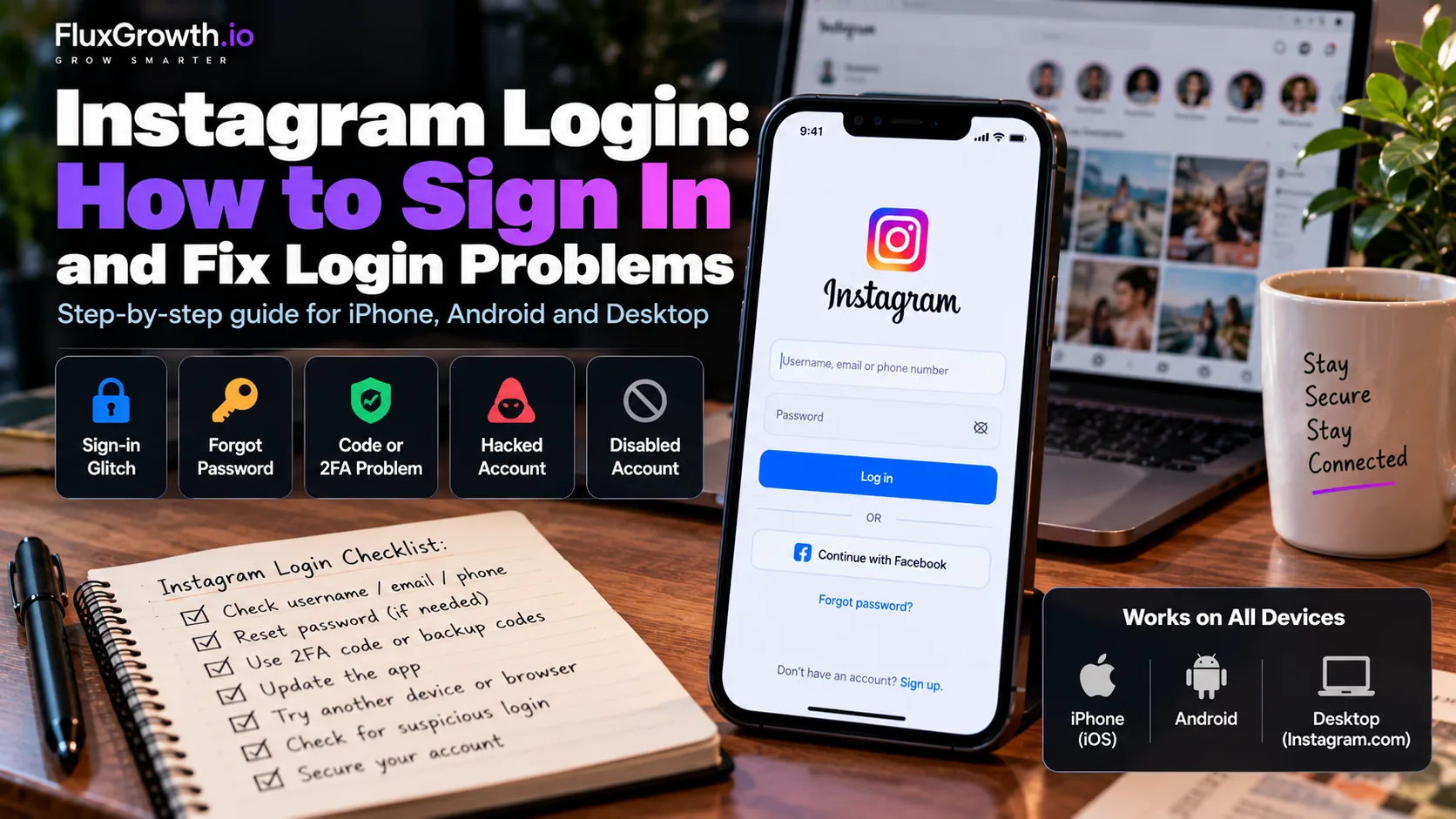
When it fails, the cause almost always falls into one of five buckets: a normal sign-in glitch, a forgotten password, a code or two-factor problem, a hacked account, or a disabled account. Each has a different official fix.
Maybe you typed the right password and Instagram says it’s wrong. Maybe the six-digit code never showed up. Or you just got a “suspicious login” email at 2 a.m. and your stomach dropped.
Below are all five, for iPhone, Android, and desktop. Steps from Instagram’s Help Center are marked official, and my own advice is marked editorial.
One caveat. No guide can promise Instagram will give an account back, this one included. That decision sits with Instagram.
Which Instagram login problem do you have?
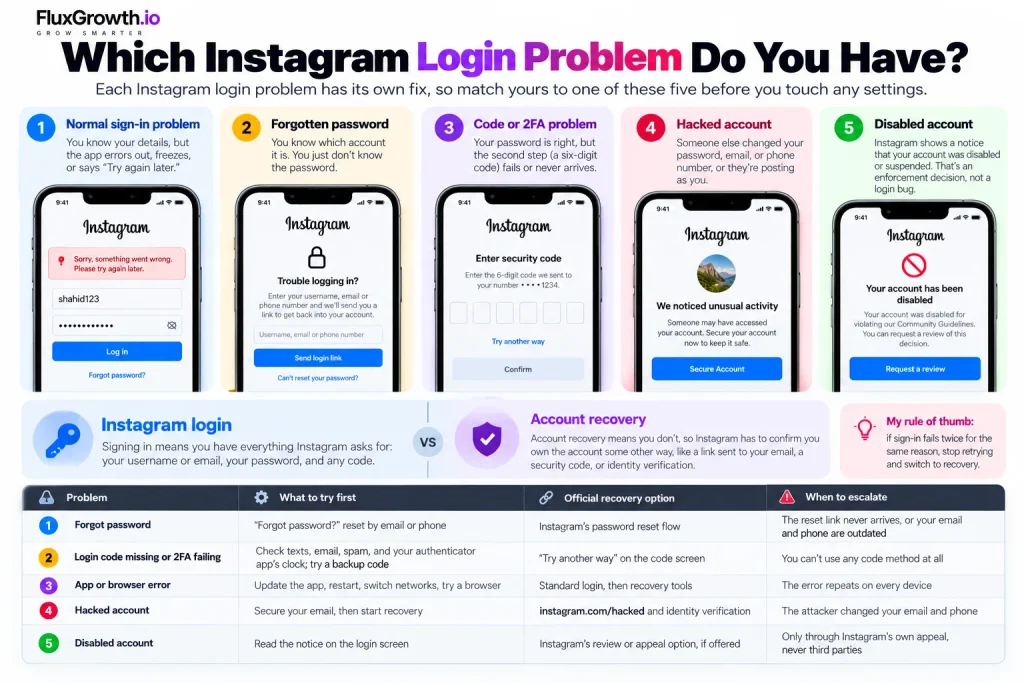
Each Instagram login problem has its own fix, so match yours to one of these five before you touch any settings.
- Normal sign-in problem: you know your details, but the app errors out, freezes, or says “Try again later.”
- Forgotten password: you know which account it is. You just don’t know the password.
- Code or 2FA problem: your password is right, but the second step (a six-digit code) fails or never arrives.
- Hacked account: someone else changed your password, email, or phone number, or they’re posting as you.
- Disabled account: Instagram shows a notice that your account was disabled or suspended. That’s an enforcement decision, not a login bug.
Instagram login vs. account recovery
Signing in means you have everything Instagram asks for: your username or email, your password, and any code. Account recovery means you don’t, so Instagram has to confirm you own the account some other way, like a link sent to your email, a security code, or identity verification.
My rule of thumb (editorial): if sign-in fails twice for the same reason, stop retrying and switch to recovery.
| Problem | What to try first | Official recovery option | When to escalate |
| Forgot password | “Forgot password?” reset by email or phone | Instagram’s password reset flow | The reset link never arrives, or your email and phone are outdated |
| Login code missing or 2FA failing | Check texts, email, spam, and your authenticator app’s clock; try a backup code | “Try another way” on the code screen | You can’t use any code method at all |
| App or browser error | Update the app, restart, switch networks, try a browser | Standard login, then recovery tools | The error repeats on every device |
| Hacked account | Secure your email, then start recovery | instagram.com/hacked and identity verification | The attacker changed your email and phone |
| Disabled account | Read the notice on the login screen | Instagram’s review or appeal option, if offered | Only through Instagram’s own appeal, never third parties |
Instagram login: how do you sign in?
You can log into Instagram with your username, email address, or phone number plus your password. It works the same way in the iPhone and Android apps and at instagram.com in any web browser.
If you’re using Instagram to build your audience, see our guide to growing Instagram followers with AI
How to log into Instagram on your phone
- Open the Instagram app. If you haven’t updated it in a while, update it through the App Store or Google Play.
- Enter your username, email, or phone number.
- Enter your password and tap Log in.
- If you’ve enabled two-factor authentication, enter the security code Instagram requests.
If you can’t log in, use the password recovery or account-recovery option shown on Instagram’s login screen. The exact wording can vary by device and app version, so it’s better not to claim that Android always shows “Get help signing in” while iPhone always shows “Forgot password.”
How to log into Instagram on a computer
Type instagram.com directly into your browser’s address bar instead of following an unfamiliar login link. Check that the address bar shows the official Instagram domain, then enter the same login details you use on your phone.
Desktop app: Instagram is currently available as a Windows app through the Microsoft Store. apps.microsoft.com For Mac users, you can use Instagram through a web browser.
Username, email, or phone number: which one works?
Any of the three works, as long as it’s connected to your account. If Instagram can’t find your email during a reset, its Help Center says you may have signed up with a different email or mistyped it when you created the account.
So before you panic, try every email address you’ve ever used, plus your phone number. And if you renamed the account recently, your old username won’t get you in.
Logging in through Facebook
If you’ve linked Instagram and Facebook, you’ll see a “Reset using Facebook” option when you reset your password. That’s one more way back in, so keep your Facebook account locked down too (editorial).
Forgot your Instagram password? How to reset it
You can’t view your old Instagram password, but you can replace it from the login screen with a link or code sent to your email or phone. Here’s the official flow.
- On the login screen, tap “Forgot password” (iPhone and web) or “Get help signing in” (Android).
- Enter your username, email address, or phone number.
- Pick where Instagram should send the link or code.
- Open the link or enter the code, then create a new password.
One side effect to expect: per Instagram’s Help Center, every device logged into your account gets logged out automatically when you change your password. That’s a good thing if someone else was in there.
What if you can’t access the email or phone on file?
This is where people get stuck. Instagram’s Help Center is blunt about it: if you can’t get into the email you registered with and you never linked Facebook, Instagram says it can’t give you access through the password reset route.
So recover the email account first. Use Gmail’s, Outlook’s, or Yahoo’s own recovery process, then come back and reset Instagram.
If you lost access because a hacker changed your email or phone, skip ahead to the hacked-account section. That route has different verification options.
Why isn’t your Instagram login code working?
An Instagram login code can fail because it hasn’t arrived yet, has expired, or is being sent through a verification method you can no longer access.
Two-factor authentication (2FA) adds a second security check after your password. Instagram supports authentication apps and text messages (SMS) for 2FA. Meta also supports security keys as an authentication method.
If your code isn’t working, look for Try another way or another available recovery option on the login screen.
Note: Avoid listing specific apps such as Google Authentication or Duo unless you are explaining that they are examples of authentication apps rather than claiming Instagram specifically supports each one.
Text or email codes that don’t arrive
- Use only the most recent code. If you’ve requested several, the older ones may not work (editorial).
- Check spam, promotions, and any filtered folders for email codes.
- Look at the partial phone number Instagram shows you. Is it still your number?
- Toggle airplane mode off and on, or move somewhere with a better signal.
- If you’re also having trouble accessing your account, see our guide on how to log into Instagram.
- This gives readers a next step if the problem isn’t just the verification code.
Authentication app codes that get rejected
Authentication apps make a new code every 30 seconds, using your phone’s clock. If that clock is off, every code will be wrong.
The fix: set your phone’s date and time to automatic, then type the newest code. Got more than one Instagram account in the app? Make sure you’re reading the right entry.
Backup codes
Backup codes are one-time codes Instagram provides when you enable two-factor authentication. If you saved them, check your password manager, notes app, or a screenshot where you may have stored them.
On the login verification screen, look for “Try another way” or a similar option to access alternative verification methods. The exact wording can vary by app version, so avoid presenting “Try another way” as a guaranteed label.
2FA problems after changing phones
If your authentication codes aren’t available on your new phone:
- Use an old device where you’re still logged in to update 2FA.
- Try another available verification method.
- Enter a saved backup code.
- If none work, use Instagram’s account recovery process.
After recovering your account, generate new backup codes and store them securely. Avoid publishing an exact menu path unless you’ve verified the current Instagram app interface.
Why won’t Instagram let me log in? A 10-step fix checklist
When Instagram won’t let you log in, work through these steps in order. The first six are quick checks for glitches, and the last four handle account-level problems. Tags show official guidance vs. general troubleshooting.
- Check your username, email, or phone number. Look for typos, an old username, or a different email than the one you signed up with. (General)
- Reset your password using the steps above. (Official)
- Update the Instagram app in the App Store or Google Play. Old versions can break login. (General)
- Check your internet connection. Switch between Wi-Fi and cellular, and turn off any VPN, which can make your login look unfamiliar. (General)
- Try another device or browser. If instagram.com works on a computer, the problem is your app, not your account. (General)
- Clear app or browser data. On Android, go to Settings > Apps > Instagram > Storage > Clear cache. On iPhone, delete and reinstall the app. In a browser, clear cookies for instagram.com or use a private window. (Cookies are small files that remember you’re logged in. Old ones can get stuck.) (General)
- Check your security codes. If the code step is what fails, use the code section above. (Official and general)
- Review suspicious-login notices. If Instagram asks “Was this you?”, answer it. A “Try again later” message can also appear when Instagram detects inauthentic activity on your account, according to its Help Center. (Official)
- Use official account recovery. Go to the login help flow in the app, or instagram.com/hacked if someone else got in. (Official)
- Secure your account once you’re back in. The security checklist is further down. (Official and general)
Related: Fixes for Facebook login problems
Related: Can someone see that you viewed their Instagram Story
What should you do if your Instagram account was hacked?
If someone else got into your Instagram account, go to instagram.com/hacked in a browser. Instagram’s hacked-account Help Center page points there for anyone whose account was accessed by someone else or who can’t log in.
Signs your Instagram account was hacked
- An email from Instagram says your email, phone, or password changed, and you didn’t change it.
- Your account posts, comments, or sends DMs you didn’t write. Instagram says comments you didn’t post likely mean your password was compromised.
- You see logins from devices or places you don’t recognize.
Your first three moves
- Check your inbox for a security email from Instagram. If it says your email address was changed, it may include a way to reverse the change.
- Secure your email account before anything else. Change its password and turn on 2FA. If the attacker still controls your email, they can simply reset Instagram again (editorial).
- Go to instagram.com/hacked and choose the option that matches what happened. Follow the prompts for a login link or security code.
When Instagram asks you to verify your identity
If someone changed the email address and phone number linked to your Instagram account, Instagram may ask you to verify that you own the account.
Depending on the account and recovery flow, Instagram may offer video selfie verification for accounts that contain photos of the account owner. Other accounts may be asked for additional account information during recovery.
The available verification options can vary, and there is no guaranteed recovery outcome. Be patient and follow only the verification steps shown by Instagram.
Watch out for recovery scams
After a hack, you may receive DMs or comments from people claiming they can recover your account for a fee. Don’t pay them or share your password, login codes, or security information.
Use Instagram’s official account recovery tools instead, and avoid suspicious links or messages.
Instagram account disabled or suspended: is it a login problem?
Not necessarily. If Instagram says your account has been disabled or suspended, resetting your password usually won’t fix the issue. You need to follow the review or appeal option Instagram provides.
Here’s what to do:
- Read the notice carefully. Follow the review or appeal option shown by Instagram.
- Use only Instagram’s official recovery or Help Center options. Avoid paid “unban” services.
- Don’t claim a specific appeal deadline unless Instagram gives one in your notice; I couldn’t verify a universal current deadline from the official Help Center.
- If you were hacked first, mention it during the recovery or review process.
A disabled account is different from temporary errors such as “Try again later” or an identity/security check. Those can often be resolved by completing the requested security steps.
How do you secure your account and spot fake Instagram login pages?
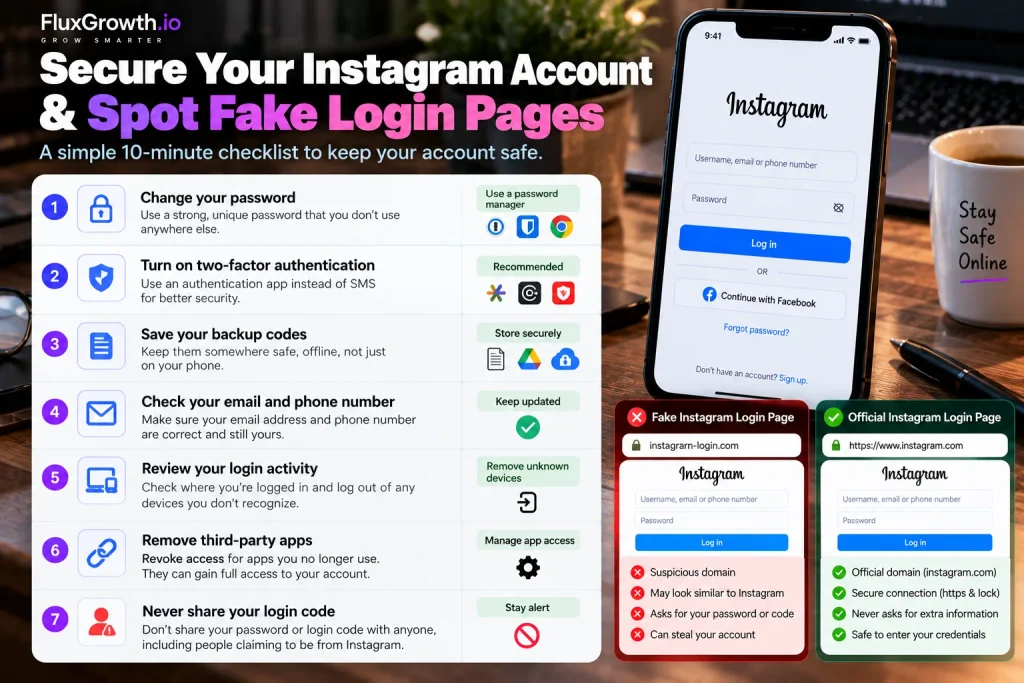
Once you’re back into Instagram, spend 10 minutes locking it down before you post anything. Most of these steps come straight from Instagram’s own security guidance.
Your post-recovery security checklist
- Change your password to one you don’t use anywhere else. A password manager like 1Password, Bitwarden, or the one built into your iPhone or Chrome makes that painless.
- Turn on two-factor authentication. I’d pick an authentication app over text messages where you can, since a stolen phone number can’t intercept app codes (editorial).
- Save a fresh set of backup codes somewhere off your phone.
- Confirm your email address and phone number are correct and still yours.
- Review where you’re logged in and log out of anything you don’t recognize.
- Remove third-party apps you no longer use. Instagram warns that apps you give your login details to can gain complete access to your account.
- Never share a login code with anyone, including someone claiming to be from Instagram.
How to recognize a fake Instagram login page
Phishing pages can copy Instagram’s design to steal your password or login code. Watch for these signs:
- The address isn’t instagram.com or uses a suspicious look-alike domain.
- The link came through an unexpected DM or urgent email asking you to act quickly.
- It asks for your password or login code on a suspicious website.
The safest habit is simple: don’t log in through unfamiliar links. Open the Instagram app or type instagram.com yourself. Meta recommends entering Instagram credentials only through official Instagram websites or apps. (Source: About Facebook)
Meta has also warned that Instagram will not contact you by DM about account security; authentic Instagram communications can be checked through “Emails from Instagram” in the app’s settings.
Locked out right now? The order I’d follow
Don’t try everything at once. This is the order I’d follow (editorial), built from the official steps above.
- Name your bucket using the table at the top.
- Secure the email account tied to Instagram. Every recovery path runs through it.
- Try one normal password reset.
- If the code step fails, use Try another way or a backup code.
- If anything points to a hack, stop resetting and go to instagram.com/hacked.
- If you see a disabled notice, use the review option on that screen and nothing else.
- Once you’re in, run the security checklist before you post a single thing.
Don’t skip step two. If someone is still in your email, they can reset Instagram again the minute you’re done.
FAQ
How do I log into Instagram?
Open the Instagram app or go to instagram.com, enter your username, email, or phone number, then your password. If you use two-factor authentication, enter the code Instagram asks for.
How do I log into Instagram without a password?
You can request a login link or code to your email or phone from the login screen’s password help option. If your accounts are linked, you may also be able to get in through Facebook. Set a new password once you’re in.
Why won’t Instagram let me log in?
The usual causes are a wrong identifier, an outdated app, a failed security code, or a security checkpoint on your account. Try the 10-step checklist above in order. If you see a disabled notice, it’s an enforcement issue, not a login bug.
How do I reset my Instagram password?
Tap Forgot password (iPhone and web) or Get help signing in (Android), enter your username, email, or phone, and follow the link or code Instagram sends. Changing your password logs out every other device.
What do I do if I can’t receive my Instagram login code?
Use only the newest code, check spam, and confirm the phone number shown is still yours. On the code screen, tap Try another way to switch methods or enter a backup code.
How do I recover my hacked Instagram account?
Secure your email first, then go to instagram.com/hacked and follow the prompts. If the attacker changed your email and phone, Instagram may ask you to verify your identity. Recovery isn’t guaranteed, so never pay anyone who promises it.
Can I log into Instagram from a computer?
Yes. Go to instagram.com in any browser and use the same login details as on your phone. Type the address yourself instead of clicking a link.
The one thing to do next
Name the problem before you fix it. That’s the whole lesson of this Instagram login guide. A password reset won’t touch a disabled account, and an appeal won’t bring back a lost authentication app.
Locked out right now? Find your row in the table at the top and follow only that row.
Already back in? Do two things today: save a fresh set of backup codes somewhere off your phone, and check that the email and phone number on your account still belong to you.