FluxGrowth is reader-supported. Some links in our guides are affiliate links — if you buy through one we may earn a commission, at no extra cost to you. It never changes which tools we recommend. How we test tools.
First, imagine you’ve got 40 product photos, a cluttered kitchen counter in every one, and a product listing that goes live Friday. Because of this tight deadline, you need a faster way to clean up your images. That’s exactly when people start searching for an AI photo editor.
In simple terms, an AI photo editor is software that uses machine learning to identify the subject, sky, faces, and background in a photo. It can then edit these elements automatically. For example, it removes unwanted objects, fixes lighting, retouches skin, and fills in missing pixels. As a result, photographers can spend less time on repetitive editing tasks. Similarly, online sellers use these tools to create clean product photos. Meanwhile, content creators use them to produce professional thumbnails faster.
Additionally, this guide compares seven AI photo editors based on what each tool does best. First, you’ll discover what their free plans actually offer. Next, we’ll compare the prices of their paid plans in US dollars. More importantly, we’ll also explain commercial-use restrictions and licensing details that many comparison articles overlook. Therefore, you’ll have the information needed to choose the right AI photo editor for your needs.
What is an AI photo editor, and how is it different from traditional editing?
An AI photo editor is software that uses machine learning to identify the subject, sky, faces, and background in a photo before editing them automatically. For example, it can remove unwanted objects, fix lighting, retouch skin, and fill in missing pixels. As a result, photographers can significantly reduce their retouching time. Similarly, online sellers use AI photo editors to create clean product images, while content creators use them to produce professional thumbnails faster.
How AI reads an image
Most AI photo editors combine three kinds of models. Segmentation models label every pixel as person, sky, product or background. Detection models find specific things, like faces, eyes or power lines. Generative models predict brand-new pixels from the surrounding area and, sometimes, a text prompt. That last group powers tools like Generative Fill, and it’s also where most of the weird results come from.
AI photo editor vs. AI image generator vs. single-purpose tools
These categories overlap, which is why so many AI photo editor comparisons can feel confusing. The main difference is what each tool is designed to do: edit an existing photograph, generate a new image, or perform one specific editing task.
| Tool type | What it does | Example |
| AI photo editor | Edits an existing photo using AI-assisted tools for retouching, color correction, object removal, and enhancement. | Adobe Photoshop, Luminar Neo |
| AI image generator | Creates a new image from a text prompt or reference image. | Adobe Firefly, Midjourney |
| AI background remover | Automatically separates the main subject from its background. | Photoroom Background Remover |
| AI enhancer or upscaler | Improves image clarity, reduces noise, sharpens details, or increases resolution. | Topaz Photo |
| AI design platform | Combines templates, graphic design, and basic photo-editing features. | Canva |
| Generative editing feature | Adds, replaces, or modifies parts of an existing image using AI. | Generative Fill in Adobe Photoshop |
The other distinction that matters is where and how image processing happens. Desktop applications such as Luminar Neo and Topaz Photo require installation on your computer. However, desktop software does not always mean every AI operation runs locally. Topaz Photo, for example, supports local rendering for compatible hardware and optional cloud rendering for certain generative enhancements.
Browser-based tools such as Photoroom and Pixlr let you edit images online without installing their desktop editing software. Canva also provides browser-based photo editing. When using online services, check their privacy policies and image-processing terms before uploading sensitive or confidential photographs.
What can an AI photo editor actually do?
A modern AI photo editor automates common editing tasks, but complex images may still need manual adjustments.
- Background removal: Removes backgrounds and creates transparent cutouts. Fine hair and glass edges may need cleanup. Read our AI background remover guide.
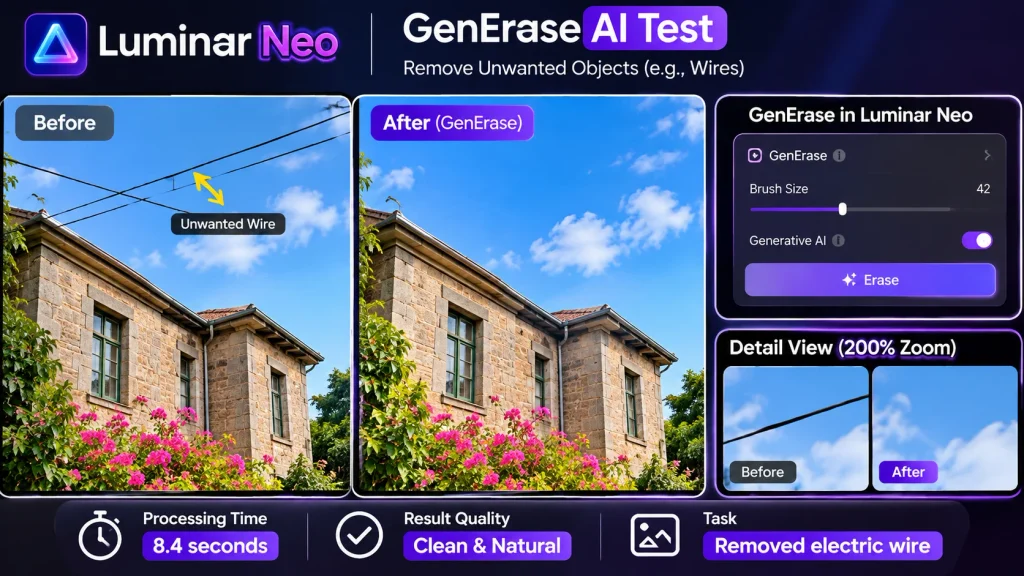
- Object removal: Removes unwanted objects, wires, and distractions. Complex backgrounds can produce imperfect results.
- Portrait retouching: Improves skin, eyes, and facial details. Excessive editing can look unnatural.
- Image enhancement: Adjusts exposure, contrast, and colors. Always review the final result.
- Photo restoration: Repairs scratches and faded photographs. Damaged facial details may be reconstructed inaccurately.
- Up-scaling and noise reduction: Enlarges images and reduces noise. Over-processing can create artificial details.
- Generative fill: Adds or replaces image elements using AI prompts. Generated details may contain errors. Adobe Photoshop Generative AI.
- Background replacement: Replaces existing backgrounds with new scenes. Lighting and shadows may need adjustment.
- Batch editing: Applies edits to multiple photos. Review sample images before processing an entire batch.
What are the best AI photo editors in 2026?
The best AI photo editor in 2026 depends on the job: Adobe Photoshop for professional retouching, Photoroom for product photos, Canva for social graphics, and Luminar Neo if you don’t want a subscription. Each pick below uses the same checklist, and every price is in US dollars as listed in November 2026.
1. Adobe Photoshop: best for professional retouching and compositing
Adobe Photoshop is a strong choice for professional photo editing because it combines AI-powered tools with precise manual controls for detailed retouching and compositing.
- Key AI features: Generative Fill, Generative Expand, Remove Tool, Select Subject and Select Sky.
- Free plan: No full free desktop plan. Adobe offers a 7-day free trial.
- Paid pricing: The Photography plan costs US$19.99/month on an annual plan billed monthly. It includes Photoshop, Lightroom, Lightroom Classic and 1TB of cloud storage, plus 1,000 monthly generative credits. The Photoshop-only plan costs US$22.99/month on an annual plan billed monthly. Adobe Photography plans · Photoshop pricing.
Adobe Creative Cloud Photography Plan+2 - Export: Supports formats including PSD, TIFF, PNG and JPEG. Export options depend on the workflow.
- Main advantage: Generative Fill creates editable Generative Layers, so you can refine or remove generated content without permanently changing the original image.
- Main limitation: It takes time to learn, and continued use requires a subscription.
- Who should use it: Professional photographers, designers and creators who need detailed control over retouching, compositing and image quality.
2. Adobe Lightroom: best for photographers editing in batches
Adobe Lightroom is an excellent AI photo editor for wedding, event and portrait photographers who need to organize and edit large photo collections consistently.
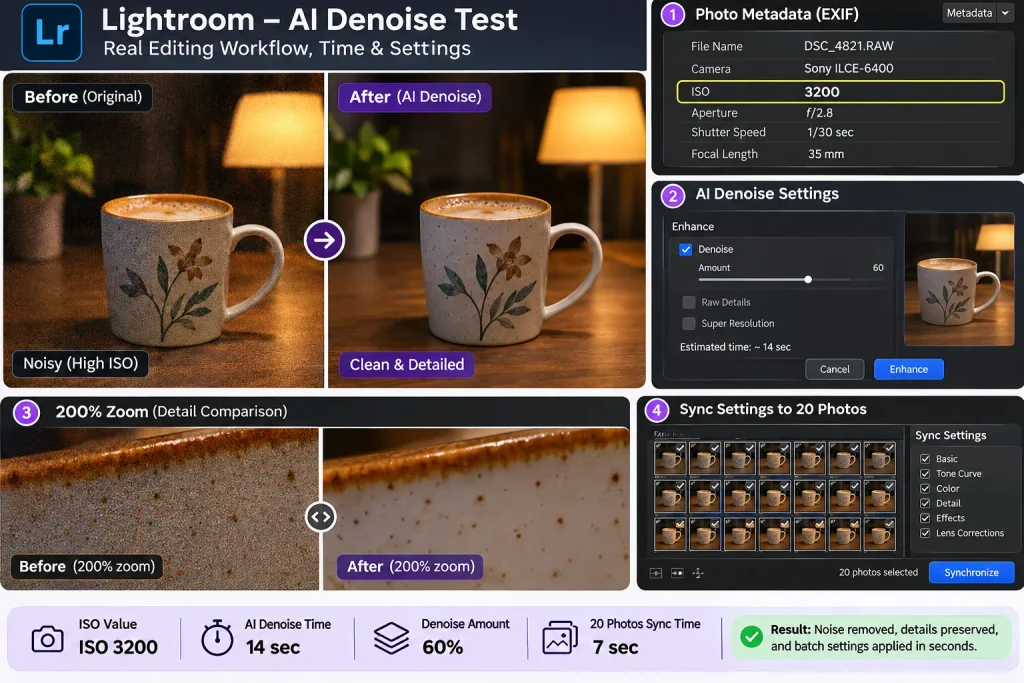
- Key AI features: AI masking for subjects, skies and people, Generative Remove, AI Denoise and Lens Blur.
- Free plan: Lightroom Mobile offers a free version with basic editing tools. Desktop users can try the full version through a 7-day free trial.
- Paid pricing: The Lightroom plan costs US$11.99/month on an annual plan billed monthly. It includes Lightroom for desktop, mobile and web, Lightroom Classic, 1TB cloud storage and 250 monthly generative credits. Adobe Lightroom pricing.
Adobe+1 - Export: Supports formats including JPEG, TIFF and DNG, with available options depending on the device and workflow.
- Main advantage: You can copy and synchronize editing settings across multiple photos. AI masks can adapt to each image, helping maintain a consistent editing workflow.
- Main limitation: Lightroom focuses on photo editing and organization rather than advanced layer-based compositing.
- Who should use it: Photographers who shoot RAW and want consistent colors, efficient batch editing and organized photo libraries.
3. Luminar Neo: best for AI editing without a subscription
Luminar Neo is a good choice for photographers who prefer a one-time desktop license instead of a recurring monthly subscription.
- Key AI features: GenErase, GenExpand, GenSwap, Sky AI, Relight AI and AI portrait tools.
- Free plan: No permanent free plan. Skylum offers a 30-day money-back guarantee.
- Paid pricing: Skylum’s pricing page currently displays promotional U.S. prices of US99forDesktop,US139 for All Platforms and US$159 for Max. These are one-time license prices, and offers may change. Official Skylum pricing.
skylum.com - AI tool access: Perpetual licenses include 365 days of access to generative AI tools, Restoration and AI Assistant. Continued access requires a Luminar Prime renewal.
- Export and compatibility: Supports RAW workflows and runs as a desktop application on Windows and macOS.
- Main advantage: You can keep using the core desktop app after purchasing a perpetual license.
- Main limitation: Some generative tools and future major upgrades may require additional payment.
- Who should use it: Hobbyists, enthusiasts and photographers who want creative AI editing without committing to a monthly Adobe subscription.
4. Topaz Photo: best for upscaling, noise and sharpening
Topaz Photo is a specialist AI photo enhancement tool designed to improve soft, noisy, blurry or low-resolution images. It focuses more on image quality than general-purpose photo editing.
- Key AI features: AI Denoise, Sharpen, Upscale, Recover Faces, Super Focus and Remove.
- Free plan: No permanent free plan or desktop trial. Topaz offers a 48-hour money-back guarantee. Topaz refund policy.
Account & Sales+1 - Paid pricing: The U.S. pricing page lists US$199/year when billed annually, US$25/month with an annual commitment, or US$39/month with no annual commitment. Prices and promotions may change. Official Topaz pricing.
Topaz Labs - Export and compatibility: Supports local rendering and cloud processing. It also integrates with Photoshop, Lightroom Classic, Capture One and Apple Photos.
Topaz Labs+1 - Main advantage: Specialized enhancement models for recovering detail, reducing noise, sharpening and enlarging images.
- Main limitation: It is not a complete photo editor. Processing can also be demanding on computer hardware.
- System requirements: Topaz lists 16GB RAM as the Windows minimum, while large upscales may require 24GB or more.
Topaz Photo - Who should use it: Photographers who shoot in low light, crop heavily, work with soft images or restore old photographs.
5. Photoroom: best for e-commerce product photos
Photoroom is designed for creating professional-looking product images, making it especially useful for online sellers and e-commerce businesses.
- Key AI features: Background Remover, AI Backgrounds, AI Shadows, Retouch, AI Expand/Resize and batch editing.
- Free plan: Yes, but free accounts are restricted to personal, non-commercial use. You need a paid plan for commercial product listings on platforms such as Easy, Amazon and Shopify. Photoroom commercial-use policy.
Photoroom Help Center+1 - Paid pricing: Pro currently starts at US$7.50/month, billed yearly, with 8,000 AI credits and 1,000 monthly exports. Max starts at US$20.99/month, billed yearly, with 25,000 AI credits, 3,000 monthly exports and Shopify integration. Official pricing.
Photoroom - Export: Available on web, iOS and Android. Pro and Max support exports up to 4096 × 4096 pixels on supported workflows. Ultra adds 4K Premium-quality AI image generation.
Photoroom Help Center+1 - Main advantage: Core tools such as background removal, Retouch and AI Expand/Resize don’t consume AI credits.
- Main limitation: Monthly export allowances and AI credits limit how much you can produce. Unused allowances should not be assumed to carry over.
- Who should use it: E-commerce sellers, product photographers and small businesses that regularly create product listings and marketing visuals.
6. Canva: best for social media and marketing graphics
Canva is a practical AI photo editor for creators and businesses that want to edit images and turn them into social media posts, advertisements, thumbnails and presentations in one place.
- Key AI features: Magic Eraser, Magic Edit, Magic Expand, Magic Grab and Background Remover.
- Free plan: Yes. Canva Free offers limited access to selected AI tools. Background Remover is available on paid plans.
- Paid pricing: Canva Pro costs US$144/year for one person in the United States. Monthly pricing may vary by billing option. Official Canva pricing.
Canva - Export: Supports PNG, JPG and PDF, with options for different design dimensions and platforms.
- Main advantage: You can edit photos and create the finished marketing design in the same platform.
- Main limitation: Canva is not designed for advanced RAW photo development or detailed professional retouching.
- Who should use it: Content creators, social media managers, marketers and small businesses that regularly produce visual content.
7. Pixlr: best low-cost browser editor
Pixlr is an affordable browser-based AI photo editor for users who want generative editing tools without paying for expensive professional software.
- Key AI features: Generative Fill, Generative Expand, Background Removal, AI Object Removal and AI Image Generation.
- Free plan: Yes. Pixlr offers free editing tools, although advanced features and AI usage are limited. The exact free monthly AI-credit allowance is not clearly stated on its current pricing page.
- Paid pricing: Plus costs US$2.49/month or US$1.99/month billed yearly, with 80 monthly AI credits. Premium costs US$9.99/month or US$7.99/month billed yearly, with 1,000 monthly AI credits. Official Pixlr pricing.
Pixlr Editor - Export and compatibility: Available across web browsers, iOS and Android.
- Main advantage: An accessible, Photoshop-style editing experience with affordable subscription options.
- Main limitation: Generative editing depends on AI credits, which can limit frequent use.
- Who should use it: Students, beginners, bloggers and occasional photo editors looking for affordable browser-based editing.
How do the top AI photo editors compare side by side?
The five tools below cover most readers’ needs, from pro retouching to a free browser edit. Prices are US list prices as of November 2026.
| AI photo editor | Best for | Key AI features | Free plan | Paid pricing (US) | Main limitation |
| Adobe Photoshop | Pro retouching | Generative Fill, Remove tool | Trial only | From US$19.99/mo (Photography plan, annual) | Learning curve, ongoing subscription |
| Luminar Neo | No-subscription editing | GenErase, sky replacement, Relight | No | From US$119 one-time | Generative tools last 1 year |
| Photoroom | Product photos | Background Remover, AI backgrounds, batch | Personal, non-commercial only | From US89.99/yrorUS12.99/mo | Monthly export and credit caps |
| Canva | Social graphics | Magic Eraser, Magic Edit, Background Remover | Yes, limited AI | US144/yrorUS18/mo | Not for RAW or detailed retouching |
| Pixlr | Budget browser editing | Generative Fill, background removal | Yes, with ads | From US$1.99/mo (yearly) | Credits expire monthly |
Winner by use case:
- Best for professional editing: Adobe Photoshop, because generative edits stay on editable layers.
- Best for beginners: Canva, because the free plan is permanent and the tools sit next to ready-made templates.
- Best for product photography: Photoroom, because its core cutout and retouch tools don’t use AI credits and Pro covers 1,000 exports a month.
- Best free option: Pixlr for occasional photo edits, Canva if the photo is going into a design. Neither free plan suits commercial batch work.
- Best for AI enhancement: Topaz Photo, for rescuing noisy, soft or low-resolution files.
How do you choose the right AI photo editor?
Choose an AI photo editor by matching it to the edit you do most often, not the longest feature list. Most people use two or three tools regularly and ignore the rest.
Beginner or professional?
Beginners get results fastest from Canva or Pixlr, because one-click tools sit right on the canvas. Professionals need Photoshop or Lightroom for layers, masks and RAW files. Luminar Neo sits in between: AI-first, but still a real editor.
Product, portrait or social content?
Product sellers should start with Photoroom, since it’s built for white backgrounds, shadows and batch exports. Portrait and wedding photographers get more from Lightroom’s AI masking. Social content belongs in Canva, where the photo and the post are the same file.
Desktop, browser or mobile?
Desktop apps (Photoshop, Lightroom Classic, Luminar Neo, Topaz Photo) handle large RAW files and keep processing on your machine. Browsers and mobile apps (Photoroom, Canva, Pixlr) are faster to start and easier to share, but they upload your image.
Free or paid, and what does it really cost?
The sticker price is only half the cost. Photoroom, Pixlr and Adobe all meter AI use with monthly credits or exports that don’t roll over. So estimate how many images you edit a month, then compare that number to each plan’s limit. A seller editing 200 product photos a month fits inside Photoroom Pro’s 1,000 exports. A casual Pixlr user can burn through 80 credits in one afternoon of generative fills.
How do you edit a photo with AI, step by step?
Editing a photo with AI takes six steps. However, refining the result and comparing it with the original are essential if you want a professional-looking image.
Let’s use a hypothetical example: an Easy seller’s ceramic mug photographed on a kitchen counter using a smartphone.
1. Upload the original image. Start with the highest-quality version available. Use the original smartphone photo rather than a screenshot or compressed image shared through a messaging app.
2. Choose the right AI editing tool. Identify what needs fixing before applying an effect. In this example, the kitchen counter is cluttered, so background removal is more appropriate than applying a filter.
3. Apply the AI edit. Remove the existing background and add a clean replacement. For an Amazon main product image, use a pure white background (RGB 255, 255, 255) and follow its official product image requirements Amazon Seller Central.
4. Refine the result manually. Zoom in to around 200% and inspect the mug’s handle and rim. These detailed edges can reveal unwanted halos or missing pixels. Use the refine-edge or erase brush to correct imperfections.
5. Compare the original and edited images. Check the before-and-after versions at full size. Does the mug’s glaze still look like its real colour? Avoid edits that make the product look different from what customers will receive.
6. Export in the correct format and size. Use JPEG for standard product listing photos and PNG when transparency is required. Check the marketplace’s recommended dimensions and file requirements before uploading.

Which AI edits keep your copyright, and which don’t?
In the US, AI edits that assist your own photo don’t cost you its copyright, but pixels the AI invents on its own aren’t protected. That’s the core of the U.S. Copyright Office’s January 2025 report, Copyright and Artificial Intelligence, Part 2: Copyrightability. It’s the most useful line in this whole topic, and most AI photo editor roundups never mention it.
Assistive edits vs. generated pixels
The Office separates AI that helps a human create a work from AI that stands in for human creativity. Removing a photobomber, denoising a shot or relighting a portrait is assistive: your photograph stays yours. A background generated entirely from a prompt is different. The Office’s view is that prompts alone don’t give users enough control to count as authors of what comes out. You can still protect your own creative choices in how you select and arrange AI material, case by case.
In practice, a product photo with a cleaned-up background is still your work. A fully generated lifestyle scene behind that product may not be protectable on its own.
Commercial-use terms to check for each tool
Copyright law and a tool’s license are separate questions. Even if you own the photo, the app’s terms decide what you can do with its output. Photoroom’s Free plan, for example, is limited to personal, non-commercial use (Photoroom). Before using any AI edit in an ad, listing or client delivery, check three things in the official terms: commercial use, stock or template licensing, and any restrictions on AI-generated content.
Client work and when to ask a lawyer
If you deliver photos to clients, tell them which edits were generative, especially for real estate, product or editorial work where accuracy matters. For anything high-stakes, like a brand campaign or a registered copyright, talk to an intellectual-property attorney. This section explains the general rules, not legal advice for your situation.
What are the limitations and risks of AI photo editing?
AI photo editing fails in predictable ways, and almost all of them show up at 100% zoom, not on a phone screen. Check for these before anything ships.
- Artificial-looking skin: heavy smoothing erases pores and texture, so faces look plastic.
- Distorted facial details: generative tools can warp teeth, eyes and ears, especially in group shots.
- Incorrect object removal: the fill repeats nearby texture, so you get doubled bricks or smeared text.
- Lost fine detail: hair, lace, fur and jewelry chains get softened or chopped by masks.
- Compression: some browser tools export smaller or more compressed files on free plans.
- Up-scaling artifacts: enlarged images can look painted, with fake-looking edges.
- Inaccurate visuals: a product’s color, shape or texture can change subtly. For listings, that’s a return problem, not just a style one.
The fix is the same every time. Treat the AI result as a first draft, then review it at full size before it goes to a client or a store.
Are online AI photo editors safe for client photos?
Online AI photo editors are generally safe for everyday images, but any cloud tool uploads your photo to someone else’s servers. So client, NDA or sensitive personal photos need a quick settings check first.
Cloud processing vs. local editing
Local desktop tools, like Topaz Photo and Luminar Neo’s core editing, process on your own computer. Cloud tools, like Photoroom, Canva, Pixlr and some Adobe features, send the image to a server to run the AI. Adobe says it needs access to cloud content for features like Photoshop’s Neural Filters and Remove Background, and that it doesn’t train Firefly generative AI models on customer content (Adobe).
AI training settings
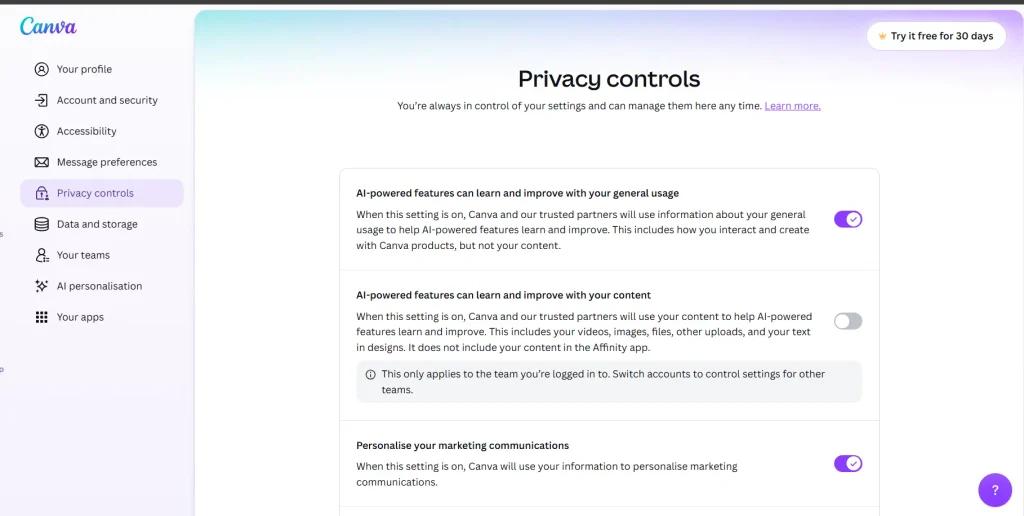
Check whether Canva can use your uploaded content to improve its AI-powered features. You can manage this permission in Canva Privacy Settings.
In my account check on November 9, 2026, the content improvement setting was OFF, while the general usage improvement setting was ON. These are separate permissions, so review both before uploading confidential client photos or business assets.
A simple rule for sensitive photos
For client portraits, children’s photos and confidential images, use local editing tools whenever possible. If you use cloud editors, review AI-training settings, privacy policies and data-retention rules before uploading.
- Photoroom: AI-training opt-out is available. No fixed upload-retention period is specified.
- Pixlr: No fixed retention period is specified for uploaded editing images.
- After editing: Delete uploaded files where possible, but remember that backups may remain.
Sources: Photoroom Privacy · Pixlr Privacy.
What I’d do if I were starting today
I’d choose one AI photo editor based on the work I do most, test it with real projects, and upgrade only when I consistently need features from a paid plan. Here’s what I’d recommend for three types of users.
- If you sell products online: Start with Photoroom. Its free plan is restricted to personal, non-commercial use, so check whether a paid-plan trial is available for your account. Test it on a complete product batch before committing to an annual subscription.
- If you’re a creator or social media manager: Start with Canva Free. Use it for a week to create posts, thumbnails and marketing graphics. Upgrade when you regularly need premium features such as Background Remover or higher AI usage limits.
- If you’re a working photographer: Start with Lightroom if you regularly edit RAW photos and large galleries. Consider Photoshop through an appropriate Photography plan if you also need detailed retouching and compositing. Add Topaz Photo only if noise reduction, sharpening or upscaling is a frequent problem in your workflow.
My pick for FluxGrowth: I’d choose Canva for Instagram graphics, promotional posts and article visuals. It brings photo editing and design together, which makes it practical for creating consistent marketing content. For more detailed photo retouching, I’d use Photoshop instead.
Frequently asked questions
What is the best AI photo editor in 2026?
Adobe Photoshop is the best AI photo editor for professional, realistic results, because its generative edits stay on editable layers. For product photos, Photoroom is the stronger pick, and Canva suits social media graphics. The right choice depends on the edit you make most often.
Is there a completely free AI photo editor?
Yes, Canva and Pixlr both offer permanent free plans with AI tools, but each limits how much AI you can use per month. Photoroom also has a Free plan, though it’s restricted to personal, non-commercial use. Fully unlimited, commercially licensed AI editing generally requires a paid plan.
Can AI edit photos automatically?
Yes, AI can automatically remove backgrounds, fix exposure, denoise and retouch faces in one click. You still need to review the result, because AI often softens fine detail or changes colors slightly. Treat automatic edits as a first draft.
What is the best AI photo editor for beginners?
Canva is the best AI photo editor for beginners, because its free plan is permanent and its one-click tools sit next to ready-made templates. Pixlr is a good second choice if you want a more traditional editing layout for a few dollars a month.
Can I use AI-edited photos commercially?
Usually yes, if you own the original photo and the tool’s license allows commercial use. Some free plans, like Photoroom Free, are personal-use only. In the US, AI-assisted edits don’t remove your copyright, but content generated entirely by AI isn’t protected on its own.
Are online AI photo editors safe to use?
Online AI photo editors are generally safe for everyday images, but they upload your photos to the vendor’s servers. For client or sensitive photos, check the AI-training and retention settings first, or use a desktop tool that processes locally, like Topaz Photo or Luminar Neo.
The bottom line
The best AI photo editor is the one built for the edit you make every week, not the one with the longest feature list. Photoshop wins on control, Photoroom on product shots, Canva on social content, and Luminar Neo if you hate subscriptions. Whatever you choose, read the commercial-use terms before your edits go into a listing or a client folder.
Here’s something you can do today. Pick your single most common edit, run the same photo through two free plans or trials, and compare the results at full size. You’ll know within an hour which AI photo editor earns a spot in your workflow.
Which edit eats the most of your week right now?