FluxGrowth is reader-supported. Some links in our guides are affiliate links — if you buy through one we may earn a commission, at no extra cost to you. It never changes which tools we recommend. How we test tools.
An AI background remover cuts the subject out of a photo automatically, giving you a transparent PNG or a new backdrop in seconds instead of tracing edges by hand. Which one fits you depends on three things: what the free plan actually exports, how sharp the result is, and whether you can sell with it.
Picture an Etsy seller with 40 product shots and the Pen tool open in Photoshop. That’s an afternoon gone. AI tools fix that part fast. The catch shows up later, when the “free” download that looked perfect on screen turns soft, watermarked, or off-limits for commercial use.
This guide compares five AI background removers: Photoroom, Adobe Express, Canva, Pixlr, and Adobe Photoshop. You’ll see free limits, export quality, batch options, and licensing side by side, plus a pick for each use case.
This is a research-based comparison built from official product documentation, pricing pages, and independent reviews. We also examined each tool’s free-plan limits, export options, and licensing terms to help readers understand what they can actually use. Pricing and plan details were checked in November 2026.
What is an AI background remover?
An AI background remover is an image-editing tool that detects the main subject of a photo and separates it from everything behind it, with no manual selection. The output is usually a transparent PNG, a cutout you can drop onto any color, scene, or design template.
The terms around it get mixed up, so here’s the short version:
- Automatic background removal: one click, and the AI decides where the subject ends.
- Manual background removal: you trace the edge yourself with a pen, lasso, or brush tool. Slow, but you control every pixel.
- Image masking: hiding the background with a mask instead of deleting it, so you can paint parts back in later. Photoshop and Pixlr both work this way.
- Background eraser: a brush that deletes pixels wherever you paint. Handy for touch-ups after an AI pass.
- Transparent PNG: the file format that keeps empty areas see-through. A JPG can’t do this, so it fills them with white.
- Background replacement vs. AI-generated backgrounds: replacement swaps in a color or photo you choose. Generation creates a brand-new scene from a text prompt, like a marble counter-top with soft window light.
- Batch background removal: processing a whole folder of images in one run, which matters once you’re editing a product catalog rather than one head-shot.
- Generation creates a brand-new scene from a text prompt, like a marble countertop with soft window light. For full scenes from scratch, see our guide to AI image creation tools.
How does AI background removal work?
AI background removal works in two passes: segmentation finds the subject, and matting decides how transparent each edge pixel should be. Segmentation is the easy part for modern tools. Matting is where they differ, because hair, fur, lace, and glass aren’t cleanly “in” or “out” of the subject.
Here’s the sequence most tools follow:
- The model scans the image and labels each pixel as subject or background (segmentation).
- It builds a rough mask around the subject.
- It refines the boundary, giving soft edges partial transparency so a strand of hair fades out instead of being chopped off (matting).
- It applies the mask and hands you a transparent PNG or a new background.
So what does that mean for you? Two tools can look identical on a coffee mug and very different on a curly-haired portrait. Always judge a remover on your hardest image, not your easiest one.
Why use an AI background remover in 2026?
An AI background remover is worth using when you edit images often enough that manual masking takes hours. It turns a slow, skill-heavy task into a quick review step and helps maintain a consistent look across product catalogs.
Product images can also influence buying decisions. According to Salsify’s 2025 Consumer Research, 77% of surveyed U.S. and U.K. shoppers said product titles and descriptions, as well as product images and videos, were important to their final purchase decision. The survey included 1,910 consumers, with data collected on October 10, 2024. Read Salsify’s 2025 Consumer Research.

Marketplace requirements make image quality even more important for sellers. Amazon’s U.S. Seller Central guidelines require main product images to have a pure white background (RGB 255, 255, 255). A properly edited cutout placed on a pure white background can help meet this requirement. See Amazon’s image requirements.
The trade-off: AI saves time when editing images in volume, but it doesn’t guarantee perfect results. You’ll still need to inspect edges and manually fix tricky areas.
Best AI background remover tools in 2026
The best AI background remover in 2026 depends on your job: Photoroom for product photos, Adobe Express for free one-off cutouts, Canva for teams already designing there, Pixlr for budget layer editing, and Adobe Photoshop for professional masking. Here’s what each one actually gives you.
What happened to remove.bg?
remove.bg is closing as a standalone tool on December 1, 2026, with its background-removal technology moving to Canva. Unused pay-as-you-go credits will expire on that date. Self-service API users are being directed to Leonardo.Ai and will need a new API key and integration updates. Official FAQ ·
Self-service API users are being directed to Leonardo.Ai, which is also part of the Canva family. You’ll need a new Leonardo account and API key, and existing integration’s will require code changes. If you rely on remove.bg credits or API scripts, plan your switch before the deadline. Read the API migration guide.
1.Photoroom: best for e-commerce product photos
Photoroom is an AI photo editor built for product listings. Its Pro plan costs $7.50/month billed yearly and includes 1,000 exports, Background Remover, AI Shadows, and Retouch. The free plan offers 100 exports per month but is limited to personal, non-commercial use. See pricing and plans.
According to a survey Photoroom ran of its own 1,356 paying e-commerce users, the median time to produce a product image fell from 15 minutes to under 5 minutes with AI. Photoroom describes these findings as self-reported and directional, not proof that its software alone caused the time savings. Read Photoroom’s research report.

The limitation: Shopify integration requires the $20.99/month Max plan, API usage is billed separately, and commercial use requires a paid plan. Check commercial-use terms
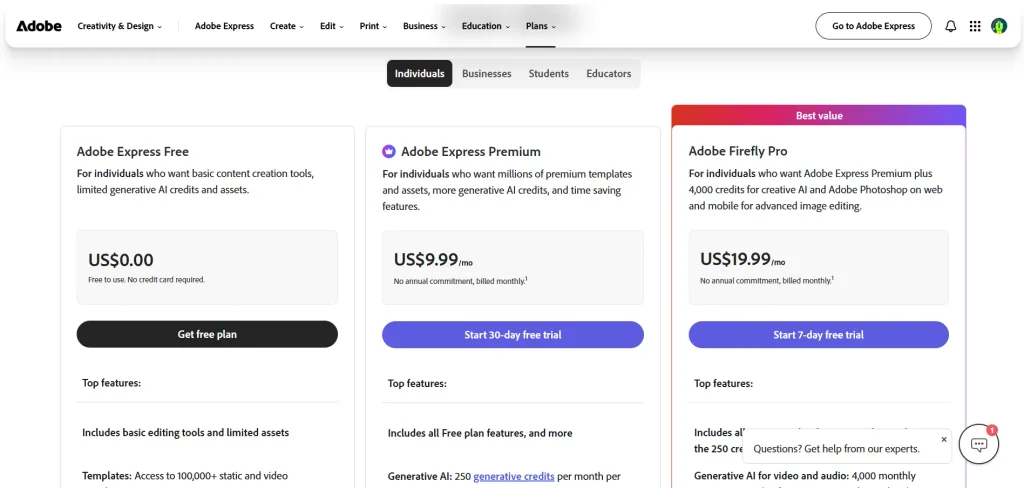
2.Adobe Express: best free option for quick cutouts
Adobe Express is Adobe’s browser and mobile design app. Its Remove Background tool supports JPEG, PNG, and WebP uploads up to 40 MB and lets you download transparent PNGs. You can use the tool for free without a credit card and continue editing your cutout in Adobe Express.
The limitation: Adobe Express Premium costs $9.99/month in the U.S., billed monthly. Adobe’s official pricing does not list background removal as a Premium-only feature, so avoid claiming it consumes generative credits. The 17 MB limit is not supported by Adobe’s current background changer page, which specifies 40 MB. Adobe Express pricing.
3.Canva: best for teams already designing in Canva
Canva’s Background Remover works directly inside its editor, letting you remove backgrounds and continue designing without switching tools. It supports images under 9 MB, downscales images above 10 MP, and includes Erase and Restore brushes for edge corrections. See Canva’s Background Remover guide.
The limitation: Background Remover is included in Canva’s paid plans. Canva Pro costs $144/year in the U.S. ($12/month billed yearly). Bulk background removal supports up to 50 images per batch, and photos must be under 9 MB. Check Canva pricing · See official bulk removal limits.
4.Pixlr: best budget editor with layers
Pixlr combines AI background removal with layers and editing tools. Its Plus plan costs $2.49/month ($1.99/month billed yearly), while Premium costs $9.99/month ($7.99/month billed yearly). See Pixlr pricing.
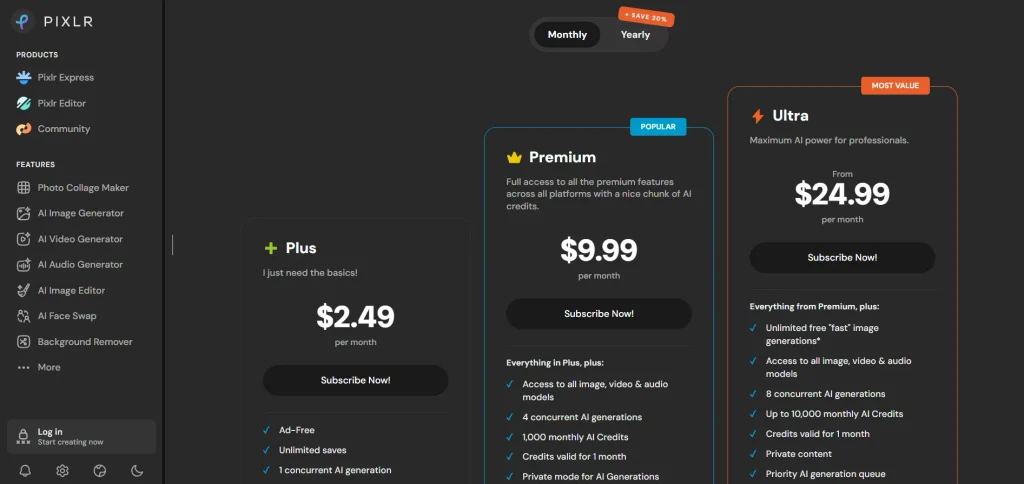
The limitation: the free plan includes ads and limited AI credits. Pixlr does not clearly publish fixed free-tier background-removal credits or daily save limits, so check its current plan details before relying on them.
5.Adobe Photoshop: best for professional photographers and retouchers
Adobe Photoshop offers advanced background removal with Select Subject and layer masks, allowing detailed edge cleanup without permanently deleting the original image. It also includes tools such as Refine Hair and Generative Fill for more complex edits. See Photoshop features.
The limitation: Photoshop costs $22.99/month on the U.S. Annual, billed monthly plan, or $263.88/year when paid annually upfront. It also has a learning curve and may be overkill if you only need a few transparent PNGs. Check Adobe’s official Photoshop pricing.
AI background remover comparison table
| AI background remover | Best for | Free plan reality | Key features | Main limitation |
| Photoroom | Product photos, Shopify and Etsy catalogs | 100 exports/month; personal use only, not commercial | Batch editing, AI Backgrounds, AI Shadows, 1,000 exports/month on Pro ($7.50/month billed yearly) | Shopify integration on $20.99/month; 4K on Ultra ($82.50/month) API usage has separate pricing |
| Adobe Express | Free one-off cutouts and quick designs | Free background-removal quick action; free plan available | JPEG, PNG and WebP support; 40 MB upload limit; templates and mobile app | Premium costs $9.99/month; don’t confuse its general generative credits with background-removal usage |
| Canva | Social graphics and marketing teams | Background Remover requires a paid plan | Erase/Restore brushes, in-editor workflow, bulk removal up to 50 images per batch | Photos under 9 MB; images above 10 MP are downscaled; transparent PNG download requires a paid plan |
| Pixlr | Budget editing with layers | Free access is limited; exact free AI credits and save limits aren’t clearly specified | Browser-based editing, layers, Plus from $1.99/month billed yearly | AI usage is credit-based on paid plans; check current free limits before relying on them |
| Adobe Photoshop | Professional retouching and print | 7-day free trial; no permanent free plan | Remove Background Quick Action, layer masks, Refine Hair and advanced editing | $22.99/month on the U.S. annual-billed-monthly plan, or $263.88/year prepaid; subscription and learning curve |
The winner by use case: Photoroom for product catalogs, Adobe Express for free one-off cutouts, Canva for existing Canva users, Pixlr for budget editing, and Photoshop for professional retouching. No single tool wins every category.
Testing note: Add your own hands-on result after testing the same difficult image in all five tools. I haven’t independently tested these tools, so I wouldn’t claim a personal winner.
How to choose the best AI background remover
Choose an AI background remover by testing it on your hardest real image, then checking export resolution, licensing, and volume limits against how you’ll actually use the result. Feature lists look alike. These seven checks separate the tools.
Accuracy and edge detection
Check this: run a portrait with loose hair and a product with a thin strap. Zoom to 200% and look for halos or chopped edges.
Image resolution
Check this: compare the pixel size of your download to your original. Canva, for example, caps output at 10 MP.
Transparent PNG downloads
Check this: open the file in another app and confirm the background is truly empty, not white.
Batch processing
Check this: find the per-run cap before you commit a catalog. Canva stops at 50 images per folder.
Background replacement and AI backgrounds
Check this: decide whether you need a flat color, a photo you supply, or a generated scene. Only some plans include generation.
Pricing and free limits
Check this: divide the monthly price by the exports you’ll use. That’s your real cost per image.
Commercial usage rights
Check this: read the plan’s terms before you list a product. A watermark-free download doesn’t automatically mean a commercial license.
Best AI background removers for different use cases
The right AI background remover changes with the job: product photography rewards batch tools, portraits reward edge control, and social graphics reward a tool that sits inside your design app.
E-commerce product photos
Pick a Photoroom. Batch editing, AI shadows, and a 1,000-export Pro allowance fit a growing catalog. Runner-up: Canva, if your listings graphics already live there.
Professional photography
Pick Adobe Photoshop. Layer masks keep the cut reversible, and Refine Hair handles client portraits. Runner-up: Pixlr, for lighter jobs on a laptop that isn’t yours.
Social media graphics
Pick Canva. The cutout drops straight into your Instagram or LinkedIn template. Runner-up: Adobe Express, which does the same on a free plan. Once the graphic’s ready, our free Instagram caption generator handles the text.
Portraits and headshots
Pick Adobe Photoshop for paid client work. Adobe Express is fine for a quick LinkedIn head-shot.
Etsy and print-on-demand products
Choose Photoroom for Etsy product listing photos and clean product mockups. Etsy recommends listing images with at least 2,000 pixels in both width and height. Keep the product clearly visible and use a square or landscape image for the first listing photo. See Etsy’s official image guidelines.
Marketing and advertising
Pick Canva for teams that need brand kits and shared templates. Photoroom Max is worth a look if you also want video ads from product photos. For more options, compare these AI image-to-video generators.
Free vs. paid AI background removers
A free AI background remover is enough for occasional personal images, but paid plans usually win once you need full resolution, no watermark, batch runs, or a clear commercial license. The free cutout often looks identical on screen. The difference shows up in the file.
Why does a “free” cutout look blurry when you download it?
A free cutout looks blurry when the tool quietly exports fewer pixels than you uploaded. You won’t see it in the preview, because the preview is shown small. Zoom in on the download, though, and the edges go soft.
Output caps exist on paid plans too, so here’s the math using Canva’s documented 10 MP limit. A 24 MP camera file (6000 × 4000 px) comes back at roughly 3873 × 2582 px. That’s about 42% of the original pixels. Fine for Instagram, risky for a large print.
Three other free-tier catches to look for:
- A watermark stamped on the export
- A license that bans commercial use, even when the file is clean
- A small monthly credit pool that runs out mid-project
What does one usable image actually cost?
Cost per image is the monthly plan cost divided by the number of images you actually export. A plan’s maximum allowance is not necessarily the number of images you will use.
| Plan (Nov 2026) | Price | Monthly allowance | Cost per image at 50/month | Cost per image at full allowance |
| Photoroom Pro | $7.50/mo billed yearly | 1,000 exports | $0.15 | $0.0075 |
| Pixlr Plus | $1.99/mo billed yearly | 80 AI credits | Not confirmed: credits per background removal aren’t specified | Not calculable |
| Canva Pro | $12/mo equivalent, billed $144 yearly | No published monthly removal allowance; up to 50 images per batch | $0.24 | Not calculable |
Photoroom’s Background Remover is a core tool and does not consume AI credits, but each exported image counts toward the 1,000-export allowance.
Pixlr confirms 80 monthly AI credits, but doesn’t specify how many credits a background removal consumes.
Pixlr Editor
Canva’s U.S. annual Pro price is $144, and its current help page confirms a 50-image batch limit—not a guaranteed monthly allowance.
How to remove an image background using AI
To remove an image background with AI, upload a high-resolution photo, run the remover, fix any rough edges, pick a transparent or new background, and download in the right format. On a clean product shot, it’s a handful of clicks. On hair or glass, step 3 is where your time goes.
- Upload your image. Use the largest original you have, not a screenshot or a file you’ve already compressed.
- Remove the background. Click the remover (Background Remover in Canva and Photoroom, Remove Background in Adobe Express and Photoshop).
- Refine the edges. Zoom to 200%. Use the Erase and Restore brushes in Canva, or paint the layer mask in Photoshop or Pixlr, to fix halos around hair, straps, and handles.
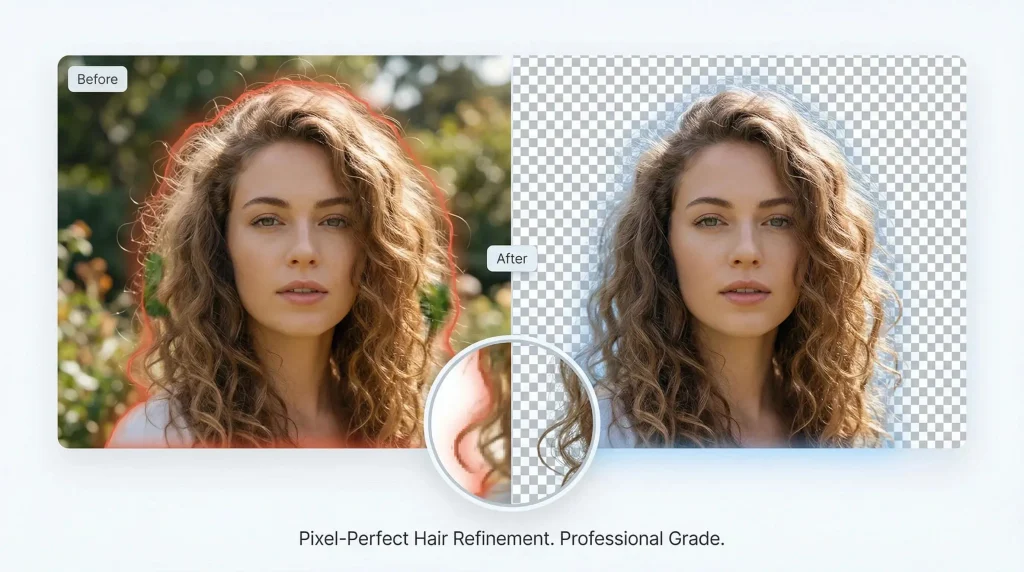
- Choose a transparent or replacement background. Keep it transparent for designs and print-on-demand. Use pure white (RGB 255, 255, 255) for an Amazon main image.
- Download the final image. Pick PNG to keep transparency. A JPG fills empty areas with white, which is only fine if white is what you want.
What I’d do if I were starting today
Don’t start by picking a tool. Pick your hardest image first: the frizzy-haired portrait, the glass bottle, the necklace on a busy table. Run it through two free options (Adobe Express plus Photoroom’s free trial or Pixlr’s free tier), zoom to 200%, and compare the edges and the download size side by side. Whichever needs less cleanup on your worst photo will be fine on the rest. Only then look at the price.
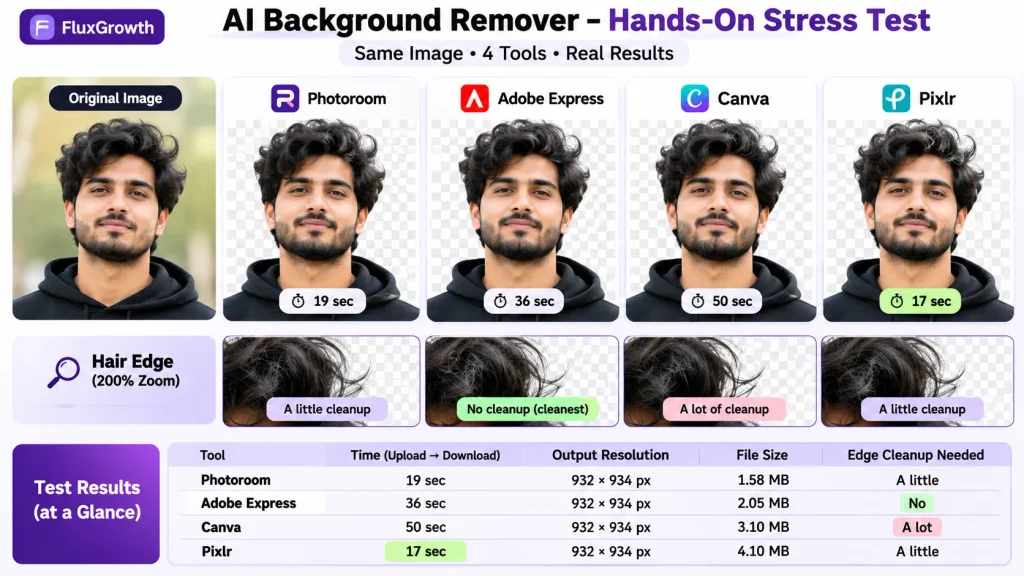
For our own stress test, we used the same original image across Photoroom, Adobe Express, Canva, and Pixlr. Pixlr was the fastest, completing the upload-to-download process in 17 seconds, followed by Photoroom at 19 seconds. Adobe Express took 36 seconds but needed no additional edge cleanup, while Canva took 50 seconds and required the most manual refinement. Photoroom and Pixlr needed only a little cleanup. All four tools exported the image at 932 × 934 pixels, although their file sizes differed. These results suggest that the fastest tool isn’t necessarily the one that produces the cleanest result. Photoshop testing is still pending.
AI background removal limitations
AI background removal still struggles wherever the line between subject and background is unclear: fine hair, see-through objects, soft shadows, low-resolution sources, and tiny product details. On these images, plan for manual cleanup.
- Complex hair and fine edges. Flyaway strands and pet fur get clipped or leave a colored halo from the old background. Photoshop’s Refine Hair tool exists for exactly this job.
- Transparent objects. Glass bottles, clear packaging, and sheer fabric should show the new background through them. Most tools treat them as solid or delete them.
- Shadows and reflections. A natural shadow often gets removed with the background, so the product looks like it’s floating. Photoroom’s AI Shadows adds one back.
- Low-resolution images. The AI has fewer pixels to judge an edge with, so the cutout comes out jagged. Upscaling afterward won’t restore lost detail.
- Fine product details. Jewelry chains, lace, and the gaps between spokes or fork tines are easy to fill in by mistake. Check them at 200%.
The summary: AI is fast and reliable on clean, high-contrast shots. The tricky ones are where a layer mask in Photoshop or Pixlr still earns its keep.
Commercial use, privacy, and image licensing
You can usually use AI background-removed images commercially when you own the original photo and your plan’s terms allow commercial use. The AI tool doesn’t change who owns the picture, but free plans sometimes restrict how you use the output. The same question comes up with logos and brand assets, so it’s worth reading what you actually own when AI makes it.
Licensing: read the plan, not the homepage
Commercial rights depend on each tool’s terms and the assets you use. Photoroom’s free plan is for personal, non-commercial use only; paid plans allow commercial use, including AI-generated backgrounds, subject to copyright restrictions. Check Photoroom’s licensing terms.
Canva allows commercial use of many designs and AI-generated outputs, but its library assets remain subject to their own licenses. Adobe also allows commercial use of content you create, subject to its terms and any third-party asset licenses. Canva AI terms · Adobe terms.
The limitation: before publishing, check for watermarks, confirm commercial-use permissions, and verify the license for every stock image or added asset. Removing the background from someone else’s copyrighted photo does not give you ownership or permission to sell it.
Privacy: where your images go
Most online background removers process images in the cloud. Photoshop offers on-device processing for Select Subject and Remove Background. Adobe processing details.
- Photoroom: Offers an opt-out from using images to improve its AI.
- Adobe: Says Firefly is not trained on customer content.
- Pixlr: Offers Private Mode for AI generations on Premium.
- Canva: Provides privacy settings for AI-training preferences.
The safe habit: check image retention and AI-training settings before uploading confidential client photos or unreleased products. For highly sensitive images, prefer local processing.
Common AI background removal mistakes
Most bad cutouts come from export and checking mistakes, not from the AI itself.
- Saving as JPG when you need transparency. The empty background turns solid white.
- Judging the result at full-screen size. Halos only show up when you zoom in.
- Dropping a cutout onto a background with different lighting. A product lit from the left on a scene lit from the right looks pasted on.
- Assuming a free download is print-ready. Check the pixel dimensions before you send anything to a printer or print-on-demand shop.
- Using off-white for Amazon. “Looks white” can still fail the RGB 255, 255, 255 rule.
Final recommendations: which AI background remover should you choose?
Choose the AI background remover that matches your volume and where the image ends up, not the one with the longest feature list.
- Shopify, Amazon, or Etsy seller: Photoroom. Start on Pro, and move to Max only when you want the Shopify sync or video ads.
- Social media manager or marketing team: Canva, if you already pay for it. Adobe Express if you don’t.
- Beginner or occasional user: Adobe Express. It’s free to start and exports a transparent PNG.
- Budget-conscious editor who wants layers: Pixlr Plus.
- Photographer or retoucher: Adobe Photoshop, for masks you can fix pixel by pixel.
- Developer automating cutouts: Photoroom’s API, which is sold separately from its app plans. Former remove.bg API users should also look at Leonardo.Ai.
- Building the rest of your stack? Start with our shortlist of the best AI marketing tools.
Frequently asked questions
What is the best free AI background remover?
Adobe Express is a strong free option for quick background removal in 2026. It supports JPEG, PNG, and WebP uploads and lets you download transparent PNGs without creating an account to get started. It’s useful for occasional cutouts and quick designs.
How do I remove an image background using AI?
Upload a high-resolution photo to an AI background remover, click the remove button, and zoom in to fix rough edges with an erase or restore brush. Then choose a transparent or replacement background and download the file as a PNG to keep transparency.
Can AI remove backgrounds without losing image quality?
AI can remove backgrounds without visible quality loss on clean, high-contrast photos, as long as the tool exports at full resolution. Some tools cap output size; Canva, for example, downscales images over 10 MP. Fine hair and transparent objects may still need manual cleanup.
Which AI background remover is best for product photos?
Photoroom is the best AI background remover for most product photos because it’s built for e-commerce listings. Its Pro plan includes batch editing, AI shadows, and 1,000 exports a month for $7.50 a month billed yearly. Sellers who need a Shopify sync need the Max plan.
Can I download transparent PNG images for free?
Yes, you can download transparent PNG images for free with Adobe Express’s Remove Background tool. Other tools put the background remover itself behind a paid plan, as Canva does. Always check the downloaded file’s resolution and whether the free plan allows commercial use.
Are AI background removers safe to use?
AI background removers from established companies like Adobe, Canva, and Photoroom are generally safe for everyday images. Most process your uploads in the cloud, so read the privacy policy before uploading confidential or unreleased products. Look for an opt-out from AI training if that matters to you.
Can I use AI background-removed images commercially?
You can use AI background-removed images commercially if you own the original photo and your plan’s license allows commercial use. Free plans sometimes add watermarks or restrict commercial use, so check the terms before listing a product. Any AI-generated background or stock asset you add needs a commercial license too.
The right AI background remover is the one that survives your worst photo
The best AI background remover isn’t the one with the most features. It’s the one that handles your hardest image cleanly, at full resolution, under a license you can sell with.
That’s why the answer changes with your workflow and budget. A Shopify seller, a wedding photographer, and a social media manager will each land on a different tool, and that’s fine.
Here’s your move for today: pick the photo that always gives you trouble, run it through Adobe Express and one other tool from the table, and zoom to 200%. You’ll know your pick in one sitting.
Want more ways to speed up your content workflow? Browse our AI marketing guides for the rest of the stack.