

FluxGrowth is reader-supported. Some links in our guides are affiliate links — if you buy through one we may earn a commission, at no extra cost to you. It never changes which tools we recommend. How we test tools.
To delete your Facebook account permanently, open Settings & privacy > Settings > Accounts Center > Personal details > Account ownership and control > Deactivation or deletion. Pick your profile, choose Delete account, and confirm with your password. You can still cancel for 30 days by logging back in.
That’s the short version. The longer version matters, because Facebook gives you two very different exits. Deletion wipes your profile for good. Deactivation just hides it until you come back.
Below, you’ll get exactly how to delete your Facebook account on iPhone, Android, or a computer, what to save first, and what really happens to Messenger, your photos, and any Pages you run. There’s also a section for the most frustrating case: an old account you can’t log into anymore.
Should You Delete or Deactivate Your Facebook Account?
Delete your Facebook account if you never plan to come back. Deactivate it if you want a break and might return. Deletion is permanent after Facebook’s 30-day cancellation window, while deactivation can be undone any time by logging back in.
What permanent deletion does
Permanent deletion removes your Facebook profile and the content you’ve added, including photos, videos, posts, and other account information. According to Meta’s Help Center, once the deletion process is final, you cannot reactivate your account or recover the information associated with it.
You also lose access to Facebook Messenger through that account. However, messages you’ve previously sent to other people may remain visible in their inboxes. Some information may also be retained by Meta for legal, security, or other permitted reasons.
What deactivation does
Deactivation hides your profile so people can’t view your timeline or search for you. Facebook keeps your data, and logging back in restores everything. You can also keep Messenger running while your Facebook profile stays hidden.
Deleting the app isn’t deleting your account
Removing the Facebook app from your phone changes nothing about your account. Your profile stays live, friends can still tag you, and Facebook still holds your data. The same goes for Messenger: uninstalling it doesn’t close anything.
| Option | What happens | Best for | Can you come back? |
| Permanent deletion | Profile hidden right away; content deleted within up to 90 days of starting | Leaving Facebook for good | Only within 30 days (U.S.) |
| Deactivation | Profile hidden; data kept | Taking a break | Yes, log back in |
| Deactivate but keep Messenger | Profile hidden; chats keep working | Quitting the feed, not your friends | Yes, log back in |
| Removing the app | App gone from your phone; account untouched | Cutting screen time | Nothing changed |
If you’re quitting for privacy reasons, permanent deletion is the only option that actually removes your data. If you mostly want less scrolling, deactivation (or just deleting the app) does the job without burning anything down. And if family group chats are the only thing keeping you on Facebook, deactivate and keep Messenger.
What Should You Do Before You Delete Facebook?
Before you delete Facebook, download a copy of your information, hand off any Pages you manage, and switch apps that use “Log in with Facebook” to an email login. Skip these and you can lose photos, business Pages, and app accounts you didn’t realize were tied to Facebook.
Before deleting a Facebook account, it’s worth reviewing the export and deactivation options carefully so you don’t lose access to important photos, posts, or conversations.
Export your Facebook information
Facebook’s download tool is available in the Accounts Center. Before deleting your account, download a copy of your important information.
- Open Accounts Center and select Your information and permissions.
- Click Export your information, then Create export.
- Select your Facebook profile and choose Export to device.
- Choose what to include, a date range, file format, and media quality.
- Click Start export.
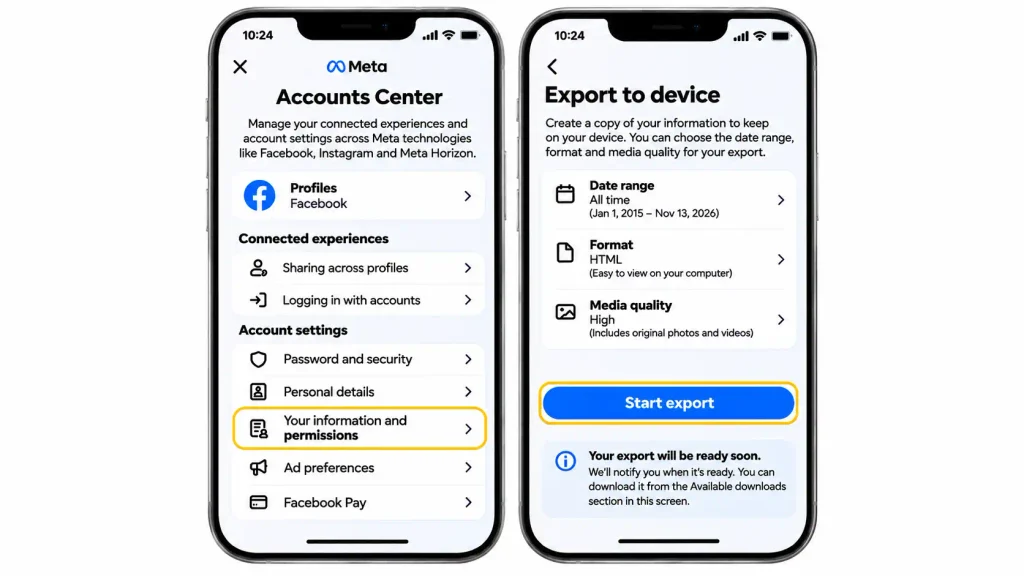
Choose HTML to browse your downloaded posts in a web browser or JSON for machine-readable data. Once your export is ready, you have four days to download it before it expires.
Source: Meta Accounts Center
Save Messenger chats you care about
Your Facebook data export may include Messenger messages, but end-to-end encrypted chats may require a separate download through Messenger’s Secure Storage.
Before deleting your account, open Messenger Settings → Privacy & safety → End-to-end encrypted chats → Message storage and check your backup options.
Save important conversations and keep your PIN or recovery key safe.
Source: Meta – Messenger Encryption Guide
Hand off Pages and groups
If you’re the only admin of a Facebook Page, give someone else full control first. A Page tied only to your profile goes down with it. Do the same for groups you run, or they’ll be left without an admin.
If you’re leaving Facebook personally but your business Page stays, these AI tools for Facebook marketing can help whoever runs it next.
Switch “Log in with Facebook” apps
Deleting Facebook can affect apps and websites where you use Facebook Login, such as Spotify or Pinterest. Before deleting your account, open each service and add an email, password, or alternative login method.
If you use Meta Quest, check your Meta Account settings and confirm that your purchases and device data are safely associated with your account before deleting Facebook.
Source: Meta Account – Official Guide
Decide about Instagram and Threads
Deleting Facebook does not automatically delete your Instagram or Threads accounts. However, check your Meta Accounts Center settings and make sure you can access each account separately. If you can’t get into Instagram on its own, fix that first with our Instagram login guide.
Important: Deleting Instagram can also affect its linked Threads profile.
Source: Meta Accounts Center
How to Delete Your Facebook Account Permanently
You delete a Facebook account permanently through Meta Accounts Center, under Account ownership and control. The steps below are the same on every device once you’re inside Settings. The next section shows where Settings lives on iPhone, Android, and desktop.
The Accounts Center route
- Open Facebook and go to Settings & privacy > Settings.
- Select Accounts Center.
- Choose Personal details, then Account ownership and control.
- Select Deactivation or deletion.
- Pick the Facebook profile you want to remove.
- Choose Delete account, then Continue.
- Facebook may ask why you’re leaving and offer alternatives. Keep tapping Continue.
- Enter your password and confirm.
That’s it. Your profile disappears from Facebook right away, and the 30-day cancellation clock starts.

If your Settings menu looks different
Facebook’s settings interface may vary by account. You might see Accounts Center or the newer Meta Account option.
If you’re using the older interface, follow these steps:
- Go to Settings & privacy → Settings.
- Click Your Facebook Information.
- Select Deactivation and Deletion.
- Choose Delete Account → Continue to Account Deletion.
- Enter your password and confirm.
Quick recap: Both routes lead to account deletion. Facebook gives you 30 days to cancel your deletion request by logging back in. After that, the deletion becomes permanent.
Source: Facebook Help Center – Account Deletion
How Do You Delete Facebook on iPhone, Android, or a Computer?
The Facebook account deletion process is similar across devices, but menu locations may vary. Open Settings on your device, then follow the Accounts Center deletion steps explained above.
On iPhone or iPad
- Open the Facebook app.
- Tap Menu (usually at the bottom right).
- Select Settings & privacy → Settings.
- Continue with the Accounts Center deletion steps.
On Android
- Open the Facebook app.
- Tap Menu (usually at the top right).
- Select Settings & privacy → Settings.
- Continue with the Accounts Center deletion steps.
On a Computer
- Visit Facebook.com and log in.
- Click your profile picture in the top-right corner.
- Select Settings & privacy → Settings.
- Continue with the Accounts Center deletion steps.
Tip: If you can’t find an option in the Facebook app, try accessing your account settings through a web browser. Menu locations may differ depending on your Facebook version.
Source: Facebook Help Center – Account Deletion
How Do You Deactivate Facebook Instead?
You deactivate Facebook from the same Deactivation or deletion screen, by choosing Deactivate account instead of Delete account. Nothing gets erased, and you can return whenever you want by logging back in.
- Go to Settings & privacy > Settings > Accounts Center.
- Choose Personal details, then Account ownership and control.
- Select Deactivation or deletion and pick your profile.
- Choose Deactivate account, then Continue.
- Enter your password, pick a reason, and confirm.

Two things to know before you hit confirm. First, Meta’s Help Center says that if you keep Messenger active, or you’re logged in to Messenger when you deactivate, Messenger stays on. Using Messenger won’t reactivate your Facebook profile. Second, Pages that only you control get deactivated along with your profile, so add another admin first if the Page needs to stay live.
Here’s my honest take: if you’re on the fence, deactivate first. Give it a month. If you don’t miss it, come back and delete it.
What Happens After You Delete Your Facebook Account?
After you request deletion, Facebook hides your profile immediately and gives you 30 days to change your mind. After that, the deletion is final, and Meta says it can take up to 90 days from the start of the process to delete everything you posted.
Days 0 to 30: hidden, but reversible
After requesting deletion, your Facebook profile becomes inaccessible to other users. You can cancel the request by logging back into Facebook and selecting Cancel deletion within the applicable cancellation period.
Meta generally provides a 30-day window, although the exact period varies by region.
To avoid accidentally cancel-ling deletion, stay logged out of Facebook and avoid using Facebook Login on other websites or apps until the deletion period ends.
Important: The cancellation window is not the same as the time needed to erase all your information. Meta says removing your posted content can take up to 90 days.
After 30 days: the real timeline
Meta says it can take up to 90 days from the beginning of the account deletion process to remove everything you’ve posted. This is not an additional 90 days after the initial 30-day cancellation period.
After content is deleted, Meta may take another 90 days to remove copies from backup and disaster-recovery systems. Some information may also be retained longer for legal, security, or policy-related reasons.
The takeaway: Account deletion doesn’t mean every copy of your information disappears immediately. Your content becomes inaccessible to other Facebook users while deletion is underway.
Source: Meta Terms of Service – Deleting Your Content
Messenger, messages, and your name
Permanent deletion ends your Messenger access with that account. But messages you have already sent don’t vanish from other people’s inboxes. Meta says copies of messages you sent are stored in your friends’ inboxes, so they may still see them.
Pages, groups, and connected apps
Facebook Pages that you are the only person with full control of may be deleted when you delete your account. Give another trusted person full control first if you want to keep the Page.
Your group posts, comments, and content shared as a Page admin may not automatically disappear. You may also lose access to apps and websites that use Facebook Login.
Before deleting your account, check your Page permissions, important group content, and connected apps.
Source: Meta Terms of Service
How to check it’s really gone
This is an editorial tip, not an official Meta tool. After the full 30 days, log out everywhere and search your name on Facebook from a friend’s account. Your profile shouldn’t appear. Don’t test this by logging in to your own account during the 30 days, because that’s how deletions get can-celled.
Quick recap: 30 days to undo, up to 90 days (counted from day one) for Facebook to clear your content, and old messages stay with the people you sent them to.
How Do You Delete an Old Facebook Account Without a Password?
You generally need to recover access to your Facebook account before requesting permanent deletion. Start with Facebook’s official recovery page, preferably using a device you’ve used before.
- Visit facebook.com/login/identify.
- Enter an email address, phone number, or username linked to your account.
- Follow the instructions to verify your identity and reset your password.
- Once you regain access, delete your account through Accounts Center.
If you no longer have access to your email, try recovering it through your email provider first. Meta may also request identity verification, such as a government-issued ID, in certain cases. If the reset code never arrives or the app keeps rejecting your details, work through our Facebook login troubleshooting guide first.
If your account was hacked, visit facebook.com/hacked to start the recovery process.
Important: Meta’s recovery options vary by account. You cannot guarantee deletion without first regaining access.
Watch out for fake “Facebook support” numbers
Be careful with websites listing Facebook recovery or customer-support phone numbers. Scammers often pretend to be Meta representatives to steal passwords, login codes, or money.
Use Facebook’s official Help Center and account recovery page instead. Never share your password, two-factor authentication code, or recovery code with anyone claiming to offer support.
The same tricks show up elsewhere on Facebook too; see our breakdown of the most common Facebook Marketplace scams.
Quick recap: Recover access through Facebook’s official channels first, then request account deletion. Never pay unofficial recovery services.
Source: Meta – Scam Prevention
Why Won’t Facebook Let You Delete Your Account? Common Fixes
Most Facebook deletion problems come from incorrect settings, password issues, or account restrictions. Here are five common fixes:
- No Delete option? Switch back to your main Facebook profile and check Accounts Center.
- Can’t find Accounts Center? Check the Settings menu or try the older Your Facebook Information route.
- Password not working? Check your password or reset it before trying again.
- Account reactivated? If you can-celled deletion during the cancellation period, you’ll need to request deletion again.
- Export link expired? Create a new export. Ready-to-download files are available for four days.
If your Facebook account is disabled or suspended, follow the appeal instructions displayed when you try to log in. A restricted account may have different recovery options.
Source: Facebook Help Center
Frequently Asked Questions
How do I permanently delete my Facebook account?
Go to Settings & privacy > Settings > Accounts Center > Personal details > Account ownership and control > Deactivation or deletion. Choose your profile, select Delete account, and confirm with your password. Facebook then gives you 30 days to cancel before the deletion becomes final.
How do I delete my Facebook account on my phone?
Open the Facebook app, tap Menu, then go to Settings & privacy > Settings > Accounts Center. From there, choose Account ownership and control, then Deactivation or deletion, and follow the Delete account prompts. The steps are the same on iPhone and Android; only the Menu button’s position differs.
Can I delete my Facebook account without a password?
No, Facebook requires you to log in and confirm your password to delete an account. If you’ve forgotten it, reset it at facebook.com/login/identify using an email or phone number linked to the account. Once you’re back in, you can delete it normally.
How long does it take to permanently delete a Facebook account?
Facebook gives you 30 days to cancel a deletion request in the U.S. According to Meta’s Help Center, it can take up to 90 days from the start of the deletion process to remove everything you’ve posted. Your content isn’t visible to others during that time.
What happens to Messenger when I delete Facebook?
Deleting your Facebook account ends your Messenger access with that account. Messages you already sent can stay visible to the people you sent them to, because copies live in their inboxes. If you want to keep chatting, deactivate Facebook and keep Messenger instead of deleting.
Can I recover my Facebook account after requesting deletion?
Yes, but only within 30 days of requesting deletion. Log in to Facebook during that window and click Cancel deletion. After 30 days, Facebook can’t restore the account or its content.
What’s the difference between deleting and deactivating Facebook?
Deleting a Facebook account permanently removes your profile and content after a 30-day grace period. Deactivating only hides your profile, keeps your data, and lets you return any time by logging back in. Deactivation also lets you keep using Messenger.
The Safest Order to Do This In
If I were closing a Facebook account today, this is the order I’d follow:
- Export your information and actually download the file within four days.
- Save any encrypted Messenger chats you want to keep.
- Add a co-admin to every Page and group you run.
- Switch “Log in with Facebook” apps to an email login.
- Delete (or deactivate) through the Accounts Center.
- Stay logged out for 30 days.
Before You Hit Delete
That’s how to delete your Facebook account without losing anything you’ll miss later. The choice comes down to one question: are you leaving for good, or taking a break? Deletion is permanent after 30 days. Deactivation keeps everything waiting for you. Staying on other platforms? Our social media growth guides cover Instagram, TikTok and more.
Either way, start with the export. Requesting it takes a few taps, and it’s the only step you can’t redo once the account is gone.
So here’s your next step: open Accounts Center and request your data export today. Delete tomorrow.


