FluxGrowth is reader-supported. Some links in our guides are affiliate links — if you buy through one we may earn a commission, at no extra cost to you. It never changes which tools we recommend. How we test tools.
Someone fills out your contact form at 6:47 on a Friday evening. Your reply goes out at 9:15 Monday morning. By then they’ve already talked to two of your competitors and one of them answered in four minutes.
This guide is part of our AI Automation hub – everything we have published on automating a small business with AI, in one place.
That gap is exactly what lead response automation fixes. It’s a no-code workflow that handles the instant, repetitive first moves the second a lead arrives: logging their details, sending an acknowledgment, alerting the right person, and creating a follow-up task. The sales conversation still belongs to a human. Everything around it doesn’t have to.
You can build the version in this guide in an afternoon, with no code. I’ll show you the exact five steps, which tool fits which situation, and where automating too much quietly costs you deals.
What is lead-response automation?
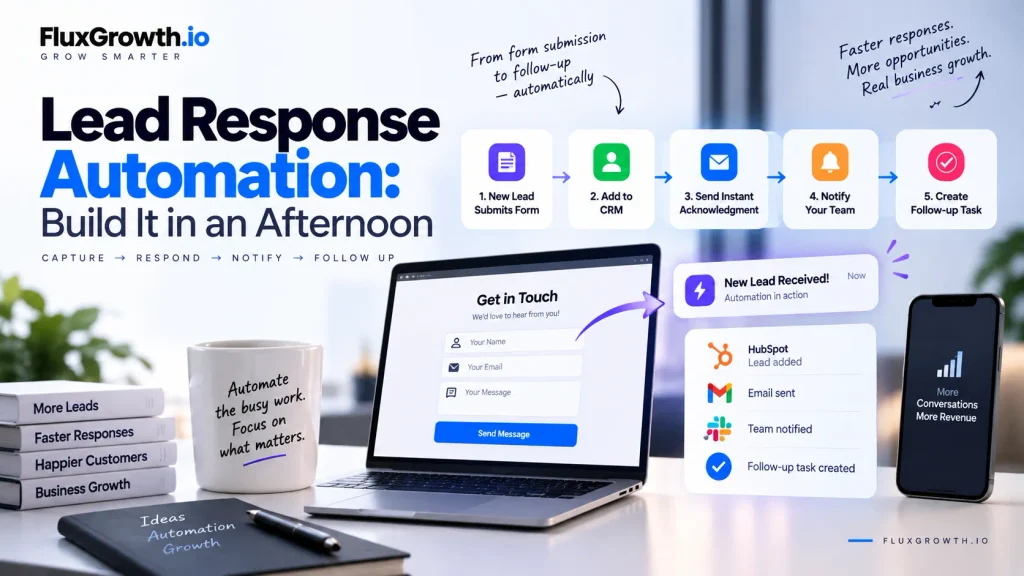
Lead-response automation is a workflow that automatically captures a new lead, records their information, sends an acknowledgment, alerts the right person, and creates the next follow-up action all without someone manually watching the inbox.
A few plain-English terms before we build:
- Trigger — the event that starts everything. Here, it’s a new lead submitting your form.
- Action — a step the workflow performs after the trigger, like creating a record or sending an email.
- Condition — a rule that decides what happens next (“if the service requested is ‘enterprise,’ route it to sales”).
- Integration — a connection between two apps, like your form and your CRM.
- CRM — customer relationship management software; the database where lead and customer records live (HubSpot, Salesforce, Pipedrive, and others).
- Notification — the internal alert that tells a teammate a lead came in.
- Follow-up task — the assigned to-do that makes sure a human actually responds.
Put simply: a trigger fires, a few actions run in order, and a person is handed a warm lead with everything they need to reply. You set it up once. It runs every time.
Why response time matters
Speed matters because leads are often comparing multiple businesses at once. Responding quickly gives you a better chance of starting the conversation while their interest is still fresh.
Harvard Business Review’s 2011 research found that companies contacting a web lead within one hour were nearly seven times more likely to qualify the lead than those waiting another hour.
The commonly cited “five-minute rule” comes from the earlier Lead Response Management Study associated with Dr. James Oldroyd.
I wouldn’t attach a universal revenue figure to slow responses because the financial impact varies by business, lead quality, and deal size.
What we’re building (the workflow at a glance)
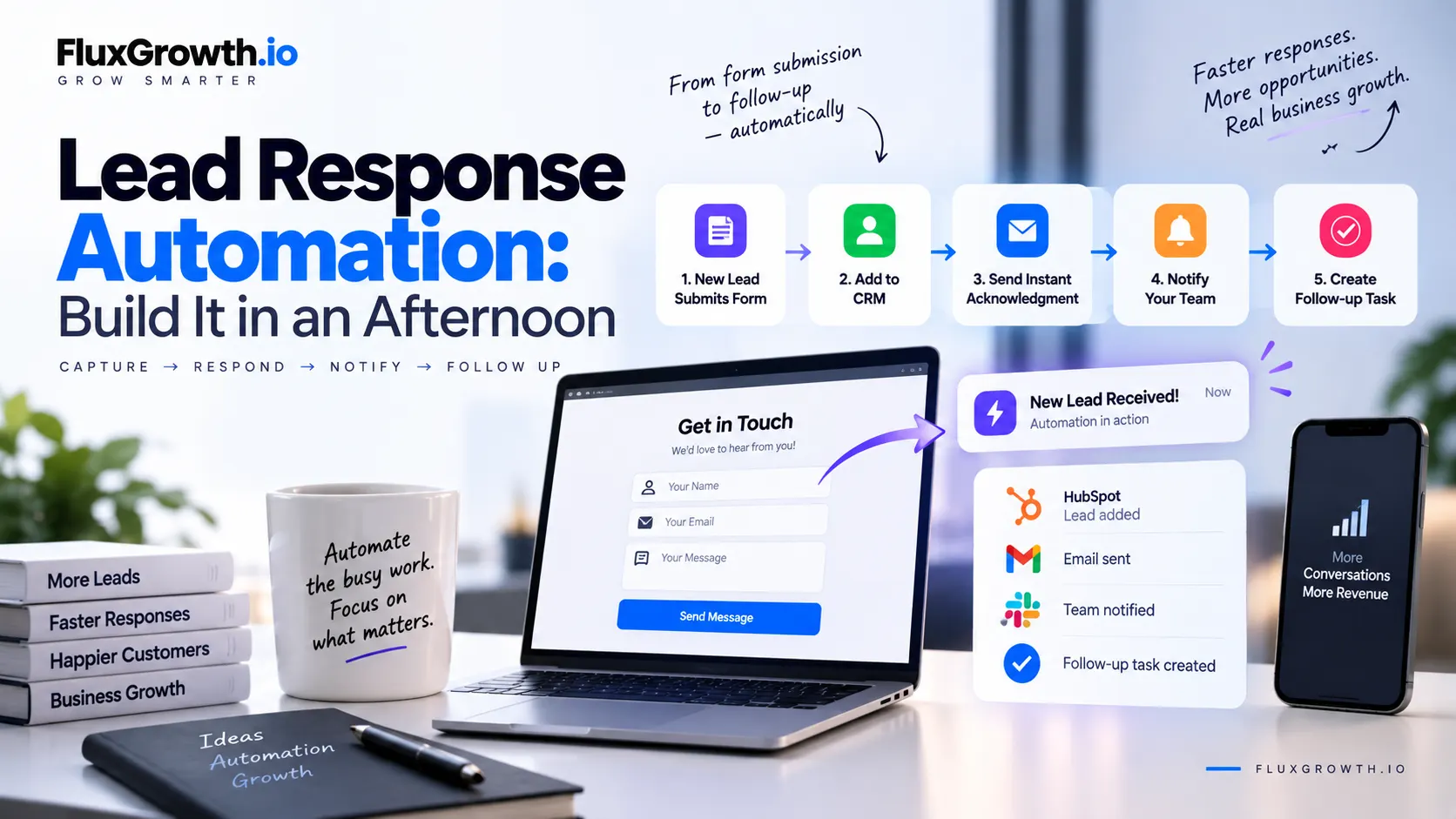
Here’s the whole thing before we break it apart. Treat this as an illustrative workflow the shape stays the same, but your exact tools will vary.
Lead submits your form
↓
Lead is added to your CRM or database
↓
Lead receives an instant acknowledgment
↓
The right person gets an internal notification
↓
A follow-up task is created and assigned
That’s five moves. None of them require code. All of them happen in seconds instead of days. The tools you plug in which form, which CRM, which chat app are yours to choose. The logic doesn’t change.
What you need before you start
Most small businesses already have four of these six:
- A lead form (website contact form, landing page, or booking form)
- An email account to send the acknowledgment from
- A CRM or a database a Google Sheet counts to start
- An automation platform (we’ll pick one next)
- A notification channel (Slack, email, or SMS)
- A person who owns follow-up. This is the one everyone forgets.
Optional add-ons: lead scoring, AI classification, a calendar, SMS. You don’t need AI for any of this. A workflow built on simple rules will outperform a clever one that nobody maintains.
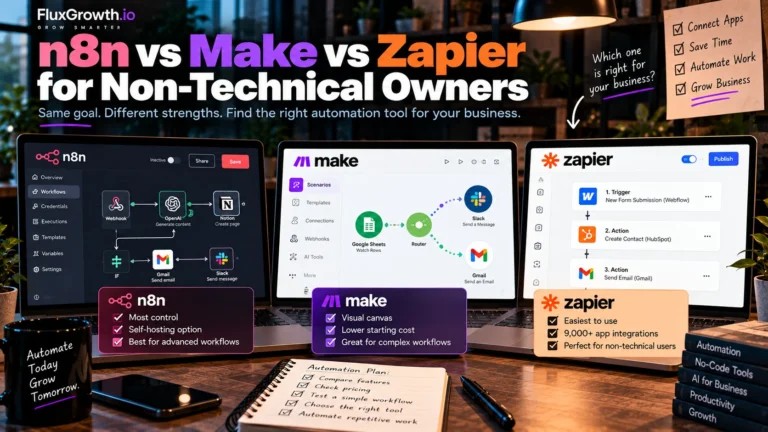
Pick your tool: Zapier, Make, or n8n
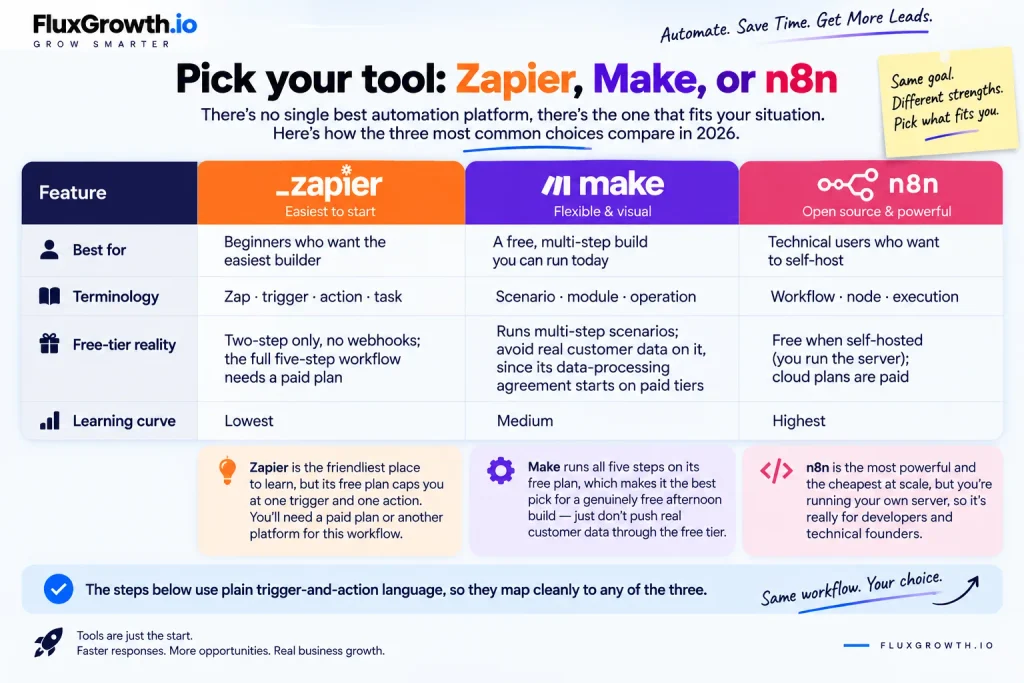
There’s no single best automation platform, there’s the one that fits your situation. Here’s how the three most common choices compare in 2026.
| Platform | Best for | Terminology | Free-tier reality | Learning curve |
| Zapier | Beginners who want the easiest builder | Zap · trigger · action · task | Free plan is two-step only, no webhooks; the full five-step workflow needs a paid plan | Lowest |
| Make | A free, multi-step build you can run today | Scenario · module · operation | Free plan runs multi-step scenarios; avoid real customer data on it, since its data-processing agreement starts on paid tiers | Medium |
| n8n | Technical users who want to self-host | Workflow · node · execution | Free when self-hosted (you run the server); cloud plans are paid | Highest |
The honest version: Zapier is the friendliest place to learn, but its free plan caps you at one trigger and one action. Not enough for this workflow. So you’ll either pay for it or build it somewhere else. If Zapier’s limitations don’t fit your workflow, see our guide to 5 Best Zapier Alternatives for Small Business in 2026.
Make runs all five steps on its free plan, which makes it the best pick for a genuinely free afternoon build just don’t push real customer data through the free tier. And n8n is the most powerful and the cheapest at scale, but you’re running your own server, so it’s really for developers and technical founders.
The steps below use plain trigger-and-action language, so they map cleanly to any of the three.
The five-step build, without code
Step 1 — Capture the lead
The trigger is a new form submission. Your automation platform watches your form and fires the moment someone hits submit.
Decide what you actually collect. Name and email are almost always enough to start a conversation. Phone, company, and a short message help you prioritize. Every extra field costs you submissions, people abandon long forms, and you’re on the hook to protect whatever you gather. Ask for the minimum that lets you respond well, and mark the rest optional.
Common sources this works with: a website contact form, a landing page, a Facebook lead form, a booking or quote-request form. Same trigger logic for all of them.
Step 2 — Send it to your CRM or database
The first action creates or updates a lead record. Your form data flows in; the automation drops it into the right fields.
This is called field mapping. You tell the workflow that the form’s “Email” box fills the CRM’s “Email” field, and so on. A few things to set while you’re here:
- Duplicate detection — check whether this email already exists so you don’t create two records for one person.
- Lead source — tag where the lead came from (for example, “website form”).
- Timestamp — record when it arrived, so you can measure response time later.
- Owner and status — assign a person and set the status to something like “New.”
No CRM yet? A Google Sheet with columns for name, email, source, timestamp, owner, and status works for weeks one through however-long. Start there and upgrade when the sheet starts to hurt.
Step 3 — Send an instant acknowledgment
The next action emails the lead right away, so they know they reached a real business and not a void.
Keep it short and human:
Subject: Thanks for reaching out
Hi [First name],
Thanks for getting in touch — we’ve got your request, and someone from our team will review it and get back to you personally. If it’s urgent, just reply to this email.
— [Your name], [Business name]
Two rules. Don’t promise a response time you can’t hit; “within one hour” is a broken promise at 11pm. And don’t let this replace the human reply. The acknowledgment buys you goodwill and a little time. It isn’t the sales conversation, and leads can tell the difference instantly.
Step 4 — Notify the right person
Now alert whoever responsible. Slack, email, SMS, or a CRM notification pick where your team actually looks.
A good notification gives them enough to act without opening five tabs:
- Lead name and company
- How to reach them (email or phone)
- What they asked about
- Source and time received
- A link straight to the CRM record
One caution: keep sensitive details out of channels more people can see than should. A public Slack channel isn’t the place for a customer’s full message if it contains private information. Send the essentials plus the record link, and keep the rest behind your CRM’s permissions.
Step 5 — Create the follow-up task
The last action creates the to-do that guarantees a human follows up. Automation that logs a lead but never assigns anyone is how leads still slip through.
Set four things: the owner (who’s responsible), a due date (today, ideally), a priority, and a status you can track. If your CRM handles tasks, create it there so it lives next to the record. If not, a task tool or even a calendar event works. The point isn’t the tool, it’s that someone is accountable, with a deadline.
Add lead qualification (optional)
Once the basics run reliably, you can route leads instead of treating them all the same. Two ways to do it.
Rule-based qualification uses fixed logic. If service requested = “enterprise,” assign to the senior rep. If the location is outside your service area, send a polite “we don’t cover that” reply. Rules are simple, predictable, and easy to audit. You always know why a lead went where it did.
AI-assisted qualification uses a model to read messier input. Say a lead writes three rambling paragraphs about their situation. AI can pull out that they’re a 10-person marketing agency with a July deadline and tag the lead accordingly, where a keyword rule would just choke on the mess.
Useful. But keep two guardrails. Review the AI’s output whenever the decision actually matters (routing a $50k lead, say), and never let it invent a customer’s details or make up a policy you never set. For most small-business routing, honestly, a handful of if-then rules is easier to trust and to fix at 9pm than an AI layer you have to babysit.
Test it before you go live
Never test on real customers. Run controlled, fake submissions and watch each step fire. Work through this list:
- A valid, complete lead
- A submission with missing fields
- A duplicate (same email twice)
- A malformed email address
- Several submissions in a row
- Leads from each source you use
- A deliberately broken step disconnect the CRM, kill the email, and see what happens
That last one matters most. You want to know how the workflow behaves when something fails before a real lead finds out for you.
Handle failures and protect lead data
Things break, an app times out, an API key expires, a service has an outage. Build for it. Most platforms let you add error notifications (so you hear about a failure) and retries (so a temporary blip resolves itself). At minimum, make sure a failed run never means a silently lost lead sends yourself an alert so you can step in by hand.
Lead data is personal information, so treat it that way:
- For small businesses, the FTC also recommends limiting access to sensitive information to people who need it for their jobs and using appropriate safeguards for business systems.
- Secure credentials store API keys and passwords in your platform’s credential manager, never pasted into a plain workflow field.
- Limit sensitive data in notifications, send what’s needed to act, keep the rest behind CRM permissions.
- Check third-party policies and review how each connected tool handles data. (Make’s free tier, for example, doesn’t include a data-processing agreement, which matters if you’re routing real customer information.)
I’m not a lawyer, and this isn’t legal advice if you handle regulated data, check your specific obligations. But least-privilege access and secure credentials are good practice for any business.
Common lead-automation mistakes
The failure patterns are predictable. Avoid these:
- Robotic, generic acknowledgment emails that read like a receipt
- Promising response times you can’t keep
- Creating duplicate CRM records for the same person
- Collecting more personal data than you need
- No error handling, so failures go unnoticed
- No human owner on follow-up
- No follow-up task at all
- Pushing sensitive details into channels too many people can see
- Automating the entire sales conversation
- Adding AI where a simple rule would do the job
- Over-engineering a workflow you’ll never maintain
Almost every one of these comes from automating too much or too soon. Start small.
No-code vs custom development (and when to switch)
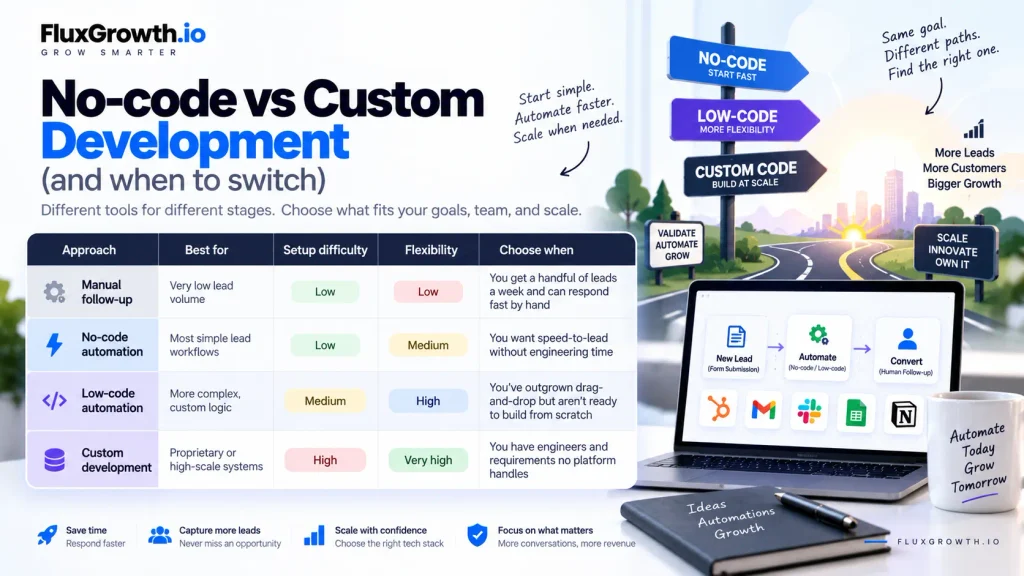
No-code isn’t automatically better than custom code, it’s better for a specific range of problems. Here’s the map.
| Approach | Best for | Setup difficulty | Flexibility | Choose when |
| Manual follow-up | Very low lead volume | Low | Low | You get a handful of leads a week and can respond fast by hand |
| No-code automation | Most simple lead workflows | Low | Medium | You want speed-to-lead without engineering time |
| Low-code automation | More complex, custom logic | Medium | High | You’ve outgrown drag-and-drop but aren’t ready to build from scratch |
| Custom development | Proprietary or high-scale systems | High | Very high | You have engineers and requirements no platform handles |
Which should you choose? For most small businesses building their first lead-response workflow, no-code wins. It’s fast, it’s cheap, and you’ll have it running today. If you get five leads a week and answer them in minutes, manuals are genuinely fine, don’t build a machine you don’t need.
You reach for custom code when the workflow outgrows the platform. Here’s the thing that’s a real threshold, not a vibe. A homegrown CRM your automation tool can’t connect to. Thousands of leads a month. An integration nobody’s built yet. Security rules that rule out third-party tools, or a developer already on the team.
There’s a smart middle path, too: build it in no-code first, then rebuild only the parts that need it. Your no-code version becomes the spec the developer works from.
How to measure whether it’s working
To know whether your automation is working, measure it against a baseline, write down how you’re doing now, before you switch anything on, then compare. Skip that and you’re just hoping. A week of “how fast do we reply, how often do we drop a lead” is enough of a starting line. Then watch these:
- Average response time — the headline metric
- Percentage of leads that receive an acknowledgment
- Follow-up completion rate — how often assigned tasks actually get done
- Lead-to-meeting rate and lead-to-opportunity rate
- Automation failure rate — how often a run breaks
- Manual intervention rate — how often a human has to fix something
I’m not going to hand you an expected improvement percentage, because anyone who does is guessing. Measure your own before-and-after. That’s the only number that means anything.
What I’d do if I were starting today
If I were setting this up for a small service business this afternoon say a two-person landscaping outfit drowning in Google form submissions I wouldn’t build all five steps at once. Here’s the order I’d actually go in.
Step one is almost embarrassingly small: form → acknowledgment email → a Slack ping to your own phone. That’s it. Twenty minutes of work, and it closes the gap that costs you the most the lead nobody saw. Once that’s humming, add the CRM record and the follow-up task so nothing rides on you remembering. Qualification and AI come last, and only after the plain version has run clean for a week or two.
Build the boring version first. Get it dependable. Add cleverness last, and only where it earns its keep. A plain workflow that never misses beats a sophisticated one that breaks on a Tuesday and takes a lead with it.
Start simple and build from there
The five steps are simple: capture the lead, save it, acknowledge it, alert your team, and assign a follow-up. A lead response automation that does those well closes the gap that quietly loses deals the hours between “they raised their hand” and “someone replied.”
Start with the smallest version that works. Wire up a single form-to-acknowledgment step, test it with fake data, and add qualification or AI only once the basics are dependable. Automate the repetitive parts; keep the conversation human.
Your one move for today: map your current lead flow on paper where a lead lands, who sees it, how long it sits. That map is your build plan. Then open your automation tool and connect the first two steps.
Which step in your lead flow is the slowest right now?
FAQ
What is lead-response automation?
Lead-response automation is a no-code workflow that captures a new lead, saves their details to a CRM or database, sends them an instant acknowledgment, alerts the right team member, and creates a follow-up task automatically, the moment they submit a form. It handles the repetitive first steps so a person can focus on the actual sales conversation.
How fast should you respond to a new lead?
As fast as you realistically can—minutes, not hours. Harvard Business Review’s 2011 research found that companies contacting a web-generated lead within one hour were nearly seven times more likely to qualify the lead than those that waited another hour.
Can I automate lead follow-up without coding?
Yes. No-code platforms like Zapier, Make, and n8n let you connect a form, a CRM, an email tool, and a chat app using a visual builder — no programming required. You define a trigger (a new lead) and a series of actions (save, acknowledge, notify, assign), and the platform runs them for you.
What’s the best no-code tool for lead-response automation?
It depends on your needs. Zapier is the easiest to learn, but its free plan only allows two-step workflows, so a full lead-response build needs a paid plan. Make runs the complete multi-step workflow on its free tier. n8n is free if you self-host it but is the most technical of the three.
How do I connect a website form to my CRM?
Use an automation platform as the bridge. Set your form submission as the trigger, then add an action that creates or updates a record in your CRM, mapping each form field to the matching CRM field. Many form tools and CRMs also offer native integration’s, but an automation platform gives you the most control over what happens next.
Should I use AI to qualify or respond to leads?
Only where it earns its place. AI can classify inquiries, summarize long messages, or extract details that fixed rules miss. For straightforward routing, simple if-then rules are usually easier to maintain and audit. If you do use AI, review its output whenever a decision has real business consequences, and never let it invent customer information.
Is it safe to send customer data through an automation platform?
It can be, with basic precautions. Use least-privilege access, store credentials in your platform’s secure credential manager, keep sensitive details out of shared notification channels, and review how each connected tool handles data. If you work with regulated data, confirm your specific compliance obligations.
Bottom Line
You don’t need a complicated tech stack to stop losing leads to slow follow-up. Start with a simple workflow: capture the lead → add it to your CRM → send an instant acknowledgment → notify your team → create a follow-up task.
For most small businesses, no-code automation is the best place to start. Use Zapier if simplicity matters most, Make if you want a flexible multi-step workflow, or n8n if you have the technical skills and want more control.
The goal isn’t to automate everything. Automate the repetitive steps so your team can spend more time having real conversations with potential customers. Set it up once, test it properly, and let the workflow handle the busywork every time a new lead comes in.