FluxGrowth is reader-supported. Some links in our guides are affiliate links — if you buy through one we may earn a commission, at no extra cost to you. It never changes which tools we recommend. How we test tools.
Last updated: August 2026
You’ve probably noticed a Gemini icon in Gmail, Docs, or Meet and nobody explained what it actually does. Google Workspace with Gemini AI bundles an AI assistant into Gmail, Docs, Sheets, Slides, Meet, and Drive. What it’s good for depends entirely on your plan.
Here’s the thing most developers assume it writes code. It doesn’t.
If research is the main thing you want Gemini for, it is worth comparing against the best AI research tools built specifically for it.
What Is Google Workspace with Gemini AI?
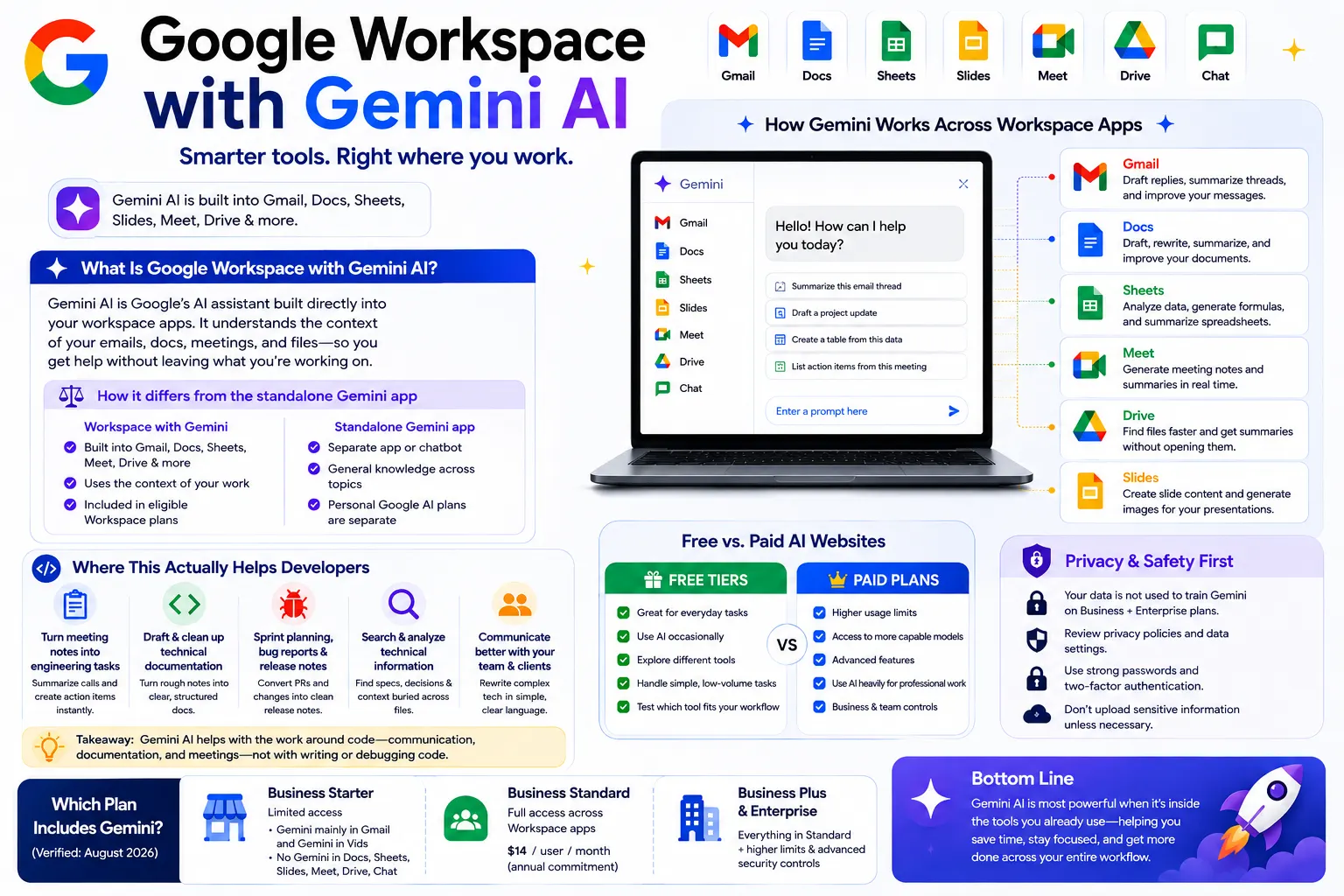
Google Workspace with Gemini AI is Google’s AI assistant built directly into its productivity suite, rather than a separate chat-bot you open in another tab. Instead of copy-pasting text into a standalone app, Gemini works inside Gmail, Docs, Sheets, Slides, Meet, and Drive, using the context of the document, email, or meeting you’re already in.
How this differs from the standalone Gemini app or chat-bot
Verified: Google Workspace plans now include access to the Gemini app as well as Gemini features built directly into apps such as Gmail, Docs, Sheets, Drive, and Meet. The exact features depend on the Workspace plan.
Personal Google AI plans are separate consumer subscriptions, while Workspace Gemini is tied to your organization’s Workspace account and plan. Check your Workspace plan before buying a separate Google AI subscription, because you may already have the Gemini access you need.
Which Workspace plans currently include it
Verified, based on Google’s official pricing page: Gemini access varies by plan. Not a little.
- Business Starter includes only limited Gemini access mainly Gemini in gmail and Gemini in Vids. Docs, Sheets, Slides, Drive, Meet, and Chat do not get Gemini features on this tier.
- Business Standard ($14/user/month, annual commitment) is the entry point for full Gemini access across Gmail, Docs, Sheets, Slides, Meet, Drive, and Chat.
- Business Plus and Enterprise include everything in Standard, with higher usage limits and additional security controls.
Takeaway: If your team is on Business Starter, you likely only have Gemini in Gmail. Full Gemini access across Docs, Sheets, and Meet requires Business Standard or above worth checking before you assume a feature “isn’t working.”
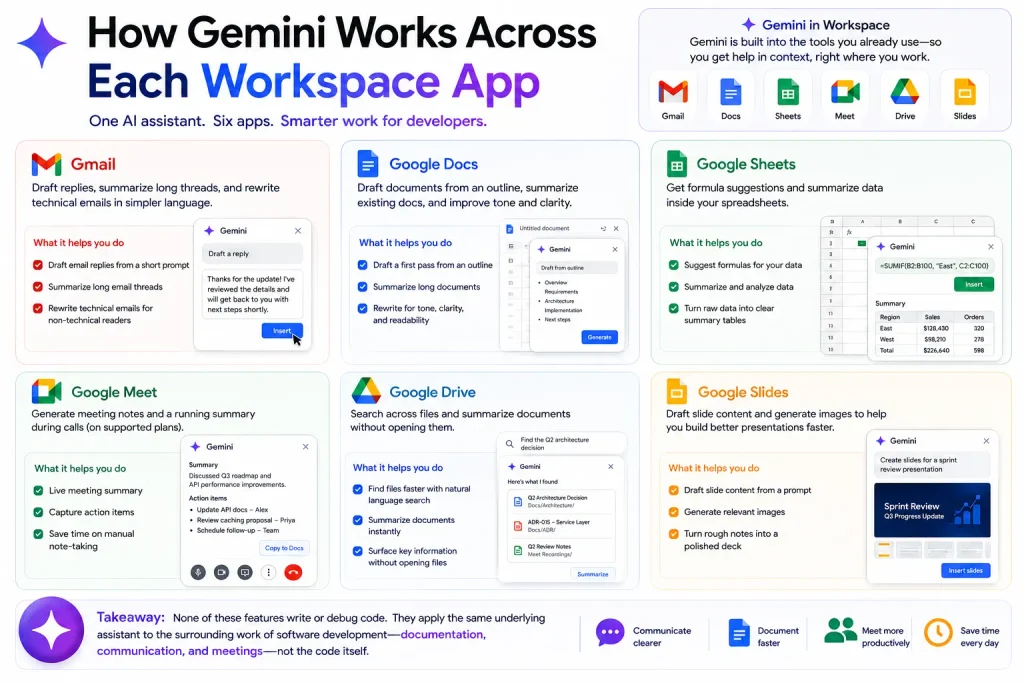
How Gemini Works Across Each Workspace App
Gmail
Gemini in Gmail can draft replies from a short prompt, summarize a long thread so you don’t have to scroll through twenty messages, and rewrite a technical email in plainer language before you send it to a non-technical stakeholder. For a developer, this is most useful for turning a terse Slack-style update into something a client or PM can actually read.
Google Docs
In Docs, Gemini can draft a first pass of a document from an outline, summarize an existing doc, or rewrite a section for tone or clarity. This is where it earns its keep for developers turning a rough set of bullet points from a stand-up into a readable technical spec, or summarizing a long design doc before a review meeting.
Google Sheets
Gemini in Sheets can help with formula suggestions and data summation inside spreadsheets that already have official support for these features. It’s not a replacement for a dedicated data-analysis tool, but it can save time on quick reporting tasks turning a raw export into a readable summary table, for example.
Google Meet
Gemini in Meet can generate meeting notes and a running summary during a call, on plans where the feature is included. For engineering teams, this matters most in stand-ups and sprint planning calls, where someone otherwise has to manually type action items while trying to follow the conversation.
Google Drive
Gemini in Drive can help you search across files and summarize documents without opening each one individually, useful when you’re hunting for a spec or a decision buried in a folder with two years of meeting notes.
Google Slides
Gemini in Slides assists with drafting slide content and generating supporting images for a deck. For developers, this shows up most often when a sprint review or architecture update needs to go from rough notes to a presentable deck quickly.
Takeaway: None of these features write or debug code. They apply the same underlying assistant to the surrounding work of software development documentation, communication, and meetings, not the code itself.
Where This Actually Helps Developers
Turning meeting notes into engineering tasks
A common workflow: Gemini in Meet generates a summary and action items during a sprint planning call. Someone pastes that summary into a Doc, asks Gemini to reformat it into a ticket-ready list, and shares it in Gmail or Chat with the team. This doesn’t replace your issue tracker, but it cuts the manual note-taking and reformatting step.
Drafting and cleaning up technical documentation
Feeding Gemini a rough set of notes API endpoints, expected inputs and outputs, edge cases and asking it to draft a first-pass README or internal doc is a realistic use case. You still need to verify the technical accuracy yourself; Gemini drafts structure and prose, not correctness.
Sprint planning, bug reports, and release notes
Turning a list of merged pull requests into readable release notes, or expanding a one-line bug description into a more detailed report with reproduction steps you fill in, is a reasonable time-saver for teams already living inside Workspace.
Startup and SaaS team workflows
Picture a five-person SaaS team on Business Standard. Nobody’s rewriting their workflow around Gemini; they’re saving ninety seconds here, cutting a meeting-notes doc from twenty minutes to five there. Add it up over a month and it’s real time. It’s still productivity tooling, not a coding capability, and it never will be.
Google Workspace Gemini vs. AI Coding Tools
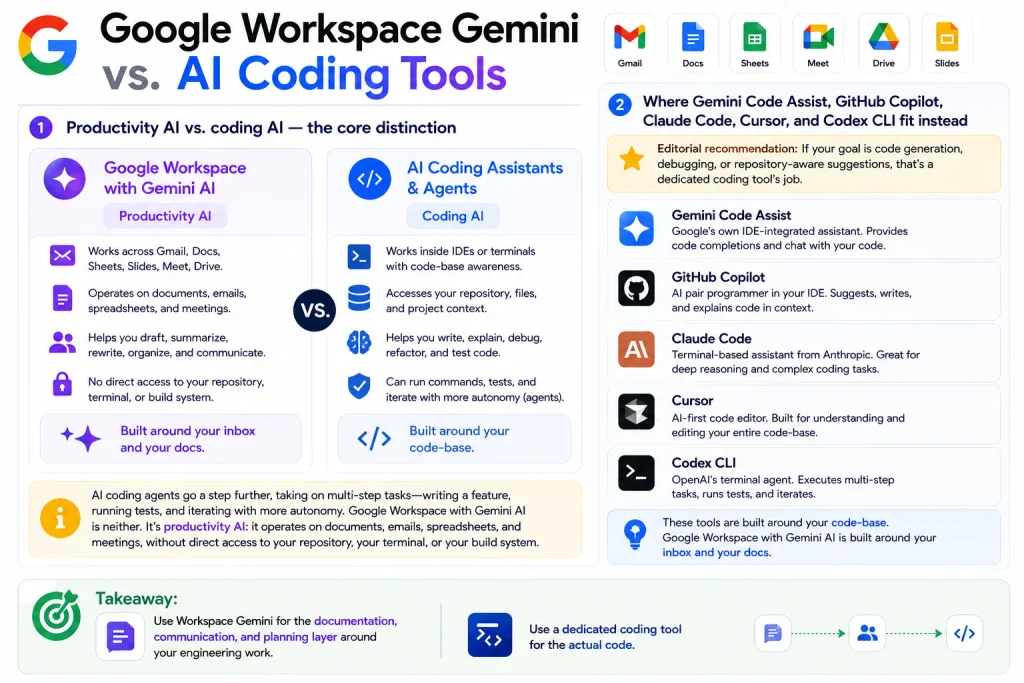
Productivity AI vs. coding AI the core distinction
AI coding assistants are tools that help developers write, explain, debug, or modify code using natural-language instructions, usually working directly inside an IDE or terminal with awareness of your actual code-base. AI coding agents go a step further, taking on multi-step tasks writing a feature, running tests, and iterating with more autonomy. Google Workspace with Gemini AI is neither. It’s productivity AI: it operates on documents, emails, spreadsheets, and meetings, without direct access to your repository, your terminal, or your build system.
Where Gemini Code Assist, GitHub Copilot, Claude Code, Cursor, and Codex CLI fit instead
Editorial recommendation: If your goal is code generation, debugging, or repository-aware suggestions, that’s a dedicated coding tool’s job Gemini Code Assist (Google’s own IDE-integrated assistant), GitHub Copilot, Claude Code, Cursor, or a terminal agent like Codex CLI.
These tools are built around your code-base. Google Workspace with Gemini AI is built around your inbox and your docs. Mixing them up (which happens a lot when a company rolls out “Gemini” everywhere at once) is the fastest way to end up disappointed with a tool that was never meant to write your code.
Takeaway: Use Workspace Gemini for the documentation, communication, and planning layer around your engineering work. Use a dedicated coding tool for the actual code.
Privacy, Security, and Business Use
What Google says about data handling
Verified, per Google’s official Workspace pages: Gemini in Workspace apps runs with what Google describes as enterprise-grade security and privacy protections, consistent with the rest of the Workspace suite on paid plans.
The specifics of data retention, model training, and what actually gets logged are worth checking directly against Google’s current admin and privacy documentation before you tell your team it’s “safe.” Policies like this get updated more than the marketing page does.
Admin controls for teams
Workspace admins can manage Gemini access at the organizational level through the standard Admin console, alongside the rest of Work-space’s security and endpoint management settings on Business Plus and Enterprise tiers.
Risks of pasting proprietary code into any AI tool
Editorial recommendation: Regardless of which AI tool you’re using, Workspace Gemini, a coding assistant, or a general chat-bot pasting proprietary source code, credentials, or client data into any AI system carries risk if you don’t understand your organization’s data handling policy for that tool. This isn’t specific to Gemini; it’s a baseline practice for any AI tool touching sensitive company information. When in doubt, check with whoever manages your Workspace admin console before pasting anything sensitive.
Pricing and Plan Considerations (U.S., 2026)
Verified: Google Workspace Business Starter costs $7/user/month with an annual commitment, Business Standard costs $14/user/month, and Business Plus costs $22/user/month. Flexible monthly pricing is higher at $8.40, $16.80, and $26.40 per user, respectively.
Business Starter includes Gemini features such as Gemini in Gmail and access to the Gemini app, while Business Standard adds premium Gemini features across Gmail, Docs, Drive, Sheets, Meet, and more. Therefore, Business Standard is the more appropriate tier if your goal is broad Gemini integration across Workspace applications.
Business Plus costs $22/user/month on the annual plan and adds higher storage, security, and management capabilities. Enterprise pricing is custom and requires contacting Google.
Important: Do not use the older claim that Starter includes “only Gmail and Vids, nothing else.” Google’s current pricing page shows additional Gemini capabilities in Starter, so that statement is outdated.
The AI Expanded Access add-on
Verified: Google sells “AI Expanded Access” as a separate add-on for teams that want higher usage limits on advanced AI capabilities, more Workspace Studio automation’s, image and video generation, and real-time speech translation, among other things on top of what’s already included in a paid plan.
Individual vs. team considerations
If you’re an individual developer rather than part of a Workspace team, the consumer Gemini app plans (Free, AI Plus, AI Pro, AI Ultra) are a separate purchase from Workspace and worth comparing directly against your actual use case before assuming you need both.
Strengths and Limitations
Strengths:
- Genuinely convenient because it’s already inside the tools you’re using
- No context-switching to a separate chat-bot for routine writing and summarizing tasks
- Useful for the non-code parts of engineering work: docs, meeting notes, status updates
- Included in the Workspace subscription most teams already pay for, rather than a separate line item, on Standard and above
Limitations:
- No direct code generation, debugging, or repository awareness
- Full feature access requires at least Business Standard Starter users get a limited slice
- Like any AI writing tool, output still needs human review for accuracy
- Not a substitute for a dedicated coding assistant or agent if that’s what you actually need
Who Should Use Google Workspace with Gemini AI?
Best for:
- Individual developers and freelancers already using Google Workspace day-to-day
- Startup and SaaS teams that want documentation and communication help without adding another subscription
- Engineering managers and technical leads handling a lot of writing specs, updates, meeting summaries
- Teams already on Business Standard or above who haven’t started using the features they’re already paying for
May not be the best fit for:
- Developers looking primarily for autonomous coding help
- Teams that need deep, repository-level code understanding
- Anyone relying heavily on terminal-based coding agents for day-to-day development
- Developers who need IDE-specific coding workflows a general productivity assistant can’t replicate
Google Workspace Gemini vs. a Dedicated AI Coding Tool
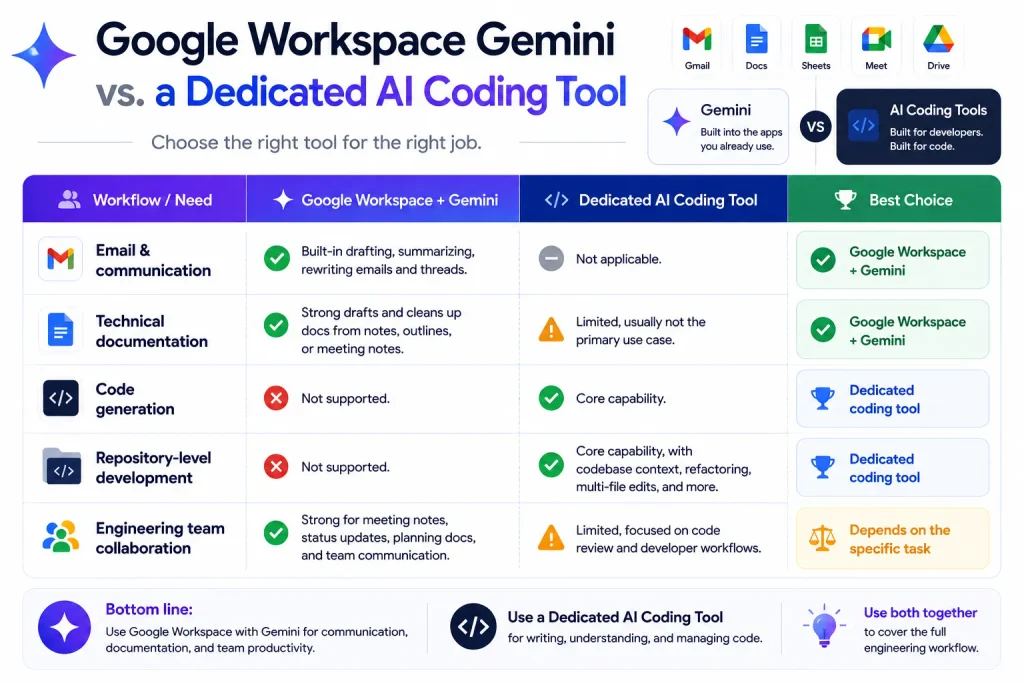
| Workflow / Need | Google Workspace +Gemini | Dedicated AI Coding Tool | Best Choice |
| Email & communication | Built-in drafting, summarizing, rewriting | Not applicable | Google Workspace + Gemini |
| Technical documentation | Strong drafts and cleans up docs from notes | Limited, usually not the primary use case | Google Workspace + Gemini |
| Code generation | Not supported | Core capability | Dedicated coding tool |
| Repository-level development | Not supported | Core capability, with codebase context | Dedicated coding tool |
| Engineering team collaboration | Strong for meeting notes, status updates, planning docs | Limited, focused on code review workflows | Depends on the specific task |
Best for Workspace productivity: Google Workspace with Gemini AI. Best for repository-level coding: A dedicated AI coding tool like Gemini Code Assist, GitHub Copilot, Claude Code, Cursor, or Codex CLI.
Frequently Asked Questions
What is Google Workspace with Gemini AI?
Google Workspace with Gemini AI is Google’s AI assistant built directly into Gmail, Docs, Sheets, Slides, Meet, and Drive. It works inside the app you’re already using rather than as a separate chat-bot, and its feature access depends on your Workspace plan.
Is Gemini AI included with Google Workspace?
Yes, on paid Workspace plans. Business Starter includes limited Gemini access, mainly in Gmail and Vids. Business Standard and above include full Gemini access across Docs, Sheets, Slides, Meet, Drive, and Chat.
Can Google Workspace Gemini help developers write code?
No, not directly. Gemini in Workspace apps operates on documents, emails, spreadsheets, and meetings; it doesn’t have repository access or IDE integration. For code generation or debugging, a dedicated tool like Gemini Code Assist, GitHub Copilot, or Claude Code is the right fit.
Is Google Workspace with Gemini AI worth it for developers?
It’s worth it if you’re already paying for Business Standard or above and want faster documentation, email drafting, and meeting notes. It’s not a substitute for a coding assistant, so evaluate it as a productivity tool rather than a development tool.
Can Gemini summarize Google Meet meetings?
Yes, on plans that include full Gemini access (Business Standard and above). Gemini in Meet can generate meeting notes and a summary during the call, which is particularly useful for stand-ups and sprint planning sessions.
Is Google Workspace with Gemini AI safe for business data?
Google describes Gemini in Workspace apps as running with enterprise-grade security and privacy protections consistent with the rest of the Workspace suite. For specifics on data retention and admin controls, check Google’s current Workspace security documentation directly, since these details are updated periodically.
What’s the difference between Gemini in Workspace and an AI coding assistant like Claude Code or Copilot?
Gemini in Workspace operates on documents, email, and meetings inside Google’s productivity suite. AI coding assistants like Claude Code or GitHub Copilot operate inside your IDE or terminal, with direct access to your code-base, and are built specifically for writing, explaining, and debugging code.
The Bottom Line
Google Workspace with Gemini AI is a solid productivity layer for the writing, documentation, and meeting overhead around every engineering job. It isn’t a coding tool. Stop evaluating it like one.
If you’re on Business Starter, check whether Standard actually unlocks anything your team would use before you pay for the upgrade. Already on Standard? Try Gemini in Meet during your next sprint planning call and see if the notes save you real time. For actual code, keep a dedicated coding assistant next to it instead of it.