FluxGrowth is reader-supported. Some links in our guides are affiliate links — if you buy through one we may earn a commission, at no extra cost to you. It never changes which tools we recommend. How we test tools.
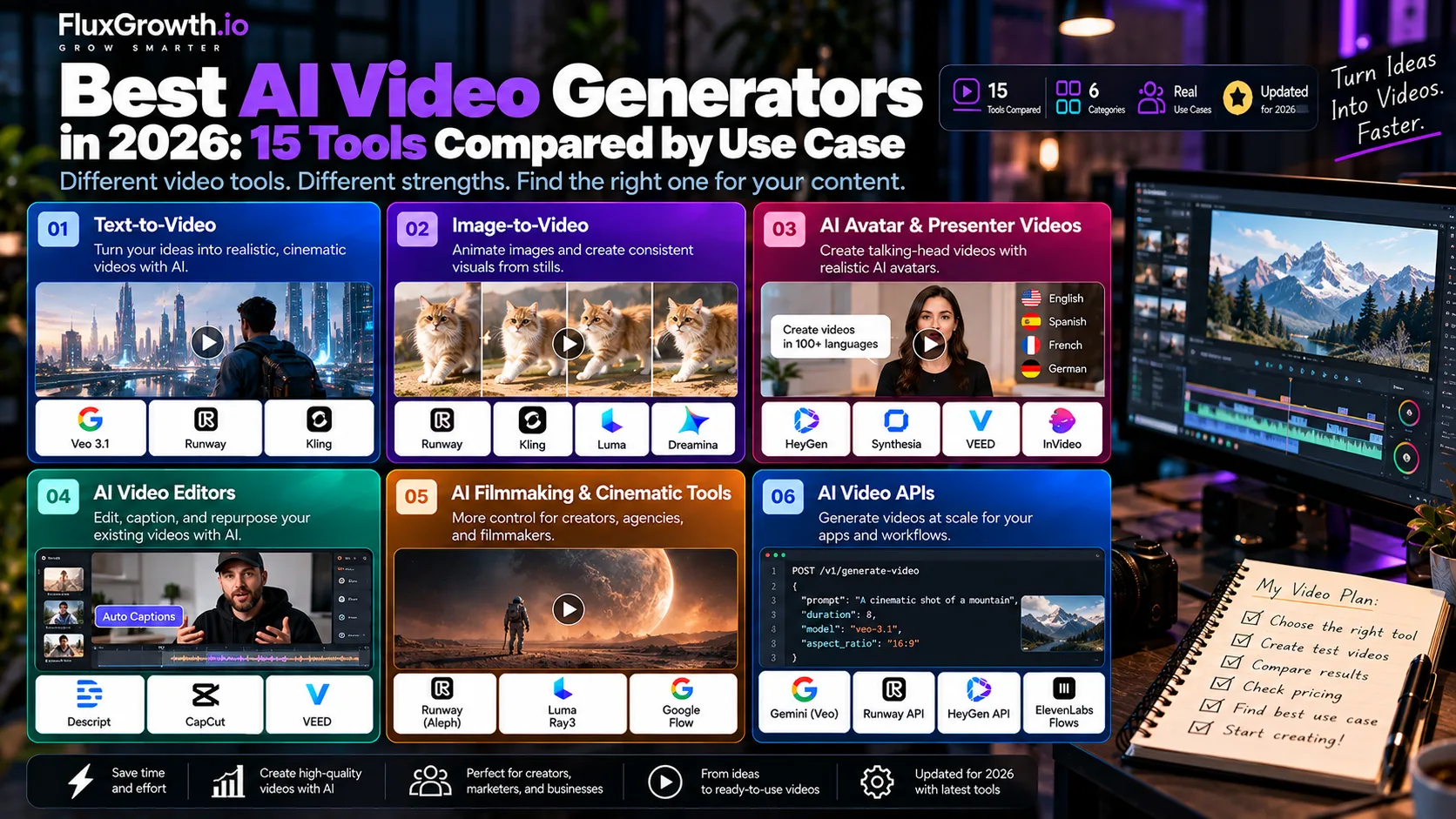
The best AI video generators in 2026 depend on the job. Google Veo 3.1, Runway, and Kling generate new footage, while HeyGen and Synthesia focus on avatar-presenter videos. Descript, CapCut, and VEED are primarily designed for editing existing content. No single tool is designed to handle every video workflow equally well.
Choosing a tool based only on a demo reel can lead to the wrong subscription. A cinematic-generation model may not be the right choice for an avatar video, while an editor may not provide the API access you need for an automated workflow.
This guide compares 15 tools based on what each platform does, current pricing, API availability, and commercial-use considerations.
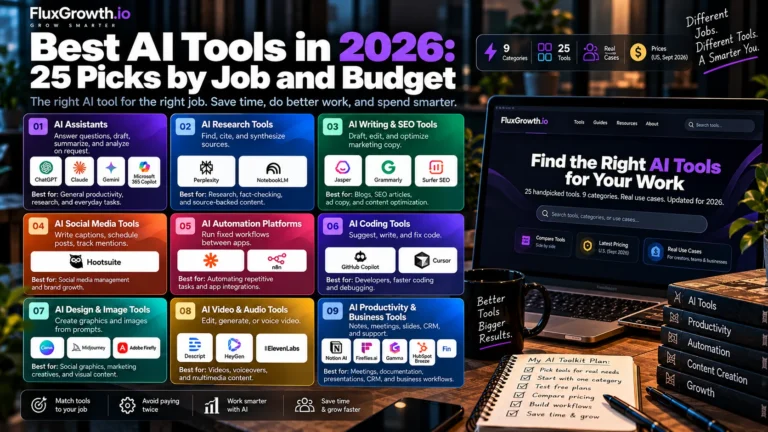
One warning before the list: the AI video market changes quickly. Treat pricing, features, and availability as a snapshot and confirm current details on each vendor’s official website before publishing or purchasing. For a broader look at current AI tools and their use cases, see our Best AI Tools in 2026: 25 Picks by Job and Budget guide.
What is an AI video generator?
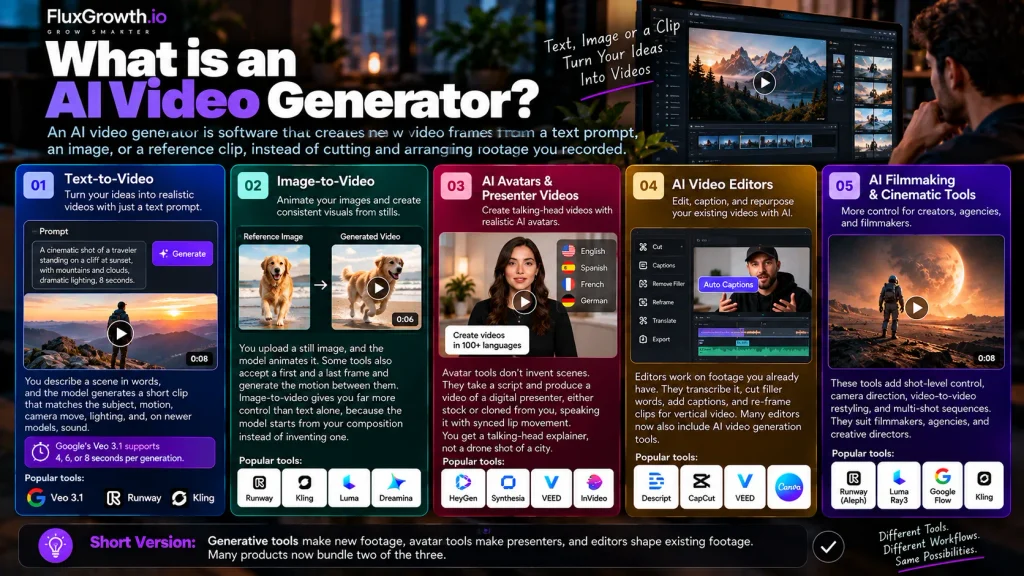
An AI video generator is software that creates new video frames from a text prompt, an image, or a reference clip, instead of cutting and arranging footage you recorded.
How text-to-video works
You describe a scene in words, and the model generates a short clip that matches the subject, motion, camera move, lighting, and, on newer models, sound.
How short? Google’s Veo 3.1 documentation lists 4, 6, or 8 seconds per generation.
How image-to-video works
You upload a still image, and the model animates it. Some tools also accept a first and a last frame and generate the motion between them. Veo 3.1 supports this. Image-to-video gives you far more control than text alone, because the model starts from your composition instead of inventing one.
How AI avatars differ from generative video
Avatar tools don’t invent scenes. They take a script and produce a video of a digital presenter, either stock or cloned from you, speaking it with synced lip movement. HeyGen and Synthesia sit here. You get a talking-head explainer, not a drone shot of a city.
How AI video editors differ from video generators
Editors work on footage you already have. They transcribe it, cut filler words, add captions, and re-frame clips for vertical video. The line is blurring, though. Descript’s Creator plan now includes generating video with outside AI models. Canva can create short clips inside its editor.
Short version: generators make new footage, avatar tools make presenters, and editors shape existing footage. Many products now bundle two of the three.
What types of AI video generators are there?
There are six practical categories. Most buyers need one or two.
Text-to-video
Text-to-video tools turn a written prompt into a clip. They suit marketers who need B-roll, concept shots, or ad variations without a shoot. Examples: Google Veo 3.1, Kling 3.0, Runway Gen-4.5.
Image-to-video
Image-to-video tools animate a still, such as a product photo, a character design, or a storyboard frame. They suit e-commerce teams and anyone who needs visual consistency across shots. Examples: Runway, Kling, Luma, Dreamina (Seedance).
AI avatar and presenter videos
These turn scripts into presenter-led videos, often in dozens of languages. They suit sales teams, L&D departments, and founders recording product walkthroughs at scale. Examples: HeyGen, Synthesia, and avatar features inside VEED and InVideo.
AI video editors
These speed up editing of real footage through transcription, captions, silence removal, and clip extraction. They suit YouTubers, podcasters, and course creators. Examples: Descript, CapCut, VEED.
AI filmmaking and cinematic tools
These add shot-level control: camera direction, video-to-video restyling, and multi-shot sequences. They suit filmmakers, agencies, and creative directors. Examples: Runway (including its Aleph editing model), Luma Ray3 Modify, and Google Flow.
AI video APIs
These let your code request videos directly, which is what you need for automation, batch jobs, and SaaS features. They suit developers and product teams. Examples: the Gemini API (Veo), the Runway developer API, the HeyGen API, and ElevenLabs’ Flows APIs.
The 15 best AI video generators in 2026
Tools are grouped by category, so jump to the type you need. Prices were last checked [ADD: verification date].
1. Google Veo 3.1
Best for: Realistic, cinematic clips with sound generated in the same pass.
What it does: Veo 3.1 is Google DeepMind’s video model family. It generates video from text or an image, with synchronized audio created in the same pass. It also supports first-and-last-frame transitions, reference images, and extending clips.
Creators use it through the Gemini app and Google Flow. Developers call it through the Gemini API.
Best use cases:
- Product B-roll with ambient sound
- Short cinematic ad spots
- Prototype scenes for app or landing-page videos
Strengths:
- Native audio generation in the same pass as the video
- Three tiers (standard, Fast, and Lite) to trade quality against cost
- Official Python and JavaScript SDKs with documented parameters
Limitations:
- Short clips: 4, 6, or 8 seconds per generation in current docs
- API access requires a paid tier
API Pricing (U.S.):
- Veo 3.1 Standard: $0.40/second at 720p or 1080p; $0.60/second at 4K
- Veo 3.1 Fast: $0.10/second at 720p; $0.12/second at 1080p; $0.30/second at 4K
- Veo 3.1 Lite: $0.05/second at 720p; $0.08/second at 1080p; 4K unavailable . See pricing guide
Who it fits: Marketers and developers who want top-tier realism backed by an official API.
Verdict: A safe default for realistic generated footage, as long as 8-second clips fit your edit.
Important correction: Don’t call it “Gemini Omni Flash” as a Veo 3.1 alternative without explaining that it is a separate Gemini video-generation/editing model. Also, avoid saying Veo 3.1 is a “safe default”; keep the verdict use-case based.
2. Runway (Gen-4.5)
Best for: Filmmakers and creative teams who want direct control over motion and shots.
What it does: Runway is a browser-based creative suite built around its own models. Gen-4.5 is its flagship for text-to-video and image-to-video, producing 2 to 10 second clips. Aleph 2.0 handles prompt-based edits of existing video. The developer API is billed separately from app plans.
Best use cases:
- Storyboards and per-visualization
- Stylized brand spots with specific camera moves
- Editing existing clips with text instructions (Aleph)
Strengths:
- Strong prompt adherence for complex camera and scene instructions
- Text-to-video and image-to-video
- API access with usage-based billing
- ProRes and PNG-sequence output are available for supported API workflows
Limitations:
- App credits run out fast. Runway’s pricing card equates Standard’s monthly credits to about 52 seconds of Gen-4.5.
- The free plan is 125 one-time credits, and output is watermarked.
Pricing: Runway’s web app currently includes 625 credits/month on Standard, 2,250 on Pro, and 9,500 on Max. For the developer API, credits cost $0.01 each, and Gen-4.5 costs 12 credits per second, equivalent to $0.12 per generated second. Source: Runway Dev API pricing
Who it fits: Editors, agencies, and dev teams who want a clean, documented API.
Verdict: Choose Runway when control matters more to you than realism per dollar.
3. Kling AI (Kling 3.0)
Best for: Realistic human motion and longer single shots.
What it does: Kling is Kuaishou’s video platform. Kling 3.0 generates video and audio from one model, with up to 15 seconds per shot, native 4K, and lip-synced dialogue in five languages. Kling 3.0 Omni adds control over shot duration, camera angle, and character movement across multi-shot sequences.
Best use cases:
- People-focused ads and UGC-style clips
- Animating product or character images
- Short multi-shot narratives
Strengths:
- Up to 15-second generations
- Native audio and lip-sync
- Character and element consistency
- 4K output on supported models
- Official developer API available
Limitations:
- Its moderation has drawn criticism, including reports in 2024 that it censored politically sensitive prompts.
- Fake “Kling AI” ads have been used to spread malware. Sign up only through the official kling.ai site.
Pricing: Kling’s current web app shows plans starting at $6.99, while API usage is sold through separate resource packages. Kling’s official API documentation provides model-specific credit rates rather than a single flat monthly API price.
Who it fits: Social marketers and creators making people-heavy content.
Verdict: Strong value for realistic motion. Read the privacy terms before you upload client assets.
4. Dreamina (ByteDance Seedance)
Best for: Reference-driven video with audio, if it’s available in your account.
What it does: Dreamina is ByteDance’s creative AI platform. Its Seedance models support video generation from text and visual references, with features and availability varying by model and region. Do not state that Seedance 2.0 or 2.5 has a specific 15-second limit or API availability without checking the current Dreamina documentation.
Best use cases:
- Character-consistent short scenes
- Motion-heavy clips like fitness or cooking demos
- Animating product photos with a reference style
Strengths:
- Supports multimodal creative workflows
- Strong emphasis on reference-based generation
- Connected to ByteDance’s broader creator ecosystem
Limitations:
- Feature availability can vary by region and account.
- Commercial-use, copyright, and content-policy terms should be checked before client work.
- Independent benchmark rankings can change, so cite the specific benchmark and date if you include one.
Pricing: Dreamina uses a credit-based model, but pricing and available plans can vary by region. Verify the current U.S. pricing directly on Dreamina before publication.
Who it fits: Experienced creators who will read the current US terms before using it commercially.
Verdict: Impressive output. Keep it off client work until you’ve read the current US commercial terms yourself.
5. Luma (Ray3 family)
Best for: Cinematic image-to-video and HDR output for color-graded pipelines.
What it does: Luma’s current video model is Ray3.2, which replaced earlier Ray3-family models as the current model. Luma supports text-to-video, image-to-video, video-to-video editing, HDR, and HDR+EXR workflows.
Best use cases:
- Mood and atmosphere shots
- Restyling footage you already shot
- HDR plates for colorists
Strengths:
- HDR/EXR output that fits professional grading workflows
- Video-to-video editing of real performances
- Also available as a partner model inside Adobe Firefly
Limitations:
- Ray3.14 is not currently available through the API; it is available through the Dream Machine web version.
- Free and Lite generations are for personal/non-commercial use and include watermarks.
- Luma’s current platform has shifted toward Luma Agents, so older Dream Machine pricing comparisons may be outdated.
Pricing: Luma’s current individual plans are Plus $30/month, Pro $90/month, and Ultra $300/month. Annual billing is $300, $900, and $3,000 respectively.
Who it fits: Video professionals, colorists, and filmmakers.
Verdict: The one to test if HDR or restyling live-action footage matters to you.
6. Pika (Pika 2.5)
Best for: Fast, stylized social clips and effects on a small budget.
What it does: Pika has moved away from competing on raw realism. On Pika 2.5 it focuses on effects, an agent, and an MCP server, plus features like Pikaswaps and Pikaframes.
Best use cases:
- Effect-driven social posts
- Quick creative variations for testing
- Driving generation from an AI assistant through MCP
Strengths:
- Low entry price
- Effects built for social formats
- MCP server for assistant-driven workflows
Limitations:
- A June 2026 hands-on review found it handles short social clips well but struggles with complex scenes that have many elements.
- Short clips, and free-plan details conflict across sources (see Pricing).
Pricing: Pika’s current web pricing shows a Free plan with 80 monthly video credits. Paid plans and credit amounts vary by billing option. The API uses separate usage-based pricing; Pika 2.5 starts at $0.04/second for 720p and $0.06/second for 1080p for supported configurations.
Who it fits: Social media managers and creators who want playful output.
Verdict: Cheap and fun. Not the tool for realistic footage.
7. Adobe Firefly
Best for: Brand teams that care about commercial safety and already work in Creative Cloud.
What it does: Firefly generates video from text or an image using Adobe’s own Firefly Video Model. It also offers partner models, including Veo 3.1, Kling 3.0, Runway Gen-4.5, and Luma Ray3.14, under one login and one credit pool.
Best use cases:
- Brand campaigns where the legal team reviews assets
- Extending clips inside Premiere Pro
- Comparing several models on the same prompt
Strengths:
- Many leading models in one interface
- Adobe calls its own models “commercially safe” because they’re trained on content Adobe has rights to use
- Fits existing Adobe workflows
Limitations:
- The commercial-safety positioning covers Adobe’s own models, not partner models. Adobe states that partner models are not developed by Adobe.
- Partner models use credits quickly. Adobe lists Kling 3.0 Omni at 20 to 40 credits per second, depending on resolution, audio, and mode.
Pricing: Firefly offers Free, Standard, Pro, and Premium plans. Paid tiers include 2,000, 4,000, and 50,000 monthly generative credits, respectively. Check Adobe’s official pricing page for the latest U.S. prices and promotions.
Who it fits: Agencies and in-house brand teams.
Verdict: The most defensible pick for legally cautious teams. Use the native model when rights matter most.
8. HeyGen
Best for: Realistic avatar presenters, video translation, and avatar APIs.
What it does: HeyGen turns a script into a video of a stock or custom avatar, and translates existing videos with lip sync. Its standard Avatar III costs 3 credits per minute. The more realistic Avatar IV and V cost 20 credits per minute.
Best use cases:
- Personalized sales and outreach videos
- Product explainers in multiple languages
- Interactive avatars inside apps
Strengths:
- Avatar IV available
- 175+ languages and dialects on paid plans
- Voice cloning
- Developer API with pay-as-you-go billing
- MCP and direct API access
Limitations:
- Premium avatars use credits about seven times faster than standard ones.
- Third-party sources disagree on current plan prices and credit counts.
Pricing: Free; Creator $29/month or $24/month billed annually with 600 credits; Pro starts at $49/month with 1,000 credits; Business $149/month + $20 per additional seat. The HeyGen API is separate and uses pay-as-you-go billing starting at $5.
Who it fits: Marketers, founders, and developers building avatar features.
Verdict: The default avatar pick for small teams and developers.
9. Synthesia
Best for: Enterprise training, L&D, and internal communications at scale.
What it does: Synthesia turns scripts into presenter videos with stock or custom avatars in many languages, with admin and security features aimed at large organizations.
Best use cases:
- Compliance and onboarding training
- Internal announcements
- Localized L&D courses
Strengths:
- ISO 27001, 27701, and 42001 certifications, per third-party reporting.
- Minute-based plans are easier to budget than credit tiers
- A webcam-made personal avatar is included from the Starter plan up
Limitations:
- A studio-shot avatar costs $1,000/year as an add-on.
- API access is tied to higher plans.
Pricing: Synthesia offers Basic (Free), Starter, Creator, and Enterprise plans. Starter costs $29/month or $18/month when billed annually, while Creator costs $89/month or $64/month billed annually. Starter includes up to 10 minutes of video per month, and Creator includes up to 30 minutes. Enterprise pricing is custom.
Who it fits: HR, L&D, and enterprise communications teams.
Verdict: The better fit when passing a security review matters more than avatar realism.
10. Descript
Best for: Editing talking-head video by editing its transcript.
What it does: Descript transcribes your footage so you can cut video by deleting text. Its AI co-editor, Underlord, removes filler words, tightens cuts, improves audio, and adds captions. The Creator plan adds generating video with outside AI models.
Best use cases:
- YouTube videos and podcasts
- Course and tutorial content
- Recorded product demos
Strengths:
- Text-based editing is fast for speech-heavy content
- Studio Sound audio cleanup
- Clip creation for social repurposing
Limitations:
- Not a cinematic generator
- Media hours and AI credits are capped separately, so heavy AI use can hit limits before editing does
Pricing: Free; Hobbyist $24/month or $16/month billed annually; Creator $35/month or $24/month billed annually; Business $65/month or $50/month billed annually. Enterprise pricing is custom.
Who it fits: Creators, educators, and product marketers who record themselves.
Verdict: Use Descript for what you record, and a generator for the shots you can’t film.
11. InVideo AI
Best for: Turning a prompt into a finished marketing or faceless video draft.
What it does: You type a brief, and InVideo AI writes the script, adds narration, sources stock footage, and edits the result. Its v4 agent is advertised as producing up to 30 minutes of video from one prompt. Generative models inside it are charged through credits.
Best use cases:
- Faceless YouTube content
- Quick explainer and ad drafts
- High-volume social video
Strengths:
- End-to-end workflow in one tool
- Avatars and voice clones on paid plans
- Large built-in stock library
Limitations:
- InVideo doesn’t publish how many credits a finished video costs.
- Credits don’t roll over, and generative models use them quickly.
Pricing: Current InVideo pricing has changed from the older Plus/Max/Generative/Elite structure in your draft. The current pricing page shows Starter at $20/month billed annually, Plus at $50/month, and Max at $100/month billed annually. The exact plans and credit allocations can vary by configuration, so verify the pricing page immediately before publication.
Who it fits: Solo marketers and faceless channel operators.
Verdict: The fastest route from idea to rough cut. Plan to edit the result.
12. Canva
Best for: Short branded clips inside the design tool your team already uses.
What it does: Canva’s Create a Video Clip feature uses Google’s Veo 3 to turn a text prompt into an 8-second clip with synchronized sound. You can then drop the clip into Canva’s editor alongside your brand assets.
Best use cases:
- Social post animations
- Short intro clips for presentations
- Quick visuals for non-editors
Strengths:
- No new tool to learn
- Brand kit and templates in the same workspace
- Sound generated with the clip
Limitations:
- AI video generation is designed for short clips rather than long-form video production.
- AI generation uses plan-specific credits/limits, so heavy users should check their current allowance.
- Canva is primarily an all-in-one design platform rather than a dedicated cinematic video-generation platform.
Pricing:Canva offers Free, Pro, Business, and Enterprise plans. The exact U.S. price and AI usage allowance can vary by plan and billing option, so for publication, use Canva’s current official pricing page rather than an older fixed price.
Who it fits: Social media teams and non-editors.
Verdict: Fine for a quick social clip. For anything past 8 seconds, go to Veo 3.1 directly.
13. CapCut
Best for: Short-form vertical editing for TikTok, Reels, and Shorts.
What it does: CapCut is ByteDance’s video editor with auto-captions, templates, AI edits, and avatars. ByteDance began rolling out Seedance 2.0 in CapCut’s AI Video and Video Studio features on March 26, 2026.
Best use cases:
- Vertical social edits with trending templates
- Auto-captioned clips
- Quick generation inside an editor, where available
Strengths:
- Built for short-form formats
- Mobile and desktop apps
- Sequence generation inside the editor, in supported markets
Limitations:
- Sequence availability can vary by market, account, and rollout status. Verify that Seedance is available in your U.S. CapCut account before relying on it for production workflows.
- If your company restricts ByteDance-owned software on work devices, CapCut may not be permitted regardless of its features.
Pricing: CapCut offers Free, Standard, and Pro plans. CapCut’s current pricing varies by region, platform, account, taxes, and promotional offers, so there is no single U.S. price that applies to every user. The company recommends checking the subscription checkout page for the latest price.
Who it fits: Creators and social managers.
Verdict: Strong for vertical editing. Confirm the generation features work in your US account before paying for them.
14. VEED
Best for: Browser-based editing, subtitles, and translation for small teams.
What it does: VEED is an online editor with auto-subtitles, text-to-speech, voice cloning, lip sync, AI dubbing, and AI avatars.
Best use cases:
- Captioning and repurposing webinars
- Translating and dubbing clips
- Quick team edits with no install
Strengths:
- Works directly in the browser
- AI dubbing with multiple supported languages
- Text-to-speech and voice cloning
- AI-generated videos from prompts or scripts
- Brand and team features on paid plans
Limitations:
- The free plan exports at 720p with a watermark.
- It’s an editor first, not a cinematic generator.
Pricing: I would remove the draft figures $12 / $24 / $39 unless you verify them directly in the current U.S. VEED pricing interface. The available current sources do not provide sufficiently reliable official evidence for those exact figures.
Who it fits: Small marketing teams and course creators.
Verdict: A dependable all-rounder for captions and repurposing.
15. ElevenLabs
Best for: Adding studio-quality voice, music, and lip sync to generated video in one workflow.
What it does: ElevenLabs Image & Video (in beta since November 2025) lets you generate video with third-party models, including Veo, Kling, Wan, and Seedance, and then add ElevenLabs voices, music, sound effects, and lip sync. In August 2026, it added asynchronous Flows APIs that create and retrieve video, image, and speech generations.
Best use cases:
- Narrated product videos
- Dubbed or localized clips
- API pipelines that chain image, video, and voice jobs
Strengths:
- Mature voice and audio stack
- Chainable generation jobs through the API
- An MCP connector for AI assistants
Limitations:
- No in-house video model. You’re using other companies’ models.
- Video generation needs a paid plan and is still labeled beta. Its model list also changes; Sora was removed in September 2026.
Pricing: Image & Video uses credits, with costs varying by model, resolution, duration, and settings. ElevenLabs shows the exact credit cost before generation; video is available on paid plans.
Who it fits: Creators and developers whose videos depend on voice.
Verdict: Pick ElevenLabs for the voice work. The video models are a convenience on top.
How do the top AI video generators compare?
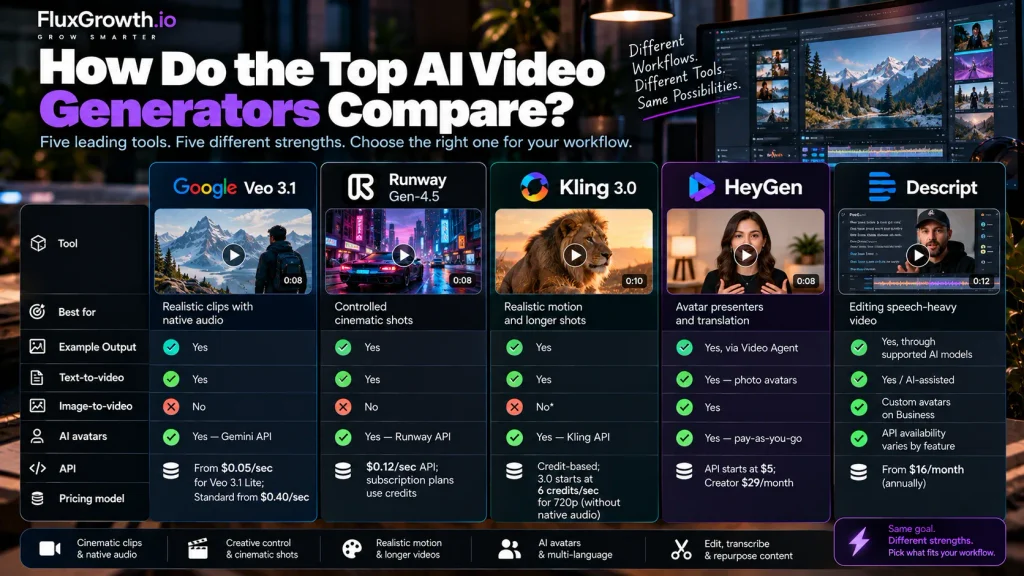
This table compares five representative tools, one per major workflow. It isn’t a ranking.
| Tool | Best for | Text-to-video | Image-to-video | AI avatars | API | Pricing model |
| Google Veo 3.1 | Realistic clips with native audio | Yes | Yes | No | Yes — Gemini API | From $0.05/sec for Veo 3.1 Lite; Standard from $0.40/sec |
| Runway Gen-4.5 | Controlled cinematic shots | Yes | Yes | No | Yes — Runway API | $0.12/sec API; subscription plans use credits |
| Kling 3.0 | Realistic motion and longer shots | Yes | Yes | No* | Yes — Kling API | Credit-based; 3.0 starts at 6 credits/sec for 720p without native audio |
| HeyGen | Avatar presenters and translation | Yes, via Video Agent | Yes — photo avatars | Yes | Yes — pay-as-you-go | API starts at $5; Creator $29/month |
| Descript | Editing speech-heavy video | Yes, through supported AI models | Yes/AI-assisted | Custom avatars on Business | API availability varies by feature | From $16/month annually |
Use-case takeaways:
- Cinematic generation: Veo 3.1 for realism with sound. Runway for shot control. Kling when you need longer shots of people.
- Avatar videos: HeyGen for small teams and developers. Synthesia for enterprise security reviews.
- Social media production: CapCut, Canva, or VEED for speed. Add Pika for effects.
- Developer and API workflows: The Gemini API (Veo), Runway Dev, the HeyGen API, and ElevenLabs Flows all have documented endpoints.
What happened to Sora, and why vendor risk matters
Sora is the clearest warning in this market: a flagship AI video product can disappear within a year.
OpenAI released Sora 2 on September 30, 2025, and ended free-tier access on January 10, 2026.
OpenAI discontinued the Sora web and mobile experiences on April 26, 2026, and plans to discontinue the Sora API on September 24, 2026. OpenAI recommends exporting Sora content before the final shutdown.
If you’d built a product feature on Sora’s API, you had about six months to migrate. Six months. For a feature your customers might depend on.
Here’s the thing: any model on this list could go the same way. Treat your video provider like any other third-party dependency, and build three habits:
- Wrap the provider. Put every video call behind your own generateVideo() function so switching from Veo to Runway means changing one adapter, not your whole app.
- Keep prompts portable. Store prompts, reference images, and settings in your own database, not only in a vendor’s project history.
- Watch deprecation pages. OpenAI and Google publish model retirement and deprecation information for their AI APIs. Check the official deprecation documentation before relying on a specific model or API version in production.
Multi-model hubs like Adobe Firefly, InVideo AI, and ElevenLabs soften this risk for non-developers. When a model disappears, you pick another from the same menu.
How do you choose the right AI video generator?
Most bad purchases start with a feature list. Start instead with the kind of video you’re making, then work through the rest.
Choose based on video type
Generated scenes point to Veo, Runway, Kling, or Luma. Presenter videos point to HeyGen or Synthesia. Edits of your own recordings point to Descript, CapCut, or VEED.
Choose based on quality requirements
A paid social ad and a Slack update have different standards. Test your hardest shot, like hands, faces, or text on screen, before committing.
Choose based on workflow speed
Prompt-to-video tools like InVideo AI produce a full draft fastest. Generators give better shots but need editing afterward.
Choose based on budget
Compare the cost per usable second. The pricing section below shows how a $15 plan can run out in under a minute of footage.
Choose based on commercial usage
Check that your plan grants commercial rights. Free tiers often don’t.
Choose based on API and automation needs
If the video must happen without a human clicking, you need a documented API. Veo, Runway, HeyGen, and ElevenLabs have one.
Choose based on privacy and data handling
Read how the provider stores and trains on your uploads, especially for client footage and faces.
Choose based on team collaboration
Seats, shared brand kits, and admin controls matter more at five users than at one.
A quick decision framework:
- What am I making: new footage, a presenter, or an edit?
- What’s the longest single shot I need?
- Does anything need to run automatically?
- Can I legally use the output where I plan to publish it?
- What will one finished minute cost me, including retries?
Free vs. paid AI video generators: what’s the difference?
A free plan tells you whether a tool can make your shot. It won’t carry a real workflow, because of five limits:
- Small or one-time credit grants. Runway gives 125 credits once, which is about 10 seconds of Gen-4.5 video.
- Watermarks on exports.
- Lower resolution. VEED’s free plan exports at 720p.
- Restricted commercial rights, depending on the provider.
- Locked features. Canva’s Veo-powered video clips need a paid plan, and so does video generation in ElevenLabs.
Some free plans are still useful for experimentation. Descript offers free video and audio editing with transcription, while Pika currently offers a Free plan and lets users purchase additional credit packs.
Best use of a free plan? Run one identical test prompt through two tools and compare the results.
How does AI video generator pricing work?
AI video tools use at least seven pricing models, and headline monthly prices hide most of the real cost.
- Monthly subscriptions: a fixed monthly price with a credit or minute allowance.
- Annual subscriptions: 15 to 20 percent cheaper on the plans in this guide. Runway’s annual Standard plan is $12 versus $15 monthly (20 percent off), and InVideo charges about 15 percent more for monthly billing.
- Credits: the most common unit, but a credit buys different amounts per model. On Runway, Gen-4.5 uses 12 credits per second and Gen-4 Turbo uses 5.
- Per-second output: common on APIs. Runway Gen-4.5 costs $0.12 per generated second.
- Per-minute avatar pricing: HeyGen charges by avatar tier, from 3 to 20 credits per minute.
- Per-seat business pricing: editors like Descript and VEED charge per user.
- API usage: billed separately from app plans at Runway, HeyGen, and ElevenLabs.
Worked example: Say you need ten usable 5-second Gen-4.5 clips a month, and each keeper takes three attempts (retries are the cost nobody puts on the pricing page). That’s 150 generated seconds.
Through Runway’s API, 150 seconds of Gen-4.5 costs about $18 at $0.12 per second. Runway’s Standard plan is $15/month when billed monthly and provides 625 credits; at 12 credits per second for Gen-4.5, that works out to roughly 52 seconds of generation.
The catch: the API gives you no editor. You’re paying for code access, and someone has to write the code.
How can developers use AI video generators?
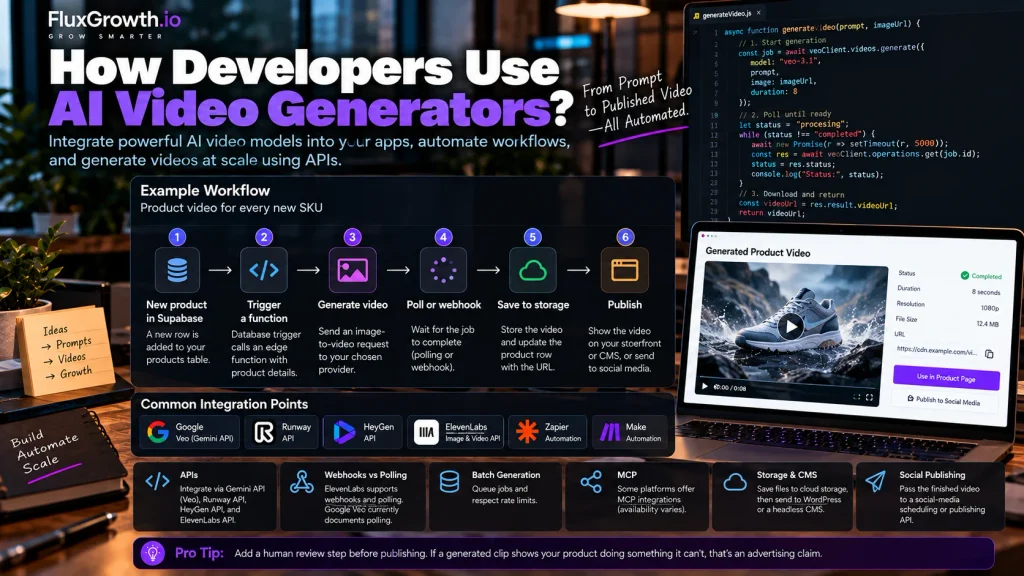
Developers use AI video generators as backend services: your code sends a prompt or image, waits for the job to finish, and stores the result. Google’s Veo quickstart shows this pattern. It starts a long-running operation, polls until it’s done, then downloads the file.
Common integration points:
- APIs: Gemini API (Veo), Runway API, HeyGen API, and ElevenLabs Image & Video API.
- Webhooks vs. polling: Providers differ. ElevenLabs supports web-hooks for completed video generations and also supports polling; Google Veo currently documents polling for long-running operations.
- Automation platforms: Zapier and Make can connect generation workflows where the required app/API integration is available.
- Batch generation: Queue jobs and respect each provider’s rate limits.
- MCP: Some AI-video platforms provide MCP integration’s, but availability varies by provider and should be verified before publication.
- Storage and CMS: Save completed files to cloud storage, then send them to WordPress or a headless CMS.
- Social publishing: Pass the finished video to a social-media scheduling or publishing API where supported.
Example pipeline: a product video for every new SKU
- A new row is inserted into your products table in Supabase.
- A database trigger calls an edge function with the product photo URL and description.
- The function sends an image-to-video request to your chosen provider through your own generateVideo() wrapper.
- A worker polls the job, or receives a webhook, until the video is ready.
- The file is saved to storage, and its URL is written back to the product row.
- Your storefront or CMS shows the video automatically.
Add a human review step before anything is published. If a generated clip shows your product doing something it can’t, that’s an advertising claim you’re now making.
What should you check for privacy, copyright, and commercial use?
Commercial-use terms vary by provider, model, and plan, so check the terms for the exact plan you pay for. This section isn’t legal advice. Review these points with the provider’s documentation, and with counsel for high-stakes work:
- Training-data policy: Will your uploads be used to train models? Is there an opt-out?
- Input ownership: Do you keep full rights to the images, footage, and voices you upload?
- Output ownership and commercial rights: Does your plan grant commercial use? Free tiers often don’t.
- Partner-model terms: On hubs like Adobe Firefly, each partner model can carry its own terms.
- Voice and likeness permissions: Only clone voices and faces you have written consent to use.
- Copyright exposure: Seedance 2.0’s clash with Hollywood studios shows that output resembling real actors or IP creates risk regardless of which tool made it.
- Data retention: How long are your uploads and outputs stored?
- Enterprise controls: SSO, audit logs, and certifications like ISO 27001 matter for regulated industries.
- Content provenance: Veo 3.1 supports C2PA Content Credentials on Google Cloud, which helps show a clip was AI-generated.
Which AI video generator should you use?
For cinematic AI video: Start with Veo 3.1 for realism with sound, and use Runway when you need precise camera direction. Add Luma if you grade in HDR.
For AI avatar videos: Use HeyGen for small teams, sales outreach, and developer integration’s. Use Synthesia when IT and legal need certifications and predictable minutes.
For YouTube creators: Edit in Descript, and generate B-roll with Veo or Kling. Faceless channels can draft in InVideo AI and polish from there.
For social media marketers: Edit in CapCut, Canva, or VEED, and use Pika for effect-driven posts. Test Kling for realistic people.
For developers: Choose providers with documented APIs (Veo through the Gemini API, Runway Dev, HeyGen, ElevenLabs), and wrap them so you can switch.
For businesses: Prioritize commercial rights and data handling. Adobe Firefly’s native model and Synthesia’s enterprise controls are the most defensible starting points.
FAQ
What is the best AI video generator in 2026?
The best AI video generator in 2026 depends on what you’re making. Google Veo 3.1 and Kling 3.0 fit realistic generated footage, and Runway Gen-4.5 fits shot control. HeyGen and Synthesia fit presenter videos, while Descript fits editing your own recordings.
What is the best free AI video generator?
Kling is a practical option for testing AI video generation, while Descript’s free plan is better suited to basic editing and transcription. Free plans commonly impose limits on credits, features, resolution, or exports, so treat them as a way to evaluate a workflow rather than assume they are suitable for ongoing commercial production.
Which AI video generator is best for realistic videos?
Google Veo 3.1 and Kling 3.0 are the leading choices for realistic footage. Veo 3.1 generates synchronized audio with the video, and Kling 3.0 supports up to 15 seconds per shot with lip-synced dialogue. Test both on your hardest shot, such as faces or hands, before choosing.
Which AI video generator is best for YouTube?
For YouTube, most creators need an editor more than a generator. Descript speeds up editing talking-head videos through its transcript, and tools like Veo or Kling can supply B-roll. Faceless channels often draft full videos in InVideo AI.
Can AI video generators be used commercially?
Yes, but commercial rights depend on the provider, the model, and your plan. Many free plans restrict commercial use, and multi-model hubs can apply different terms to different partner models. Always check the current terms for the exact plan you use.
Can developers use AI video generators through an API?
Yes, several providers offer documented APIs. Google offers Veo through the Gemini API, Runway through its developer API, HeyGen through a pay-as-you-go API, and ElevenLabs through its Flows APIs. API billing is usually separate from app subscriptions.
Is Sora still available in 2026?
No. OpenAI discontinued the Sora web and mobile experiences on April 26, 2026, and scheduled the Sora API for discontinuation on September 24, 2026. Developers looking for similar AI-video workflows should evaluate currently available alternatives such as Google Veo, Runway, and Kling.
Conclusion
There’s no single best AI video generator for every workflow in 2026. The right tool depends on your video type, quality bar, budget, commercial rights, workflow, and whether anything needs to run through an API.
So don’t pick from a ranking. Choose two tools that match your use case, run the same short prompt in both, and compare the output, the real cost per usable clip, the editing work afterward, and the licensing terms. One afternoon of side-by-side testing will tell you more than any list, this one included.